JeanCarl's Adventures

Project 8: Penny Saver with Venmo

June 30, 2015 | 15 Projects in 30 days

One of the reasons why I enjoy building things quickly with APIs is started because of hackathons. Or rather, I’ve developed the interest in APIs because of hackathons. For those who aren’t familiar with hackathons, developers and others get together and build ideas they come up with over a short period of time, usually a weekend. They show off their concepts and prototypes and are judged, for either prizes or glory.

Having been to over a hundred hackathons in the past five years has certainly helped with building things quickly. In fact, the 15 projects in 30 days challenge has literally felt like 8 back-to-back hackathons for me thus far. With hackathons happening every weekend, it wasn’t long before another hackathon happened.

This summer, ChallengePost is hosting eight online hackathons that are part of their Summer Jam series. The Financial Literacy hack is sponsored by Venmo, a fun platform where you can send money to and receive money from friends in a social network type experience. Their API is really easy to use, just like their website and app. I submitted a project to this competition, and thought I would share the process that I took as my eighth project.

I wanted to show the power of saving money, and how saving money for unexpected situations or causes like donations can be taught with a simple automatic activity. Often times, we might find ourselves short of funds and just need a few extra dollars to spend on something. This project will show how to proactively create those extra few dollars (or more, if desired)?

For my eighth project in my 15 projects in 30 days challenge, I am building Penny Saver. When authorized by a Venmo user, Penny Saver will check the account balance each day. For example, if there are any pennies in the amount, like 83 cents in the balance $4.83, Penny Saver will automatically deduct 83 cents from the account and keep it in a separate account. It might be helpful to also have a threshold amount that prevents the account balance from dropping below a certain amount.

If you’re an active Venmo user where each day you have pennies left over, this could end up being an extra $15 to $30 at the end of the month. At anytime, you can charge the penny saver account an amount up to the amount saved, and get these funds back in your account immediately. However, the goal would be to never need to take this money back and instead use it for a good cause, such as donating to a charity.

Venmo

You’ll need to set up an app to get an app id and app secret. Change the IP address to point to where you host the app so that the login flow will redirect back to the app correctly.
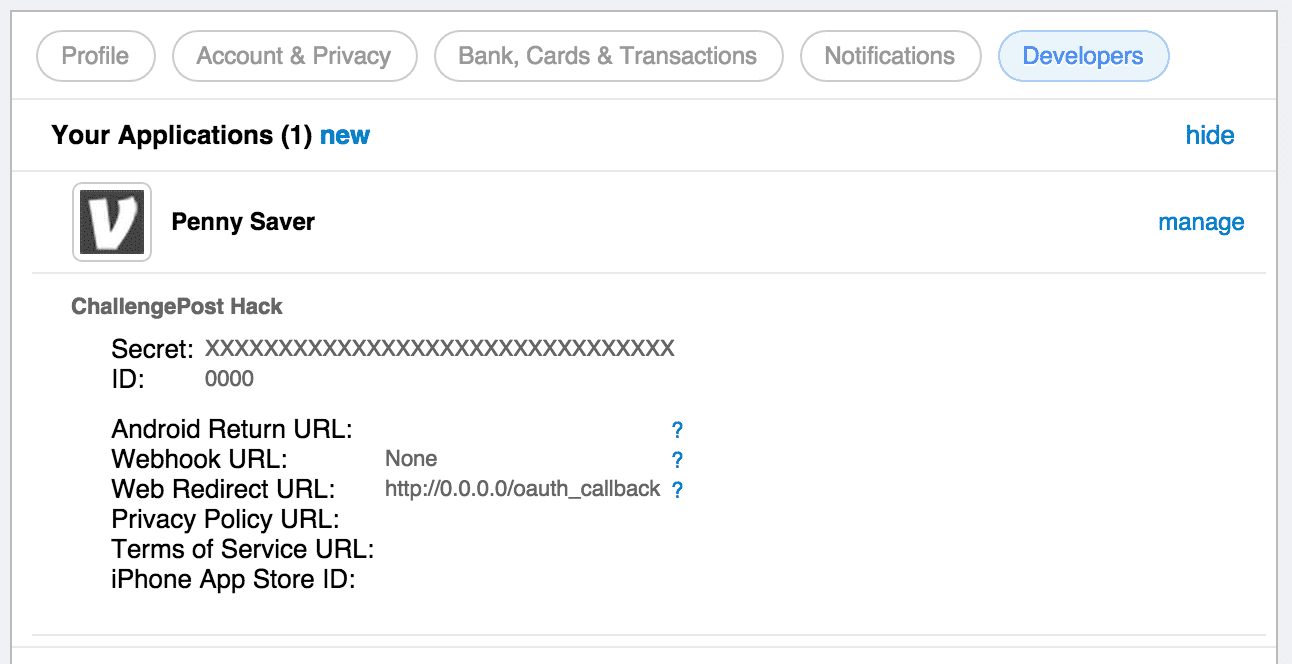
Photo

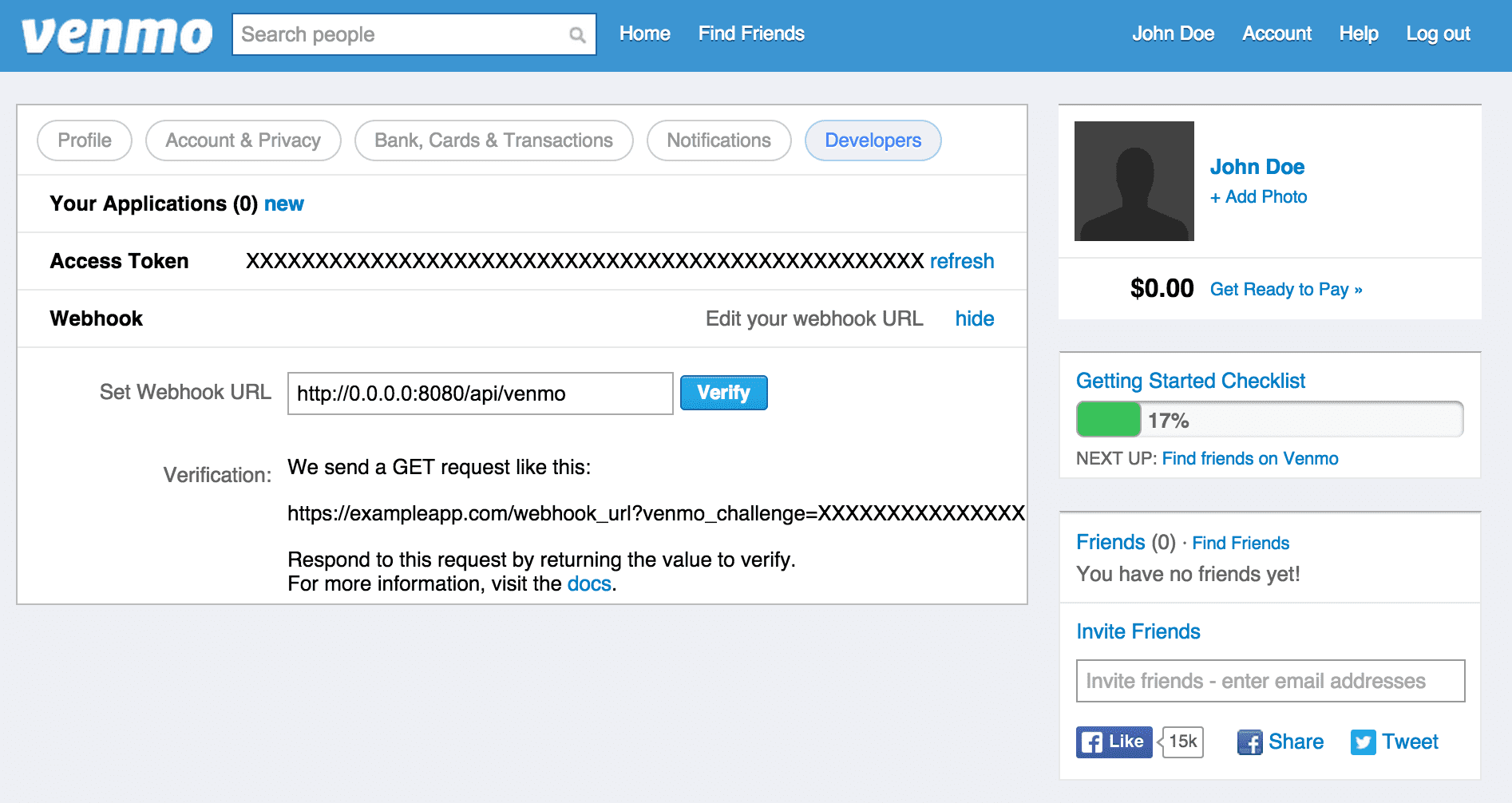
You will also need an access token for the Venmo account that the funds will be saved into and charged to when funds are requested by a contributor. Change the IP address of the webhook that will be notified when payments and charges are made to this account.
Photo

Setup

There are three files for this project. The AngularJS app uses index.html and pennysaver.js in the public folder to explain how the process works. app.js is the Node.js app that handles the OAuth callback and webhook endpoint for Venmo, and also handles checking accounts and collecting amounts each day.

If you haven’t installed Node.js or MongoDB, you can check out my other projects for instructions on how to do so.

// Filename: app.js
var PAY_FROM_TOKEN = '';
var CLIENT_ID = '';
var CLIENT_SECRET = '';
var PAY_FROM_USER_ID = '';
var MONGODB_ADDRESS = 'mongodb://127.0.0.1:27017/test';

var PORT = 80;
var NEXT_CHECK_INTERVAL = 24*60*60; // time in seconds between Venmo checks (default 1 day)
var DB_CHECK_INTERVAL = 60; // how often in seconds to check db for users to check Venmo.

var express = require('express');
var app = express();
var bodyParser = require('body-parser');
var mongoose = require('mongoose');
var url = require('url');
var cookieParser = require('cookie-parser');
var session = require('express-session');
var MongoStore = require('connect-mongo')(session);
var request = require('request');

mongoose.connect(MONGODB_ADDRESS);

app.use(bodyParser.json());
app.listen(PORT);
app.use(cookieParser());
app.use(session({
    store: new MongoStore({ mongooseConnection: mongoose.connection }),
    secret: '1234567890QWERTY'
}))

var UserModel = mongoose.model('Users', {
  userid: String,
  balance: String,
  accessToken: String,
  tokenExpires: Number,
  refreshToken: String,
  nextCheck: Number,
  threshold: String
});

function ignoreCharge(paymentId, callback) {
  request({
    url: 'https://api.venmo.com/v1/payments/'+paymentId,
    qs: {
      access_token: PAY_FROM_TOKEN,
      action: 'deny'
    },
    method: 'PUT',
  },
  function(err, response, body) {
    if(err || response.statusCode != 200) {
      console.log(err);
    } else {
      console.log('payment ignored');
      if(callback) 
        callback();
    }
  });
}

function approveCharge(paymentId, callback) {
  request({
    url: 'https://api.venmo.com/v1/payments/'+paymentId,
    qs: {
      access_token: PAY_FROM_TOKEN,
      action: 'approve'
    },
    method: 'PUT',
  },
  function(err, response, body) {
    if(err || response.statusCode != 200) {
      console.log(err);
    } else {
      console.log('payment approved');
      if(callback) 
        callback();
    }
   });
}

function pay(from_token, to, amount, reason, callback) {
  request({
    url: 'https://api.venmo.com/v1/payments?access_token='+from_token,
    qs: {
      user_id: to,
      note: reason,
      amount: amount,
      audience: 'private'
    },
    method: 'POST',
  },
  function(err, response, body) {
      if(err || response.statusCode != 200) {
        console.log(err);
      } else {            
        console.log('payment made');
        if(callback) 
          callback();
      }
  });
}

// To setup Venmo app, use /api/venmo as the webhook verification URL.
app.get('/api/venmo', function(req, res) {
  var url_parts = url.parse(req.url, true);
  var query = url_parts.query;

  res.status(200);
  res.setHeader("Content-Type", "text/plain");
  res.send(query.venmo_challenge);
});

// Listens for the charge and pay events.
app.post('/api/venmo', function(req, res) {
  UserModel.findOne({userid: req.body.data.actor.id}, function(err, user) {
    if(req.body.type == 'payment.created' && req.body.data.action == 'charge') {
      if(!err) {
        var newBalance = parseFloat(user.balance) - parseFloat(req.body.data.amount);

        if(newBalance  0}));
      }
    });
  }  
});

app.post('/api/threshold', function(req, res) {
  res.setHeader("Content-Type", "application/json");

  if(!req.session.userid) {
    res.status(401);
    res.send('{"error":"Not authenticated"}');
  } else {
    UserModel.update({userid: req.session.userid}, {threshold: req.body.threshold}, function(err, numAffected) {
      if(err) {
        res.status(401);
        res.send('{"error":"Not authenticated"}');
      } else {
        var response = {threshold: req.body.threshold};
        res.send(JSON.stringify(response));
      }
    });
  }  
});

app.get('/oauth', function(req, res) {
  res.redirect('https://api.venmo.com/v1/oauth/authorize?client_id='+CLIENT_ID+'&scope=make_payments%20access_profile%20access_balance&response_type=code');
});

app.get('/oauth_callback', function(req, res) {
  var url_parts = url.parse(req.url, true);
  var query = url_parts.query;

  req.session.access_token = query.code;

  var qs = {
    client_id: CLIENT_ID,
    code: query.code,
    client_secret: CLIENT_SECRET
  }

  request({
      url: 'https://api.venmo.com/v1/oauth/access_token',
      qs: qs,
      method: 'POST',
    },
    function(err, response, body) {
      if(err || response.statusCode != 200) {
        console.log(err);
        res.send('Unable to authenticate with Venmo.');
        return;
      } else {
        var js = JSON.parse(body);

        UserModel.findOne({userid: js.user.id}, function(err, user) {
          if(!user) {
            var timeNow = new Date();

            UserModel.create({
                userid: js.user.id,
                balance: '0.00',
                accessToken: js.access_token,
                tokenExpires: timeNow.getTime()+js.expires_in,
                refreshToken: js.refresh_token,
                nextCheck: 0,
                threshold: '1.00'
              }, function(err, user) {
                console.log(user);

                req.session.userid = js.user.id;
                res.redirect('/');
            });
          } else {
            console.log(user);

            req.session.userid = js.user.id;
            res.redirect('/');
          }
        });
      }
  });
});

app.get('/logout', function(req, res) {
  req.session.destroy();
  res.redirect('/');
});

setInterval(function() {
  var timeNow = new Date();

  UserModel.find({nextCheck: {$lt: timeNow.getTime(), $gt: 0}}, function(err, users) {
    for(var i in users) {
      request({
        url: 'https://api.venmo.com/v1/me?access_token='+users[i].accessToken,
        method: 'GET',
      },
      function(error, response, body) {
        if(error || response.statusCode != 200) {
            return;
        } else {
          var js = JSON.parse(body);
          var threshold = users[i].threshold;
          var balance = parseFloat(js.data.balance);

          var contribution = balance%1.00;

          if((balance-contribution) < threshold || contribution == 0) {
            return;
          }

          var newBalance = (parseFloat(users[i].balance)+contribution).toFixed(2);

          pay(users[i].accessToken, PAY_FROM_USER_ID, contribution, 'Contributing $'+contribution.toFixed(2)+' for a total $'+newBalance);  

          UserModel.update({_id: users[i]._id}, {
            balance: newBalance, 
            nextCheck: users[i].nextCheck+(NEXT_CHECK_INTERVAL*1000)
          });
        }
      });      
    }
  });
}, DB_CHECK_INTERVAL*1000);

app.use(express.static(__dirname + '/public'));

console.log('App listening on port '+PORT);
<!-- Filename: public/index.html -->
<!DOCTYPE html>
<html ng-app="pennySaverApp">
  <head>
    <meta charset="utf-8">
    <title>Penny Saver</title>
    <script src="https://ajax.googleapis.com/ajax/libs/angularjs/1.3.16/angular.min.js"></script>
  	<script src="pennysaver.js"></script>
    <script src="https://ajax.googleapis.com/ajax/libs/jquery/1.11.3/jquery.min.js"></script>
    <link href="https://maxcdn.bootstrapcdn.com/bootstrap/3.3.5/css/bootstrap.min.css" rel="stylesheet">
    <style type="text/css">
      body {
        padding-top: 20px;
        padding-bottom: 40px;
      }

      .container-narrow {
        margin: 0 auto;
        max-width: 700px;
      }

      .container-narrow > hr {
        margin: 30px 0;
      }

      .marketing {
        margin: 60px 0;
      }

      .marketing p + h4 {
        margin-top: 28px;
      }

      .result {
      	padding-top: 5px;
      }
    </style>
  </head>

  <body ng-controller="PennySaverCtrl">
    <div class="container-narrow">
      <div class="masthead">
        <h3 class="muted">Penny Saver</h3>
      </div>
      <hr>
      <div class="row-fluid marketing" ng-hide="balance">
        <a href="/oauth">Sign in with Venmo</a>
      </div>	
      <div class="row-fluid marketing" ng-show="balance">
        <p>You have saved ${{balance}}</p>
        <p><input type="button" ng-show="active" ng-click="stopService()" value="Stop Penny Saver" /> <input type="button" ng-hide="active" ng-click="startService()" value="Start Penny Saver" /></p>
        <p>Threshold: <input type="text" ng-model="threshold" /> <input type="button" ng-click="changeThreshold()" value="Change" /></p>
      </div>
      <h2>How Penny Saver works</h2>
        <p>Everyday, Penny Saver will deduct any pennies you have in your Venmo account balance. For example, if you have $14.34 in your Venmo account, Penny Saver will take 34 cents and put it in a Penny Saver account. These pennies start to add up!</p>
        <p>You can always come back to this page to see your balance, or check the amount when Penny Saver deducts any pennies.</p>
        <p>You can choose at what threshold Penny Saver will not deduct pennies. For example, if you choose $10.00, and your balance is $9.68, Penny Saver won't take the 68 cents. When your Venmo account balance goes above $10.00, Penny Saver will reactivate.</p>
        <p>Saving more is easy! If you want to manually add money to your Penny Saver account, you can pay <b>pennysaver</b> from your Venmo account. </p>
        <p>Finally, when you want your money back, you can charge <b>pennysaver</b> up to the total amount. You should see the money back in your Venmo account shortly. Just remember, if you don't do this step, you'll be on the way to saving for a rainy day, when you really need those pennies.</p>
        <p><a href="http://venmo.com">Go to your Venmo account</a> or <a href="/logout">Logout of Penny Saver</a></p>
		</div>
		<hr />
    <div>
    	Powered by <a href="http://venmo.com" target="_blank">Venmo</a>.
    </div>
  </body>
</html>
// Filename: public/pennysaver.js

angular.module('pennySaverApp', [])
.controller('PennySaverCtrl', function($scope, $http) {
  $scope.balance = null;
  $scope.active = false;
  $scope.threshold = '';

  $http.get('/api/user').success(function(result) {
    $scope.balance = result.balance;
    $scope.active = result.active;
    $scope.threshold = result.threshold;
  }).catch(function(error) {
    console.log(error);
  });

  $scope.changeThreshold = function() {
    $http.post('/api/threshold', {threshold: $scope.threshold}).success(function(result) {
      $scope.threshold = result.threshold;
    }).catch(function(error) {
      console.log(error);
    });
  }

  $scope.stopService = function() {
    $http.post('/api/active', {active: false}).success(function(result) {
      $scope.active = result.active;
    }).catch(function(error) {
      console.log(error);
    });
  }

  $scope.startService = function() {
    $http.post('/api/active', {active: true}).success(function(result) {
      $scope.active = result.active;
    }).catch(function(error) {
      console.log(error);
    });
  }
});
Filename: package.json
{
  "name": "penny-saver",
  "description": "Penny Saver application for Node.js",
  "version": "0.0.1",
  "private": true,
  "dependencies": {
    "express": "*",
    "mongoose": "*",
    "url": "*",
    "body-parser": "*",
    "cookie-parser": "*",
    "express-session": "*",
    "connect-mongo": "*",
    "request": "*"
  }
}

To install the dependencies:

npm install

And start the app

nodejs app.js

Penny Saver

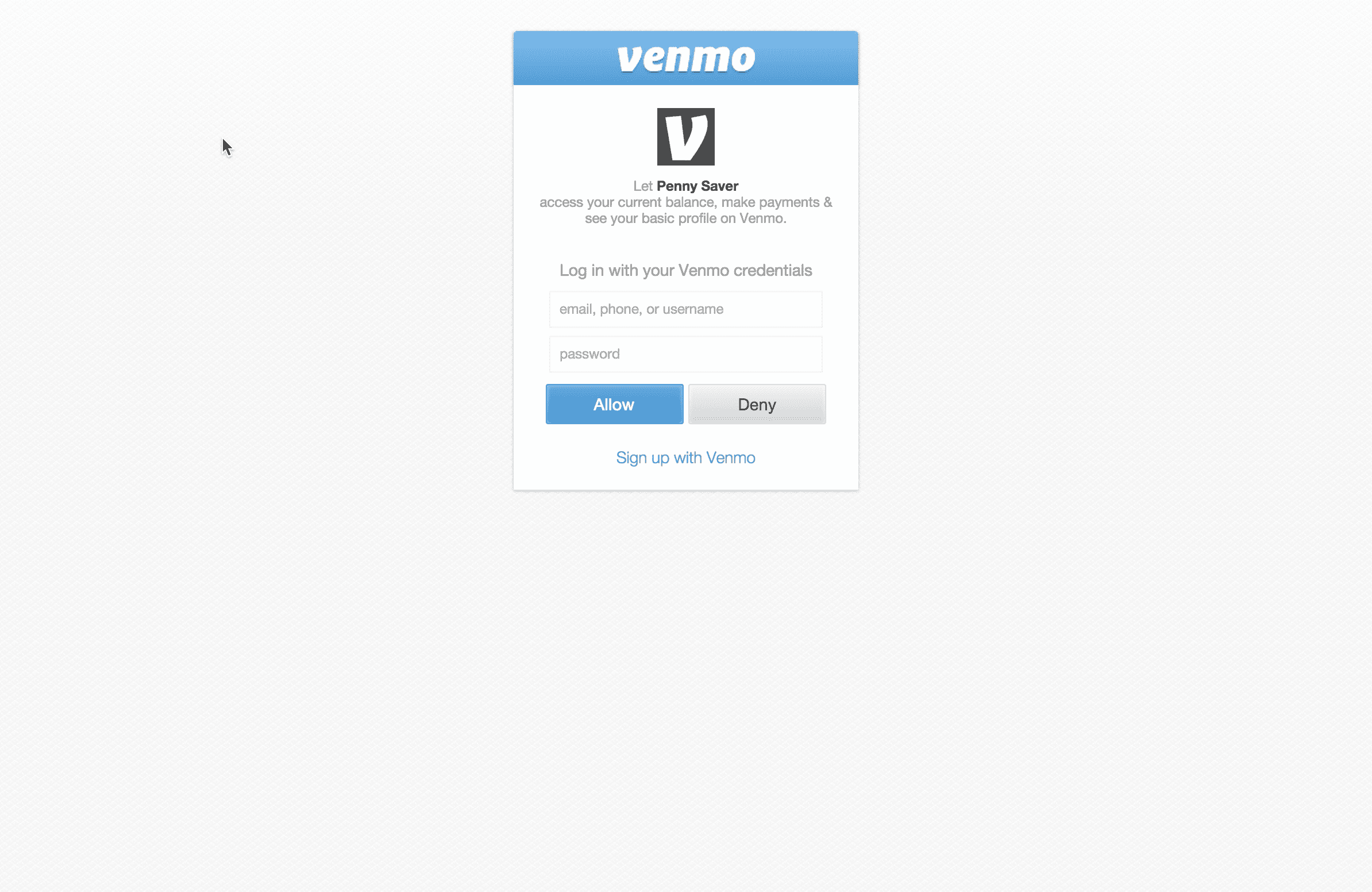
The first step is to authorize Penny Saver to access the account balance and make payments. Sign in with a Venmo account.
Photo

In the backend, the service will check the account balance daily. If the account balance has pennies, it will deduct the cents from the account by making a payment to another designated account.

Photo

Here’s what happens the next day when the balance is $2.65.

Photo

A second option that can be done manually by the user entails paying the designated account directly. If the user has extra money to save, they can pay it to the designated account and it will be added to the money saved.

At anytime, the user can charge the designated account an amount up to the total amount saved. If the amount is valid, it will be paid to the user who contributed the funds originally.

Photo

The designated account that holds the funds is intentionally left ambiguous. An interesting approach that I thought of after implementing this project is centered around a community of people, such as a church group. If a group of people contribute amounts regularly to this general fund, this fund could then be used to help a less fortunate member, or for a cause the group supports (such as a softball group who needs funds to replace their aging equipment).

In this case, specific members may be promoted to a committee that decides how funds are distributed. In this case, individual saved amounts could be reduced and used for the desired causes. Hopefully this inspires you to find new ways to donations.

That’s it for this project. Some ways you could extend this project could be:

  • It’s great to save for yourself. How about for a community fund? A homeowner’s association who could use the collected funds to help out a member that can’t afford home repairs or other expenses in life?
  • Add more options to customize the amounts saved. Maybe it’s a minimum of $5 and the change (83 cents) to make it $5.83. Customize how frequently the balance is checked and change saved, maybe once a week or once a month.
  • Add an option to enable an amount to be donated to another account if the saved balanced reaches a certain amount. This way you can also feel great about donating money you end up not needing.
  • Add a progress bar and a goal in the app to promote reaching a certain goal amount. Never hurts to add some gamification.

My two cents (eh, Post-mortem)

Penny Saver seems like a great idea. But there are some serious things to be considered. Since we’re talking about money, and in particular, holding money, this approaches an issue that I didn’t quite anticipate. If this project was to be live, it may necessitate adherence to regulatory fiat among other requirements in your jurisdiction. I’m not a lawyer so you should definitely seek guidance from a professional about such implications.

User trust and expectations are aspects which must be established. Many organizations are honest in how they operate. But since we’re talking about money, there’s always dishonest people out there. I hate to bring this project down to such a level, since it is supposed to empower users with the ability to save money for when they find themselves in a sticky situation and need that extra money, or empower users to help others with money they would otherwise waste. This project could be misused very quickly.

One last thing I want to mention is that saving money is a hard habit for some. We may only save coins in a coin jar if we use cash. In this digital age, those pennies are now a digit that make a whole amount (you don’t see five dollars, you see $5.83), instead of pesky weight in the pocket that become a nuisance to use again. It is a interesting mentality that I didn’t realize until I completed this project. So in a way, Penny Saver brings back the coin jar concept in a digital form. And if anyone has had a coin jar, it’s always fun to count up the change and cash it in months later. Like recyclables, it feels like extra money that you’ve earned (even though it was yours all along). That was my approach to Financial Literacy, teaching and empowering the user to save money for a rainy day or for a good cause.

Source Code

You can find the repo on GitHub.

15 Projects in 30 Days Challenge

This blog post is part of my 15 projects in 30 days challenge. I’m hacking together 15 projects with different APIs, services, and technologies that I’ve had little to no exposure to. If my code isn’t completely efficient or accurate, please understand it isn’t meant to be complete and bulletproof. When something is left out, I try to mention it. Reach out to me and kindly teach me if I go towards the dark side.

This challenge serves a couple of purposes. First, I’ve always enjoyed hacking new things together and using APIs. And I haven’t had the chance (more like a reason) to dive in head first with things like AngularJS, NodeJS, and Venmo. This project demonstrated AngularJS, Node.js, and Venmo.

Project 7: Story Time with AT&T Enhanced WebRTC

June 25, 2015 | 15 Projects in 30 days

The other day I went to AT&T’s Devlab at Plug and Play in Sunnyvale. It was almost by chance, having seen the event page the day before. And who would turn down an offer for a free lunch and free premium access to their Enhanced WebRTC API. I’m so gullible to free stuff!

The three hour event consisted of about seven labs, each progressively adding additional buttons and functionality to a phone app demo. The labs covered setting up the Node.js backend, logging in as a user, making a call to another user, receiving a call, holding and resuming a call, and muting and unmuting a call.

The labs were perfectly paced for a beginner and were very straightforward. I ended up blasting through the labs really quickly, and finished early. Still thinking up an idea for Project 7, I was inspired by the video part of WebRTC.

For this seventh project of my 15 project in 30 days challenge, I’m going to convert some of the sample code from the labs into AngularJS, and then use WebSockets to add a story book where the pages can be flipped through, and with the other user’s story book changing as well.

This project is inspired by a story I heard from a friend. As a parent who travels for work, he misses bedtime stories with his kids. When possible, he uses Apple’s FaceTime to connect with his kids to read them a story. It works with some compromises.

AT&T Enhanced WebRTC

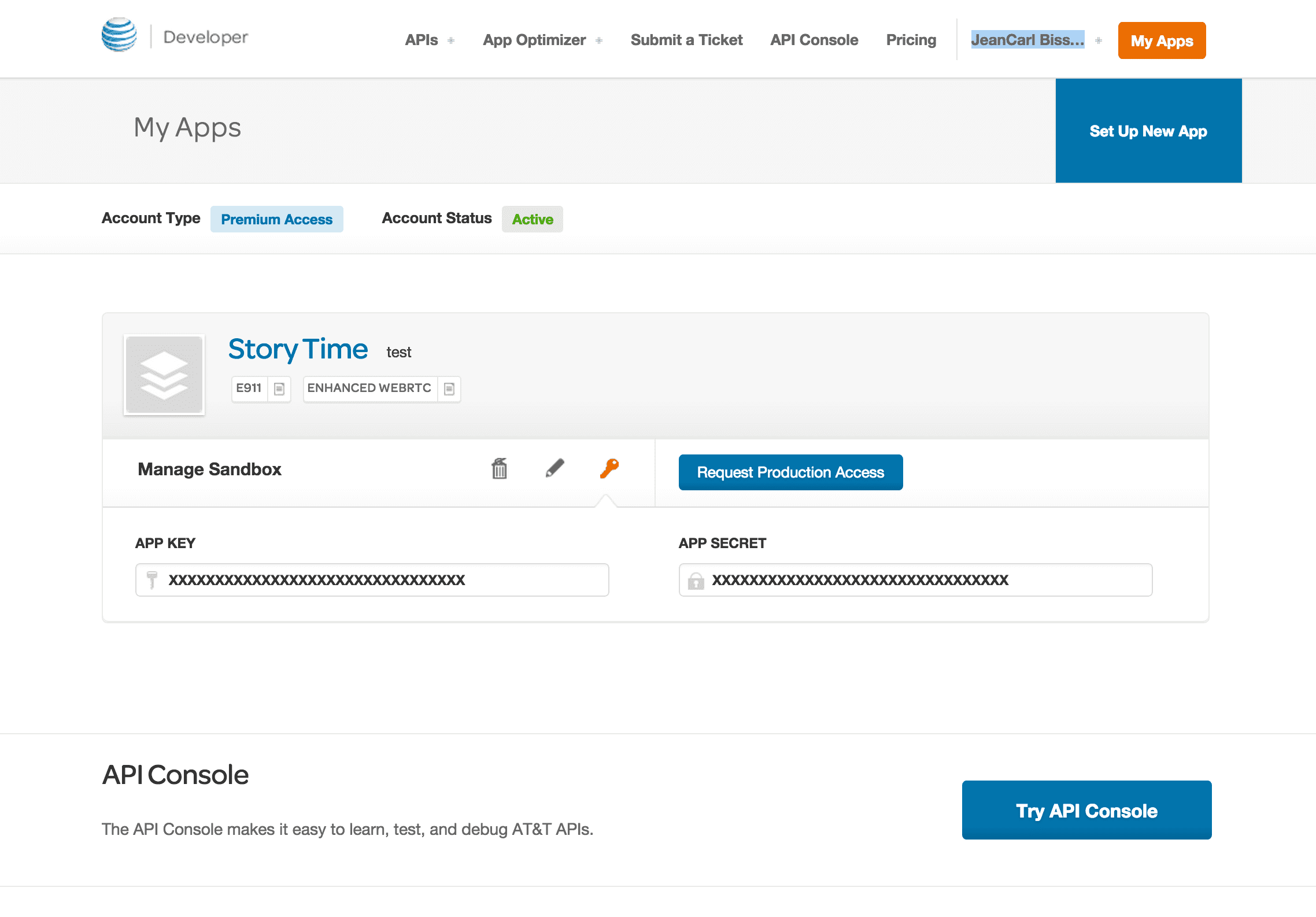
It is probably easier to get the AT&T Enhanced WebRTC Node.js example and start from there. Follow the Getting Started, Create an App, Using the SDK, and Sample App Deployment instructions on AT&T’s SDK Quick Start guide. If you want to play around a little bit, this set of examples looks pretty close to what the Devlab covered.

Photo

Photo

By the way, I just noticed this additional resource that gives a better understanding of the SDK. It could have helped me.

Setup

I used the Node.js example and the att7.html file as a base for this project. I renamed att7.html to storytime.html, added storytime.js (AngularJS controller), and modified the app.js to handle WebSockets. Here are the specific changes:

<!-- Filename: public/storytime.html -->
<!DOCTYPE html>
<html ng-app="storyTimeApp">
<head lang="en">
  <meta charset="UTF-8">
  <script src="https://ajax.googleapis.com/ajax/libs/angularjs/1.3.16/angular.min.js"></script>
  <script src="storytime.js"></script>
  <script src="/socket.io/socket.io.js"></script>
</head>
<body ng-controller="storyTimeCtrl" style="font-family:Arial">
  <h2>Story Time</h2>
  <div ng-show="status.isConnected" style="float:right; width:300px; border:1px solid black; padding:20px; text-align:justify">
    <button ng-click="nextPage()" ng-disabled="page == 3" style="float:right">Next Page</button>
    <button ng-click="previousPage()" ng-disabled="page == 0">Previous Page</button>
        
    <hr />
    <div ng-show="page == 0">
      <h2>CHAPTER I. Down the Rabbit-Hole</h2>
      <p>Alice was beginning to get very tired of sitting by her sister on the
        bank, and of having nothing to do: once or twice she had peeped into the
        book her sister was reading, but it had no pictures or conversations in
        it, 'and what is the use of a book,' thought Alice 'without pictures or
        conversations?'</p>
      <p>So she was considering in her own mind (as well as she could, for the
        hot day made her feel very sleepy and stupid), whether the pleasure
        of making a daisy-chain would be worth the trouble of getting up and
        picking the daisies, when suddenly a White Rabbit with pink eyes ran
        close by her.</p>
    </div>
    <div ng-show="page == 1">
      <p>There was nothing so VERY remarkable in that; nor did Alice think it so
        VERY much out of the way to hear the Rabbit say to itself, 'Oh dear!
        Oh dear! I shall be late!' (when she thought it over afterwards, it
        occurred to her that she ought to have wondered at this, but at the time
        it all seemed quite natural); but when the Rabbit actually TOOK A WATCH
        OUT OF ITS WAISTCOAT-POCKET, and looked at it, and then hurried on,
        Alice started to her feet, for it flashed across her mind that she had
        never before seen a rabbit with either a waistcoat-pocket, or a watch
        to take out of it, and burning with curiosity, she ran across the field
        after it , and fortunately was just in time to see it pop down a large
        rabbit-hole under the hedge.</p>
      <p>In another moment down went Alice after it,</p>
    </div>
    <div ng-show="page == 2">
      <p>never once considering how in the world she was to get out again.</p>
      <p>The rabbit-hole went straight on like a tunnel for some way, and then
        dipped suddenly down, so suddenly that Alice had not a moment to think
        about stopping herself before she found herself falling down a very deep
        well.</p>
      <p>Either the well was very deep, or she fell very slowly, for she had
        plenty of time as she went down to look about her and to wonder what was
        going to happen next. First, she tried to look down and make out what
        she was coming to, but it was too dark to see anything; then she looked 
        at the sides of the well, and noticed that they were filled with
        cupboards and book-shelves; here and there she saw maps and</p>
    </div>
    <div ng-show="page == 3">
      <p>pictures hung upon pegs. She took down a jar from one of the shelves as
        she passed; it was labelled 'ORANGE MARMALADE', but to her great
        disappointment it was empty: she did not like to drop the jar for fear
        of killing somebody, so managed to put it into one of the cupboards as
        she fell past it.</p>
    </div>
  </div>

  <p><span>{{statusLabel}}</span></p>

  <p ng-hide="status.isLoggedIn"><input type="text" ng-model="username">@{{att.ewebrtcDomain}}</p>

  <p>
    <button ng-hide="status.isLoggedIn" ng-click="login()">Login</button>
    <button ng-show="status.isLoggedIn" ng-click="logout()">Logout</button>
  </p>

  <p ng-show="status.isLoggedIn">
    <input ng-show="!status.isConnected" type="text" ng-model="callTo" placeholder="Account ID">
    <button ng-show="!status.isConnected" ng-click="makeCall()">Make Call</button>
    <button ng-show="status.isConnected && !status.isOnHold" ng-click="holdCall()">Hold Call</button>
    <button ng-show="status.isConnected && status.isOnHold" ng-click="resumeCall()">Resume Call</button>
    <button ng-hide="!status.isConnected" ng-click="endCall()">End Call</button>
    <button ng-show="status.isIncomingCall" ng-click="answerCall()">Answer Call</button>
    <button ng-show="status.isConnected && !status.isOnHold && !status.isMuted" ng-click="muteCall()">Mute Call</button>
    <button ng-show="status.isConnected && !status.isOnHold && status.isMuted" ng-click="unmuteCall()">Unmute Call</button>
  </p>

  <p ng-show="status.isConnected"> 
    <video id="remoteVideo" width="320" height="240"></video>
    <video id="localVideo" width="64" height="48"></video>
  </p>

  <div style="clear:both; padding-top:10px">
    <hr />
    Adapted from Enhanced WebRTC DevLab by AT&T Developer Program.
  <script src="//code.jquery.com/jquery-2.1.1.min.js"></script>
  <script type="text/javascript" src="/js/ewebrtc-sdk.min.js"></script>   
</body>
</html>
// Filename: public/storytime.js

angular.module('storyTimeApp', [])
.controller('storyTimeCtrl', function($scope) {
  $scope.att = {
    myDHS: 'http://0.0.0.0:9000',
    ewebrtcDomain: '',
    appTokenUrl: '',
    accessToken: {},
    phone: ATT.rtc.Phone.getPhone()
  };
  $scope.status = {
    isLoggedIn: false,
    isIncomingCall: false,
    isConnected: false,
    isOnHold: false,
    isMuted: false
  };
  $scope.socket = io();
  $scope.statusLabel = '';
  $scope.username = '';
  $scope.callTo = '';
  $scope.room = '';
  $scope.page = 0;
  
  $scope.socket.on('message', function(message)
  {
    console.log(message);
  });

  $scope.onConfig = function(data) {
    $scope.$apply(function() {
      $scope.att.ewebrtcDomain = data.ewebrtc_domain;
      $scope.att.appTokenUrl = data.app_token_url;
      console.log($scope.att);
    });
  }

  // Get the domain app token URL
  $.ajax({    
    type: 'GET',
    url: $scope.att.myDHS + '/config',
    success: $scope.onConfig,
    error: $scope.onError   
  });

  $scope.onError = function(data) {
    console.log('onError');
    $scope.$apply(function() {
      $scope.statusLabel = 'Error: ' + data.error.ErrorMessage;
    });
  }

  $scope.onLogin = function(data) {
    $scope.$apply(function() {
      $scope.att.accessToken = data;
      $scope.associateAccessToken();
    });
  }

  $scope.login = function() {
    // Obtain access token

    $.ajax({    
        type: 'POST',
        url: $scope.att.appTokenUrl, 
        data: {app_scope: 'ACCOUNT_ID'},
        success: $scope.onLogin,
        error: $scope.onError
    });   
  }

  $scope.onAssociateAccessToken = function() {
    $scope.att.phone.login({token: $scope.att.accessToken.access_token});
  }

  $scope.onLoginSuccess = function(data) {
    $scope.$apply(function() {
      $scope.statusLabel = 'Login successful';
      $scope.status.isLoggedIn = true;
      console.log(data);
    });
  }

  $scope.associateAccessToken = function() {
    $scope.att.phone.associateAccessToken({
      userId: $scope.username,
      token: $scope.att.accessToken.access_token,
      success: $scope.onAssociateAccessToken,
      error: $scope.onError
    }); 
  }

  $scope.onLogout = function() {
    $scope.$apply(function() {
      $scope.statusLabel = 'Logged out';
      $scope.status.isLoggedIn = false;
    });
  }

  $scope.logout = function() {
    $scope.att.phone.logout();
  }

  $scope.makeCall = function() {
    $scope.statusLabel = 'Calling '+$scope.callTo;

    $scope.att.phone.dial({
      destination: $scope.att.phone.cleanPhoneNumber($scope.callTo),
      mediaType: 'video',
      localMedia: document.getElementById('localVideo'),
      remoteMedia: document.getElementById('remoteVideo')
    });
  }

  $scope.endCall = function() {
    $scope.att.phone.hangup();
  }

  $scope.onCallConnected = function(data) {
    $scope.$apply(function() {
      $scope.status.isIncomingCall = false;
      $scope.room = (data.hasOwnProperty('to')) ? 
        'sip:'+$scope.username+'@'+$scope.att.ewebrtcDomain+':sip:'+data.to :
        data.from+':sip:'+$scope.username+'@'+$scope.att.ewebrtcDomain;   
      
      console.log('room:'+$scope.room);
      $scope.socket.emit('join', $scope.room);


      console.log(data);
      $scope.statusLabel = 'Call connected with '+(data.from || data.to);
      $scope.status.isConnected = true;
    });
  }

  $scope.onCallDisconnected = function(data) {
    $scope.$apply(function() {
      $scope.statusLabel = 'Call disconnected';
      $scope.status.isConnected = false;
      console.log('leaving room:'+$scope.room);
      $scope.socket.emit('leave', $scope.room);
      $scope.room = '';
    });
  }

  $scope.answerCall = function() {
    $scope.att.phone.answer({
      mediaType: 'video',
      localMedia: document.getElementById('localVideo'),
      remoteMedia: document.getElementById('remoteVideo')
    });  
  }

  $scope.onIncomingCall = function(data) {
    $scope.$apply(function() {
      $scope.status.isIncomingCall = true;
      $scope.statusLabel = 'Incoming call from '+data.from;
    });
  }

  $scope.holdCall = function() {
    $scope.att.phone.hold();
  }
      
  $scope.resumeCall = function() {
    $scope.att.phone.resume();
  } 

  $scope.onHeldCall = function() {
    $scope.$apply(function() {
      $scope.statusLabel = 'Call on hold';
      $scope.status.isOnHold = true;
    });
  }        

  $scope.onResumedCall = function() {
    $scope.$apply(function() {
      $scope.statusLabel = 'Call resumed';
      $scope.status.isOnHold = false;
    });
  } 

  $scope.muteCall = function() {
      $scope.att.phone.mute();
  }
      
  $scope.unmuteCall = function() {
      $scope.att.phone.unmute();
  }  

  $scope.onMutedCall = function() {
    $scope.$apply(function() {
      $scope.statusLabel = 'Call muted';
      $scope.status.isMuted = true;
    });
  }        

  $scope.onUnmutedCall = function() {
    $scope.$apply(function() {
      $scope.statusLabel = 'Call unmuted';
      $scope.status.isMuted = false;
    });
  } 

  $scope.nextPage = function() {
    $scope.page++;
    $scope.statusLabel = 'Changing to page '+$scope.page;    
    $scope.socket.emit('update', {room: $scope.room, event: 'page:changed', page: $scope.page});
  }

  $scope.previousPage = function() {
    $scope.page--;
    $scope.statusLabel = 'Changing to page '+$scope.page;    
    $scope.socket.emit('update', {room: $scope.room, event: 'page:changed', page: $scope.page});
  }

  $scope.att.phone.on('error', $scope.onError);  
  $scope.att.phone.on('session:ready', $scope.onLoginSuccess);
  $scope.att.phone.on('session:disconnected', $scope.onLogout);  
  $scope.att.phone.on('call:connected', $scope.onCallConnected);
  $scope.att.phone.on('call:disconnected', $scope.onCallDisconnected);
  $scope.att.phone.on('call:incoming', $scope.onIncomingCall);
  $scope.att.phone.on('call:held', $scope.onHeldCall);
  $scope.att.phone.on('call:resumed', $scope.onResumedCall);
  $scope.att.phone.on('call:muted', $scope.onMutedCall);
  $scope.att.phone.on('call:unmuted', $scope.onUnmutedCall);

  $scope.socket.on('page:changed', function(data) {
    console.log(data);
    $scope.$apply(function() {
      $scope.statusLabel = 'Changing to page '+data.page;
      $scope.page = data.page;
    });
  });
});

In app.js, replace the two lines:

  http.createServer(app).listen(http_port);
  console.log('HTTP web server listening on port ' + http_port);

with

  var server = http.createServer(app);
  var io = require('socket.io').listen(server);
  server.listen(http_port);

  io.on('connection', function(socket) {
    console.log('a user connected');

    socket.on('join', function(room) {
      socket.join(room);
      console.log('joining '+room);
    });

    socket.on('leave', function(room) {
      socket.leave(room);
      console.log('leaving '+room);
    });

    socket.on('update', function(msg) {
      socket.broadcast.to(msg.room).emit(msg.event, msg);

      console.log('sending room "'+msg.room+'" message: '+JSON.stringify(msg));
    });    
  });  

  console.log('HTTP web server listening on port ' + http_port);

In package.json, I had to change the following to host the app on my webserver:

  • Added "0.0.0.0:9000" and "0.0.0.0:9001" to cors_domains (change 0.0.0.0 to your IP address)
  • Changed sandbox.app_key and sandbox.app_secret to my App Key and App Secret from the developer console.
  • Changed oauth_callback, app_token_url, app_e911id_url, to point to my server IP address
  • Changed ewebrtc_domain to the domain I chose in the developer console
  • Under dependencies, added "socket.io": "^1.3.5",

To install the dependencies:

npm install

To run the Node.js app, run the following command:

npm start

Story Time

If all goes well (I know there are a lot of pieces to this project), you should be able to access the app at:

http://IPADDRESS:9000/storytime.html

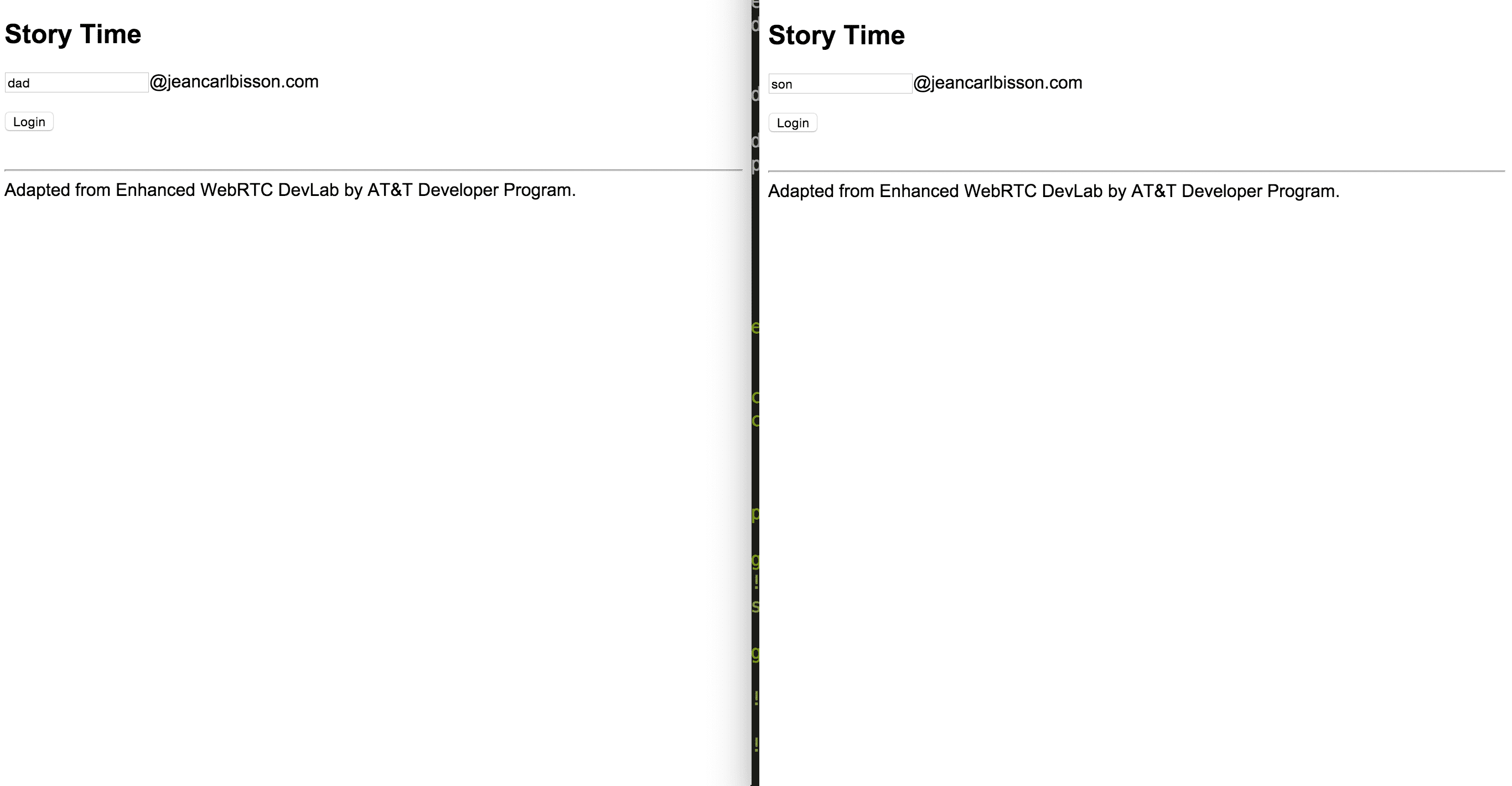
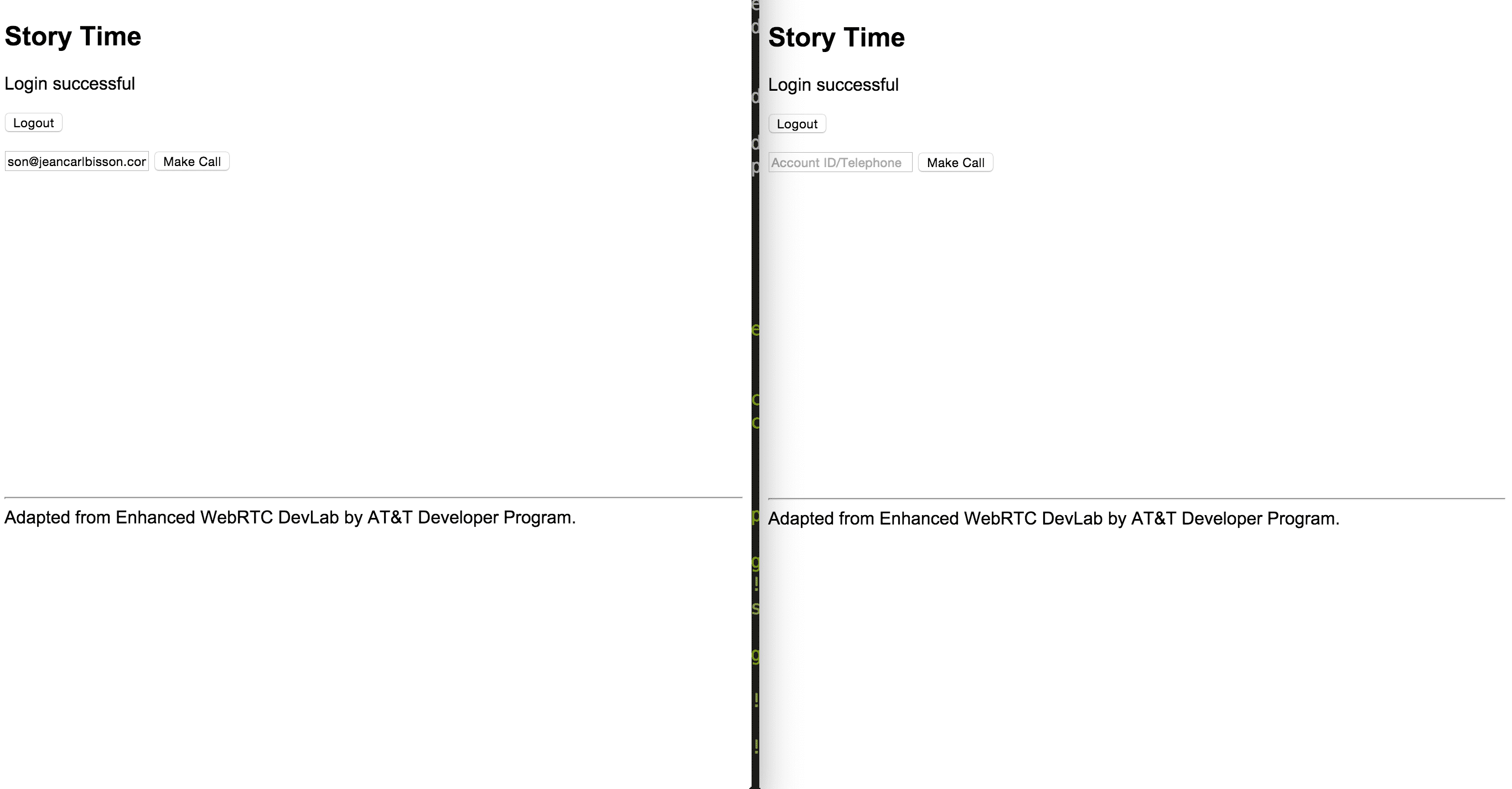
You’ll need two Chrome browser windows open on separate computers (side by side on one computer, like I did, could work, but the videos will all use the same webcam). In one window, log in as dad. In the other, log in as son.

Photo

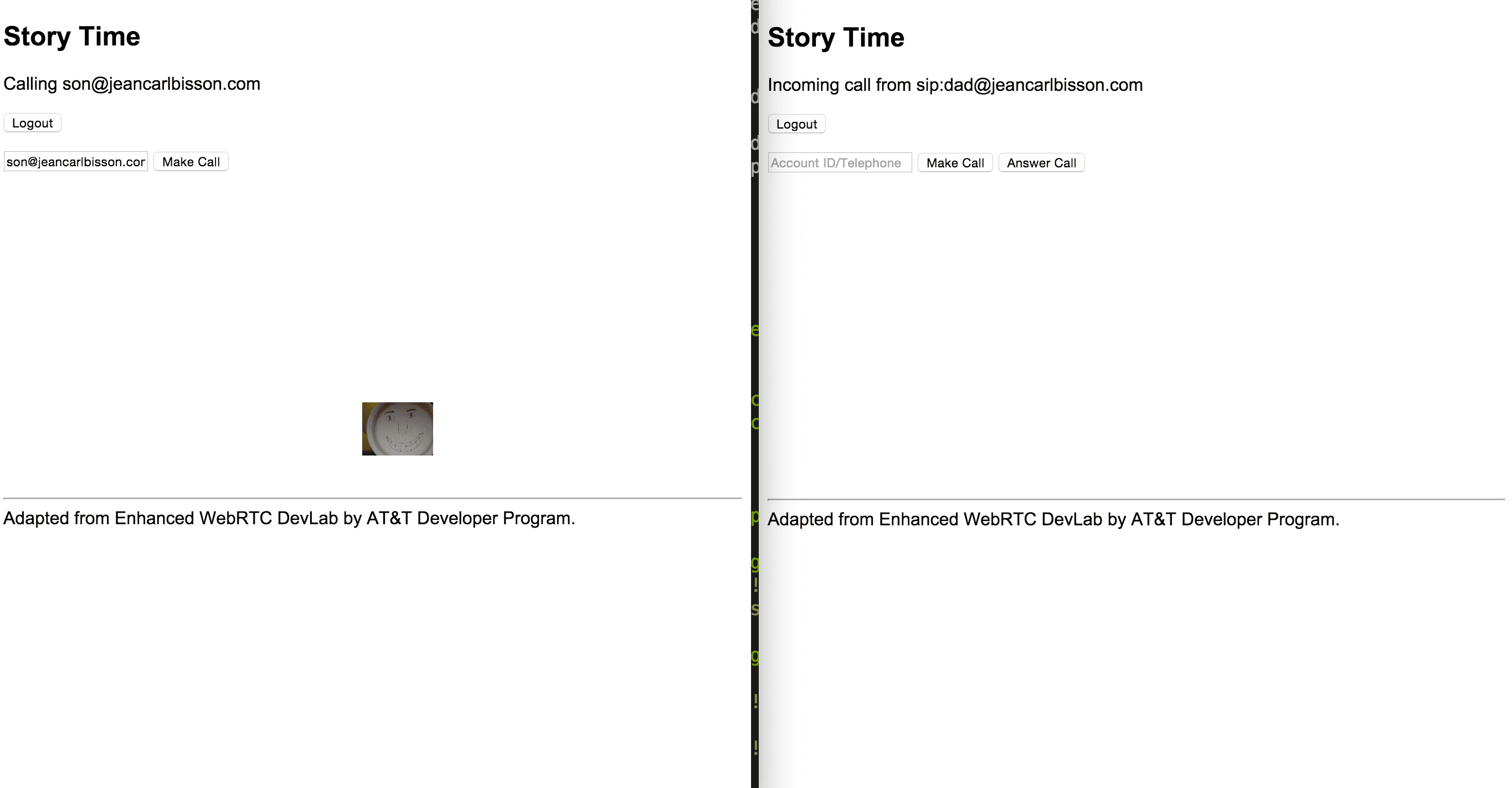
Next, dad should call the son. Enter son@{{domain}} and click on Make Call.

Photo

An Answer Call button appears on the son’s screen. Click on Answer Call.

Photo

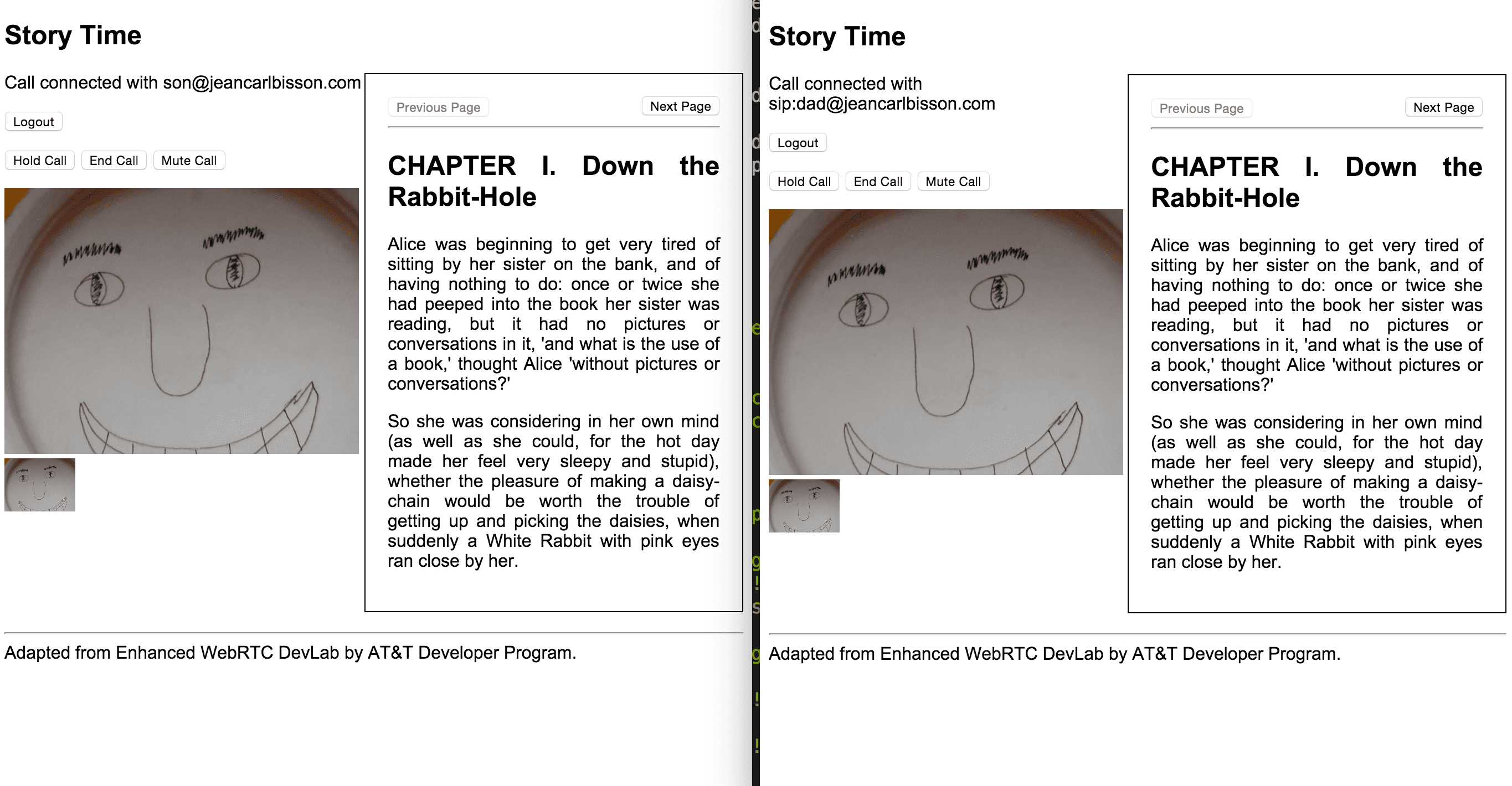
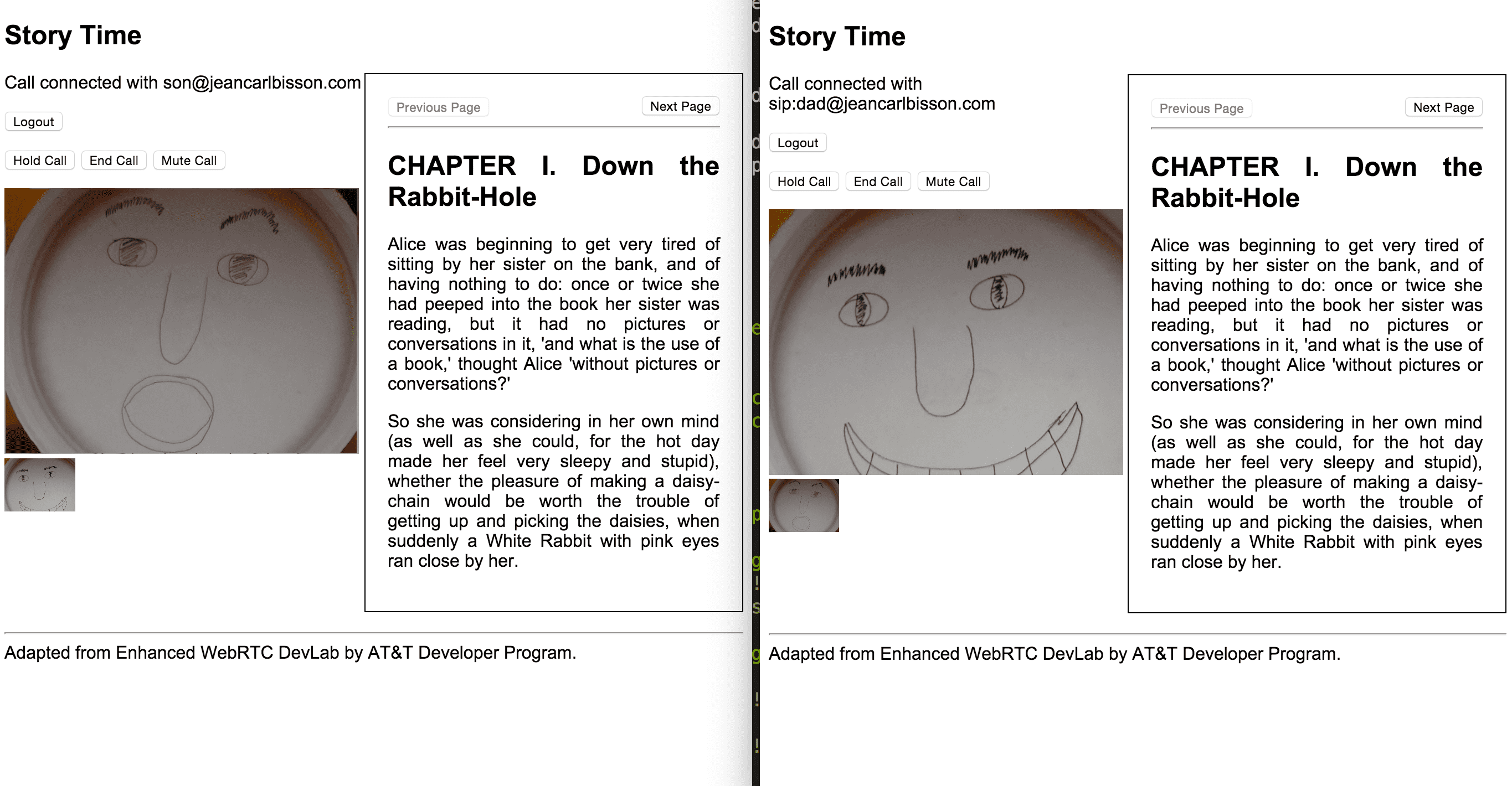
After a second or two, videos should be up on both sides.

Photo

You might be wondering why all four videos look the same. I’m using one computer, one webcam, and two browsers. The next two screenshots have been edited so it’s clearer who’s the dad (the mouth is open telling a story) and who’s the son (smiling, excited for a bedtime story).

Photo

Back to the demo. Now that we have the video part working, thanks to the AT&T Enhanced WebRTC example, you’ll also notice a book on the right side has appeared.

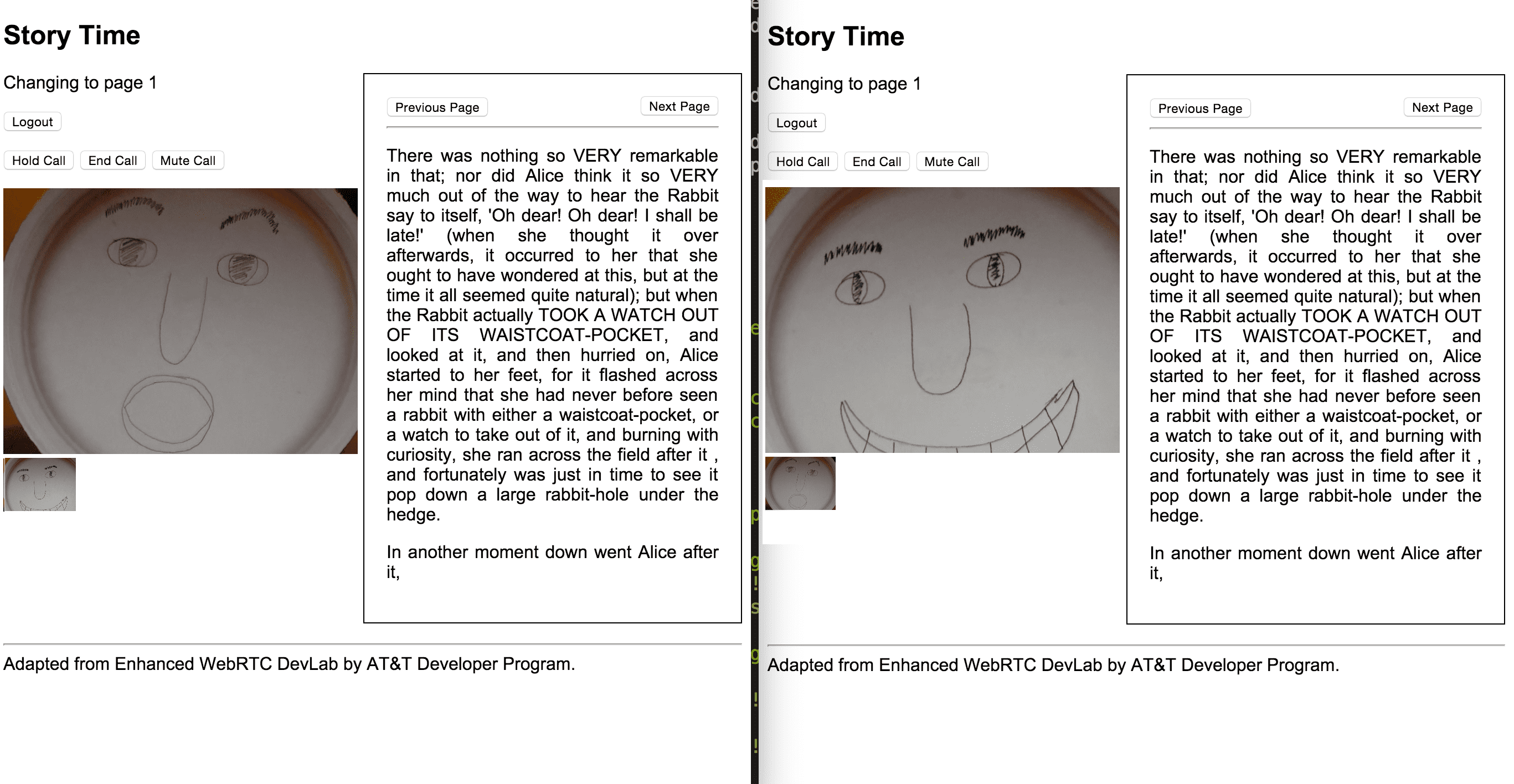
As the dad reads the book on the right, he can navigate to the next page using the Next Page button. This will send a message through the WebSocket to the son’s browser, where it will be processed by the WebSocket listener.

Photo

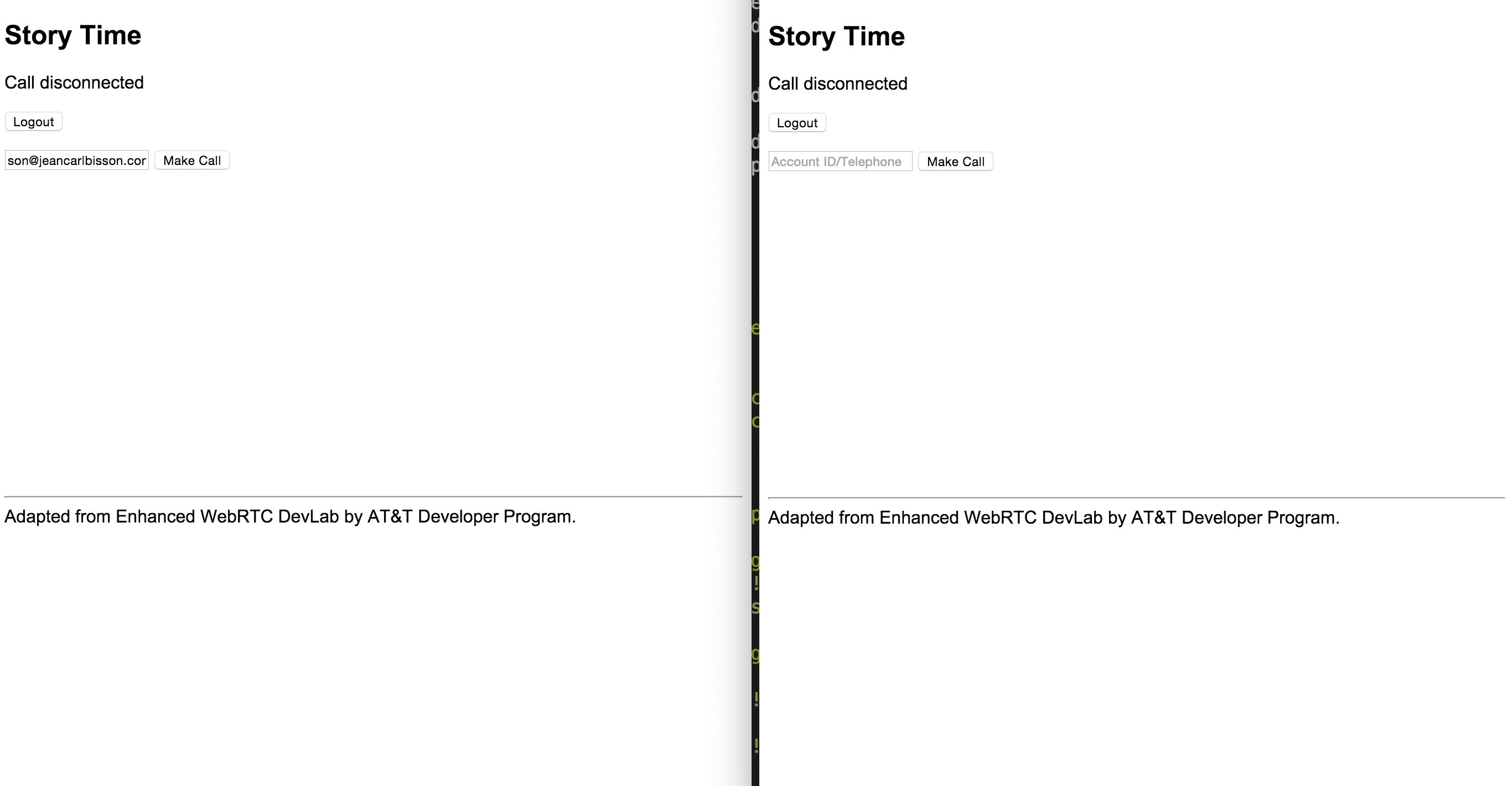
When it’s time for bed. They can click on End Call to end the call. The End. Don’t let the bedbugs bite.

Photo

WebSocket

I want to talk a little more about the WebSocket piece. When a call is connected, the from SIP address value is concatenated with the to SIP address value, and is saved into $scope.room. This value is used to join a room on the socket.io connection. This room is a separate “channel” just for this call, instead of the general room everyone is part of and where everyone receives any messages sent in the generic room. Both parties send a message via the general socket to join this room, send messages to just this room, and then leaves this room on call disconnect.

When someone presses the Next Page or Previous Page, a message is sent to the WebSocket with a page:changed event and the page number. The other listeners in this room receive this message, changes the $scope.page value, which AngularJS automatically shows (via data-binding) the div corresponding to the book page content.

With all that said, it would have been easier if there was a data channel between participants on the WebRTC connection, but I wasn’t able to find anything to make this happen.

Source Code

You can find the repo on GitHub.

Expansion

That’s it for this project. Here are some additional ideas on how this project can be expanded:

  • I came across the conference examples, but didn't get a chance to see if adding a third party (grandma always likes a good story) would be feasible.
  • The story content could include images which makes noise when clicked on. Send a message across the WebSocket so the other person can hear it as well.
## Post-mortem

This project was particularly challenging because of all the individual parts. There’s the sample project from the Devlab, partially rewritten into AngularJS, and then extended with WebSockets to add additional functionality. It could definitely be refactored and cleaned up a bit, but I chose to extend the sample project instead of butchering it.

I could have also used PubNub instead of WebSockets to manage the page turning.

15 Projects in 30 Days Challenge

This blog post is part of my 15 projects in 30 days challenge. I’m hacking together 15 projects with different APIs, services, and technologies that I’ve had little to no exposure to. If my code isn’t completely efficient or accurate, please understand it isn’t meant to be complete and bulletproof. When something is left out, I try to mention it. Reach out to me and kindly teach me if I go towards the dark side. ?

This challenge serves a couple of purposes. First, I’ve always enjoyed hacking new things together and using APIs. And I haven’t had the chance (more like a reason) to dive in head first with things like AngularJS, NodeJS, and AT&T Enhanced WebRTC. This project demonstrated AngularJS, Node.js, and AT&T Enhanced WebRTC.

Project 6: Prompt Me with Evernote

June 22, 2015 | 15 Projects in 30 days

When I was a young lad, I got really interested in writing short stories. I still have binders of short stories and newsletters I wrote when I was inspired by R.L. Stine’s Goosebumps series. In fact, I enjoyed writing more than reading the books. It was about the same time when I started developing websites and learning Perl. Yes, my first website did in fact publicize my upcoming short stories. Every pre-teen has to start somewhere. That’s a story for another time.

At times, as most writers have probably experienced, it was a challenge to think up a topic to write about. I wrote a simple Perl script to compose a writing prompt each day. It would randomly pick a couple of words out of a list and save them into a text file. The challenge was to then write a couple of paragraphs using these words. It didn’t matter where the story went, or what it was about. Just that I wrote about something using those selected words.

This repetitive practice developed a useful skill of being able to write about random topics (some of the words and objects had no commonality, which added an additional challenge). In doing so, I learned to compose my thoughts and write them down in a way that made a random short story make sense.

To give you an idea of what a prompt would have looked like, and the story, here’s an example:

Use these words: balloon, rabbit, Bobby, jump, gold

Bobby was a short little kid for his age. As he walked down the street to the bus stop, he was startled when a rabbit jumped out of the bushes. He was so surprised that his hand let go of the string he was holding. Bobby was as scared, if not more scared, as the rabbit must have been. After a brief second, he realized he had let go of the string attached to his balloon! Fortunately, the balloon didn’t fly away since his lucky gold nugget was attached to the end of the string.

He heard the bus powering over the hilltop and watched as it came to a stop in front of him. He pulled out his bus pass and stepped onboard.

“Hey Bobby! Where are you going today?” the bus driver asked her favorite rider. She already knew the answer.

In this sixth project of my 15 projects in 30 days, I’m going to write a similar app in AngularJS and Node.js. I’m going to use Evernote’s API to save the prompt as a note in an Evernote notebook. I could write an editor, but Evernote has that part covered.

Evernote

Evernote is great at storing and organizing content. In Prompt Me, a user will authenticate with Evernote via OAuth, giving Prompt Me access to the notebooks the user has. At some time in the future which the user has specified, Prompt Me will generate a prompt and create a note in the selected Evernote notebook.

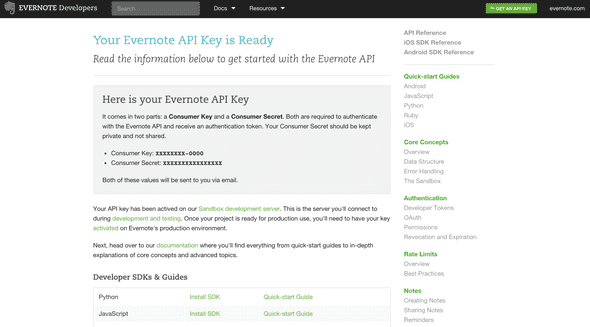
Prompt Me will need an Evernote API key. Sign up for a Evernote API Key.

Photo

Copy Consumer Key and Consumer Secret for later.

We’re going to use the Evernote Sandbox, a separate site from the production Evernote service. This way we can create accounts, play around with things, and not be worried about messing with a real account.

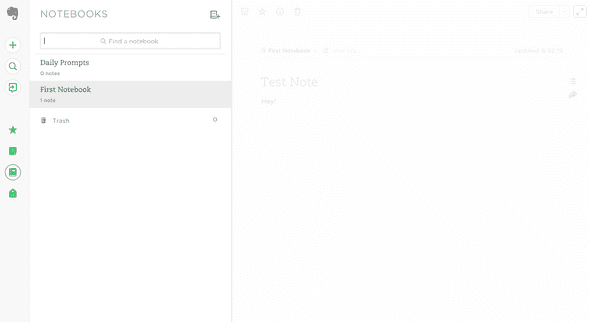
To access the sandbox, use this URL: https://sandbox.evernote.com. Sign up with a new account and create a couple of notebooks.

Photo

MongoDB

We’ll use MongoDB to store the subscriptions.

To install MongoDB, run this command:

apt-get install mongodb

To check that it is running, run this command:

service mongodb status

Node.js

To install Node.js:

sudo apt-get update
sudo apt-get install nodejs
sudo apt-get install npm

Some version info:

# nodejs -v
v0.10.25

# npm -v
1.3.10

Setup

There are six files for this project. app.js and makenotes.js are the Node.js apps, the former being the app that will create, manage subscriptions and serve up the website for Prompt Me, the latter looks for subscriptions to process in the MongoDB database and create notes in Evernote notebooks. These two files share config.json where common settings are located. And package.json is for the npm install command to install the necessary dependencies. For the front end, there’s the AngularJS controller, promptme.js, and view, index.html, both located in the public folder.

// Filename: app.js

var express = require('express');
var http = require('http');
var bodyParser = require('body-parser');
var app = express();
var Evernote = require('evernote').Evernote;
var config = require('./config.json');
var mongoose = require('mongoose');

app.use(express.cookieParser('secret'));
app.use(express.session());
app.use(bodyParser.json());
app.use(express.static(__dirname + '/public'));

mongoose.connect(config.MONGODB_ADDRESS);

var Subscription = mongoose.model(config.MONGODB_MODEL, {
  userId: String,
  nextPrompt: Number,
  frequency: Number,
  token: String,
  tokenExpiration: Number,
  noteStore: String,
  notebookId: String,
});

app.get('/oauth', function(req, res) {
  var client = new Evernote.Client({
    consumerKey: config.API_CONSUMER_KEY,
    consumerSecret: config.API_CONSUMER_SECRET,
    sandbox: config.SANDBOX
  });

  client.getRequestToken(config.CALLBACK_URL, function(error, oauthToken, oauthTokenSecret, results) {
    if(error) {
      req.session.error = JSON.stringify(error);

      res.redirect('/');
    } else { 
      req.session.oauthToken = oauthToken;
      req.session.oauthTokenSecret = oauthTokenSecret;

      res.redirect(client.getAuthorizeUrl(oauthToken));
    }
  });
});

app.get('/oauth_callback', function(req, res) {
  var client = new Evernote.Client({
    consumerKey: config.API_CONSUMER_KEY,
    consumerSecret: config.API_CONSUMER_SECRET,
    sandbox: config.SANDBOX
  });

  client.getAccessToken(
    req.session.oauthToken, 
    req.session.oauthTokenSecret, 
    req.param('oauth_verifier'), 
    function(error, oauthAccessToken, oauthAccessTokenSecret, results) {
      if(error) {
        console.log('error');
        console.log(error);
        res.redirect('/');
      } else {
        // store the access token in the session
        req.session.oauthAccessToken = oauthAccessToken;
        req.session.oauthAccessTtokenSecret = oauthAccessTokenSecret;
        req.session.edamShard = results.edam_shard;
        req.session.edamUserId = results.edam_userId;
        req.session.edamExpires = results.edam_expires;
        req.session.edamNoteStoreUrl = results.edam_noteStoreUrl;
        req.session.edamWebApiUrlPrefix = results.edam_webApiUrlPrefix;
        res.redirect('/');
      }
    });
});

app.get('/api/logout', function(req, res) {
  req.session.destroy();
});

app.get('/api/notebooks', function(req, res)
{
  if(!req.session.edamUserId)
    return res.send(401, {error:'Not logged in'});

  var client = new Evernote.Client({
    consumerKey: config.API_CONSUMER_KEY,
    consumerSecret: config.API_CONSUMER_SECRET,
    sandbox: config.SANDBOX,
    token:req.session.oauthAccessToken
  });

  var noteStore = client.getNoteStore(req.session.edamNoteStoreUrl);
  var response = [];
  
  var notebooks = noteStore.listNotebooks(function(err, notebooks) {
    for(var i in notebooks) {
      response.push({
        'notebookid': notebooks[i].guid, 
        'title': notebooks[i].name
      });
    }

    res.setHeader('Content-Type', 'application/json');
    res.send(JSON.stringify(response));
  });
});

app.get('/api/subscriptions', function(req, res) {
  if(!req.session.edamUserId)
    return res.send(401, {error:'Not logged in'});

  Subscription.find({'userId': req.session.edamUserId}, function(err, docs) {
    var results = [];

    for(var i in docs) {
      results.push({subscriptionid: docs[i]._id, notebookid:docs[i].notebookId});
    }

    res.setHeader('Content-Type', 'application/json');
    res.send(JSON.stringify(results));
  });
});

app.post('/api/subscribe', function(req, res) {
  if(!req.session.edamUserId)
    return res.send(401, {error:'Not logged in'});

  Subscription.create({
    userId: req.session.edamUserId,
    nextPrompt: req.body.start,
    frequency: req.body.frequency,
    token: req.session.oauthAccessToken,
    tokenExpiration: req.session.edamExpires,
    noteStore: req.session.edamNoteStoreUrl,
    notebookId: req.body.notebookid
  }, function(err, doc) {
      if(err) 
        return res.send(500, {error:err});

      return res.send(JSON.stringify({
        subscriptionid: doc._id, 
        notebookid:doc.notebookId
      }));
  });
});

app.post('/api/unsubscribe', function(req, res) {
  if(!req.session.edamUserId)
    return res.send(401, {error:'Not logged in'});

  Subscription.remove({_id: req.body.subscriptionid}, function(err, doc) {
    res.setHeader('Content-Type', 'application/json');
    res.send(JSON.stringify({subscriptionid: req.body.subscriptionid}));
  });
});

app.listen(config.PORT);

console.log('Application listening on port '+config.PORT);
// Filename: makenotes.js

var Evernote = require('evernote').Evernote;
var config = require('./config.json');

function generatePrompt()
{
  var names = [['Jenny','her'],['Melissa','her'],['Billy','his'],['Johnny','his'],['Alexis','her']];

  var objects = ['dog','cat','balloon','new car'];

  var actions = ['lost','visited','played with'];

  var places = ['at the park','at home','at school','on the bus'];

  var randomName = names[Math.floor(Math.random()*names.length)];
  var randomObject = objects[Math.floor(Math.random()*objects.length)];
  var randomAction = actions[Math.floor(Math.random()*actions.length)];
  var randomPlace = places[Math.floor(Math.random()*places.length)];

  return {
    title: randomName[0]+' and '+randomName[1]+' '+randomObject,
    prompt: randomName[0]+' has a '+randomObject+'. Write about the time when '+randomName[0]+' '+randomAction+' '+randomName[1]+' '+randomObject+' '+randomPlace+'.'
  }
}

function makeNote(noteStore, noteTitle, noteBody, parentNotebookId, callback) {
  var nBody = "<?xml version=\"1.0\" encoding=\"UTF-8\"?>";
  nBody += "<!DOCTYPE en-note SYSTEM \"http://xml.evernote.com/pub/enml2.dtd\">";
  nBody += "<en-note>" + noteBody + "</en-note>";
 
  var ourNote = new Evernote.Note();
  ourNote.title = noteTitle;
  ourNote.content = nBody;
  ourNote.notebookGuid = parentNotebookId;
 
  noteStore.createNote(ourNote, function(err, note) {
    if(err) {
      console.log(err);
    } else {
      callback(note);
    }
  });
}

var mongoose = require('mongoose');
var mongooseServerAddress = config.MONGODB_ADDRESS;

mongoose.connect(mongooseServerAddress);

var Subscription = mongoose.model(config.MONGODB_MODEL, {
  userId: String,
  nextPrompt: Number,
  frequency: Number,
  token: String,
  tokenExpiration: Number,
  noteStore: String,
  notebookId: String,
});

setInterval(function() {
  var timeNow = new Date();
  Subscription.find().where('nextPrompt').gt(0).lt(timeNow.getTime()).where('tokenExpiration').gt(timeNow.getTime()).exec(function(err, results) {
    for(var i=0; i<results.length; i++) {
      var sub = results[i];

      var client = new Evernote.Client({
        consumerKey: config.API_CONSUMER_KEY,
        consumerSecret: config.API_CONSUMER_SECRET,
        sandbox: config.SANDBOX,
        token: sub.token
      });

      var noteStore = client.getNoteStore(sub.noteStore);

      var randomPrompt = generatePrompt();

      makeNote(noteStore, randomPrompt.title, randomPrompt.prompt, sub.notebookId, function(note) {
        Subscription.update({_id:sub._id}, {nextPrompt:timeNow.getTime()+sub.frequency});
      });
    }
  });
}, config.SERVER_CHECK_FREQUENCY);
// Filename: config.json
{
  "API_CONSUMER_KEY" : "EVERNOTEAPICONSUMERKEY",
  "API_CONSUMER_SECRET" : "EVERNOTEAPICONSUMERSECRET",
  "SANDBOX" : true,
  "CALLBACK_URL" : "http://IPADDRESS:PORT/oauth_callback",
  "MONGODB_ADDRESS" : "mongodb://127.0.0.1:27017/test",
  "MONGODB_MODEL" : "Evernote",
  "SERVER_CHECK_FREQUENCY" : 60000,
  "PORT": 3000
}
// Filename: package.json
{
  "name": "prompt-me",
  "description": "Prompt Me app for Node.js",
  "version": "0.0.1",
  "private": true,
  "scripts": {
    "start": "nodejs app"
  },
  "dependencies": {
    "express": "3.1.0",
    "less-middleware": "*",
    "evernote": "*",
    "body-parser": "*"
  }
}
// public/promptme.js

var app = angular.module('promptMeApp', []);

app.factory('promptMeAPI', ['$http', function($http) {
  return {
    getNotebooks: function() {
        return $http.get('/api/notebooks');
    },
    subscribe: function(options) {
      return $http.post('/api/subscribe', options);
    },
    getSubscriptions: function() {
      return $http.get('/api/subscriptions');
    },
    unsubscribe: function(subscription) {
      return $http.post('/api/unsubscribe', {subscriptionid: subscription.subscriptionid});
    }
  }
}]);

app.controller('promptMeCtrl', ['$scope', '$filter', 'promptMeAPI', function($scope, $filter, promptMeAPI) {
  $scope.notebooks = [];
  $scope.selectedNotebook = '';
  $scope.frequencies = [{interval:24*60*60,label:'Daily'}, {interval:48*60*60,label:'Every other day'}]
  $scope.selectedFrequency = 24*60*60;
  $scope.loggedIn = false;
  $scope.startDate = new Date();
    $scope.startTime = new Date();
    $scope.startTime.setMilliseconds(0);
    $scope.startTime.setSeconds(0);
    $scope.subscriptions = [];

  promptMeAPI.getNotebooks().success(function(results) {
    $scope.notebooks = results;
    $scope.loggedIn = true;
    $scope.selectedNotebook = $scope.notebooks[0].notebookid;
  });

  promptMeAPI.getSubscriptions().success(function(subscriptions) {
    $scope.subscriptions = subscriptions;
  });

  $scope.getNotebookTitle = function(notebookId) {
    for(var i=0; i<$scope.notebooks.length; i++) {
      if($scope.notebooks[i].notebookid == notebookId) {
        return $scope.notebooks[i].title;
      }
    }

    return '';
  }

  $scope.unsubscribe = function(subscription) {
    promptMeAPI.unsubscribe(subscription).success(function(subscription) {
      var oldSubscriptions = $scope.subscriptions;

      $scope.subscriptions = [];
      for(var i=0; i<oldSubscriptions.length; i++) {
        if(oldSubscriptions[i].subscriptionid != subscription.subscriptionid) {
          $scope.subscriptions.push(oldSubscriptions[i]);
        }
      }      
    });
  }

  $scope.subscribe = function() {
    var nextPrompt = new Date($filter('date')($scope.startDate, 'yyyy-MM-dd')+' '+$filter('date')($scope.startTime, 'HH:mm'));

    var options = {
      notebookid: $scope.selectedNotebook,
      start: nextPrompt.getTime(),
      frequency: parseInt($scope.selectedFrequency)
    };

    promptMeAPI.subscribe(options).success(function(subscription) {
      $scope.subscriptions.push(subscription);
    });
  }
}]);
<!-- Filename: public/index.html -->
<!DOCTYPE html> 
<html ng-app="promptMeApp">
	<head>
		<meta charset="utf-8">
		<title>Prompt Me!</title> 
		<script src="https://ajax.googleapis.com/ajax/libs/angularjs/1.3.16/angular.min.js"></script>
		<script src="promptme.js"></script>
	</head> 
	<body ng-controller="promptMeCtrl" style="font-family:Arial"> 
		<h2>Prompt Me!</h2>
		<a href="/oauth" ng-hide="loggedIn" style="text-decoration:none">Connect with<br />
		<img src="https://evernote.com/media/img/logos/evernote_logo_4c-sm.png" /></a>

		<div ng-show="loggedIn">
			Add a new prompt to 
			<select ng-model="selectedNotebook">
				<option ng-repeat="notebook in notebooks" value="{{notebook.notebookid}}">{{notebook.title}}</option>
			</select>
			<select ng-model="selectedFrequency">
				<option ng-repeat="frequency in frequencies" value="{{frequency.interval}}">{{frequency.label}}</option>
			</select>	
			starting on
			<input type="date" ng-model="startDate" />
			at
			<input type="time" ng-model="startTime"/>
			<input type="button" ng-click="subscribe()" value="Subscribe" />
			
			<h2>Subscriptions</h2>
			<div ng-show="subscriptions.length == 0">
				You don't have any subscriptions right now!
			</div>
			<div ng-repeat="subscription in subscriptions">
				<input type="button" ng-click="unsubscribe(subscription)" value="Unsubscribe" /> {{getNotebookTitle(subscription.notebookid)}}
			</div>
		</div>
	</body>
</html>

In config.json, replace EVERNOTEAPICONSUMERKEY, EVERNOTEAPICONSUMERSECRET with the Consumer Key and Consumer Secret values provided in the Evernote section. Replace IPADDRESS and PORT with the IP address and port of the app.js Node.js app.

To install the dependencies, run the following command:

npm install

And start the two Node.js apps (you’ll need two terminals):

nodejs app.js
nodejs makenotes.js

Prompt Me

Prompt Me is pretty simple for now. Point your browser to http://IPADDRESS:PORT/ where IPADDRESS is the ip address and PORT is the port where the Node.js app is running. You should see this:

Photo

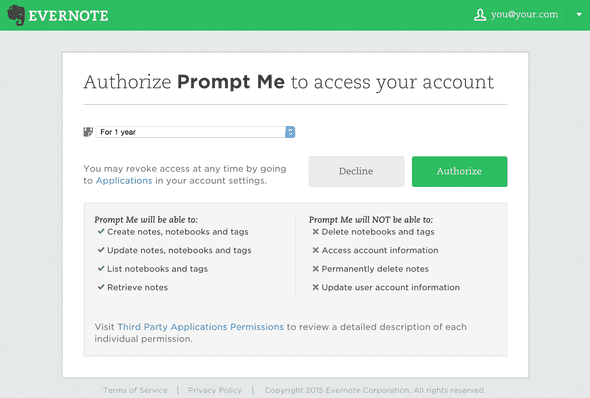
Click on the Evernote logo to connect your sandbox account with Prompt Me. Evernote will confirm that you’re authorizing the app to access the notebooks in the sandbox account.

Photo

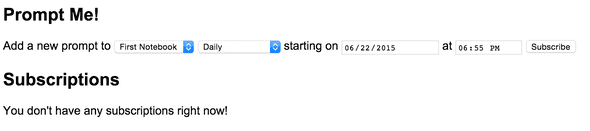
After clicking Authorize, Evernote will send back an OAuth token to the app, which will be saved in the user session. The AngularJS app will make two calls to the Node.js app, to get notebooks and subscriptions, for the current user.

Photo

The first drop down menu will show all the notebooks that are in this Evernote user’s account. The second drop down gives different frequencies for the prompts to be added to the account. And the date and time the first prompt should be added, with subsequent prompts at said frequency.

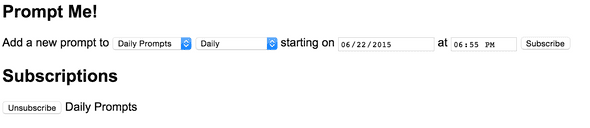
When the user clicks on Subscribe, our AngularJS app will make an API call to the Node.js app, which will add a subscription to the MongoDB. The subscription is added to a list below, which offers a way to Unsubscribe. A user can come back to this page and see their subscriptions at anytime, and unsubscribe as needed.

Photo

The server.js Node.js application will check every 60000 milliseconds, or every minute, and look for subscriptions that have the nextPrompt value less than the current time, or before “now”. That means we should process those subscriptions. The generatePrompt in server.js will randomly pick values and compose a prompt. The makeNote function will make a request to the Evernote API to add a note with our prompt to the selected notebook.

After the specified time (which could take up to the interval longer), refresh the Evernote notebook on http://sandbox.evernote.com. You should see a new note with the prompt.

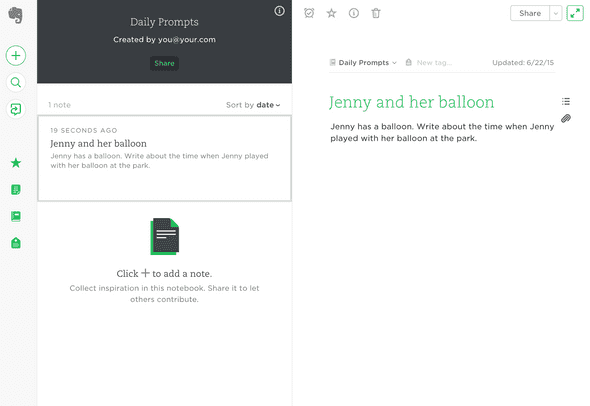
Photo

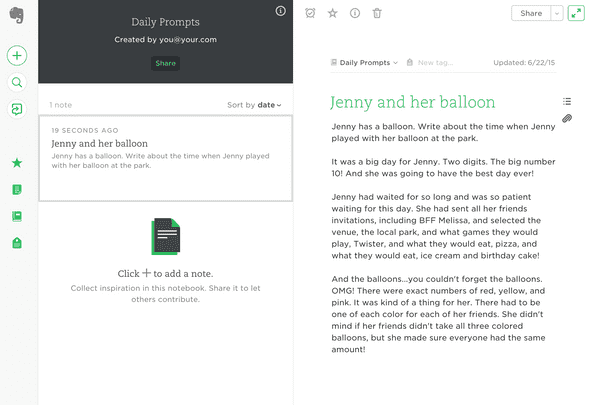
Excuse me while I write a little bit about Jenny and her balloon at the park. It’s an exciting story you’ve got to read!

Photo

That’s it for this project. There are other things that this app could do:

  • The prompt generator is very basic. It would be neat to have the user generate lists of options.
  • A reminder to the user might be helpful. Perhaps a text message using Twilio (see Project 1) or Tropo (see Project 4), or an email using SendGrid (see Project 5). Maybe even a Yo could work (see Project 2).
  • When the app.js Node.js app restarts, the user must go through the Evernote authorization again. Preserve the user session with connect-mongo.

Source Code

You can find the repo on GitHub.

Post-mortem

This project was really fun. It tackled a problem that finds even the veteran coder’s weak spot, OAuth. However, Evernote’s SDK takes care of it pretty elegantly. Their sample code also showed a way to keep track of user sessions in Node.js. However, these sessions are lost when you restart the Node.js app.

This project also touched on a passion of mine, writing. It’s always fun to just randomly write about things. It is always fun to start a story and have no idea where it’s going to go, just like reading a book. You’re just following a character around and looking into her head to see her passions of balloons and friendships.

15 Projects in 30 Days Challenge

This blog post is part of my 15 projects in 30 days challenge. I’m hacking together 15 projects with different APIs, services, and technologies that I’ve had little to no exposure to. If my code isn’t completely efficient or accurate, please understand it isn’t meant to be complete and bulletproof. When something is left out, I try to mention it. Reach out to me and kindly teach me if I go towards the dark side. ?

This challenge serves a couple of purposes. First, I’ve always enjoyed hacking new things together and using APIs. And I haven’t had the chance (more like a reason) to dive in head first with things like AngularJS, NodeJS, and MongoDB. This project demonstrated AngularJS, Node.js, MongoDB, and Evernote.

Project 5: Weather Update with Weather Underground and SendGrid

June 21, 2015 | 15 Projects in 30 days

The Bay Area is experiencing a fair amount of good weather (which is also causing a really severe drought). It’s become so routine that I don’t keep track of the weather. The other day was very windy and overcast, the next with a little rain. Wouldn’t it be nice to get a notification about the weather today?

For this fifth project in my 15 projects in 30 days, I’m going to write a Node.js app that will let me subscribe to a weather notification which will pull the weather for the current day from Weather Underground and email it to me using SendGrid. Both APIs are pretty simple to setup.

Weather Underground

Weather Underground has a couple of useful features we’ll use. First, of course, is an API to pull the weather forecast for a location. But where do you get a valid location to pass to the API? They also have an AutoComplete search endpoint that let’s you search and return results of locations that match the user input.

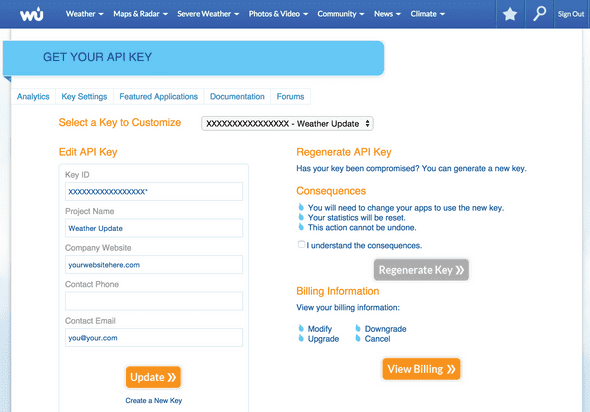
Sign up for the Weather Underground API and copy down the Key ID for later.

Photo

You can make up to 500 API calls per day for free, plenty to get started.

SendGrid

SendGrid is one of those secret ninja APIs that you wouldn’t think you really need. Of course there are many ways to send email from a webserver. But the logistics of making sure the emails actually get to your recipient can become an unnecessary distraction.

SendGrid provides a simple API to send emails and offers additional features like analytics to see how many are delivered and bounce. For this project, I’m going to use it strictly to send emails, but you can definitely extend the app to deal with bounced emails.

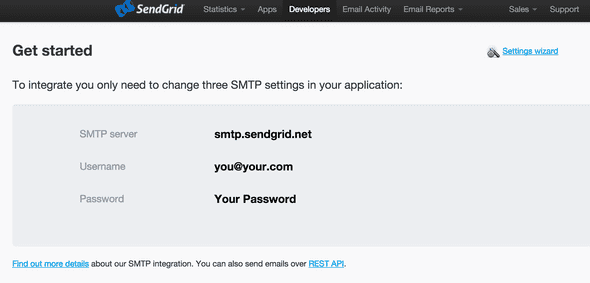
Sign up for access to the API at sendgrid.com. Keep track of the username and password you sign up with. You’ll need that later. If you forget, you can find the username under the Developers tab.

Photo

MongoDB

We’ll use MongoDB to store the subscriptions (representing an email address and location where the weather information is desired).

To install MongoDB, run this command:

apt-get install mongodb

To check that it is running, run this command:

service mongodb status

Node.js

To install Node.js:

sudo apt-get update
sudo apt-get install nodejs
sudo apt-get install npm

Some version info:

# nodejs -v
v0.10.25

# npm -v
1.3.10

Set Up

There are six files for this project. server.js and sendweather.js will be the two server side Node.js apps. They use config.json for some shared settings. On the front end is our typical AngularJS app, index.html and weatherupdate.js, located in the public folder. And package.json will be used to install the necessary Node modules.

// Filename: server.js

var express = require('express');
var app = express();
var bodyParser = require('body-parser');
var mongoose = require('mongoose');
var url = require('url');
var config = require('./config');

app.use(bodyParser.json());
app.listen(config.PORT);

mongoose.connect(config.MONGODB_ADDRESS);

var Subscription = mongoose.model(config.MONGODB_MODEL_NAME, {
  email: String,
  city: String,
  location: String
});

app.get('/api/search', function(req, res) {
	var url_parts = url.parse(req.url, true);
	var query = url_parts.query;

	var request = require("request");
	request.get("http://autocomplete.wunderground.com/aq?query="+query.query,function(error, response, body){
		if(error) {
			res.send([]);
			return;
		}

		var results = JSON.parse(response.body);
		var locations = [];

		for(var i=0; i<results.RESULTS.length; i++) {
			locations.push({name:results.RESULTS[i].name, l: results.RESULTS[i].l});
		}

		res.send(locations);
	});
});

app.post(&#039;/api/subscribe&#039;, function(req, res) {
	Subscription.create({
			email: req.body.email, 
			city: req.body.city, 
			location: req.body.location
		}, function(err, weather) {
			res.send({success:true});
		}
	);
});

app.post(&#039;/api/unsubscribe&#039;, function(req, res) {
	Subscription.remove({
			email: req.body.email, 
			location: req.body.location
		}, function(err) {
			if(err) {
				res.send({error: &#039;Could not find subscription&#039;});
				return;
			}

			res.send(JSON.stringify({success:true}));
		}
	);
})

app.use(express.static(__dirname + &#039;/public&#039;));

console.log(&#039;App listening on port &#039;+config.PORT);
// sendweather.js
var config = require('./config');

var mongoose = require('mongoose');
mongoose.connect(config.MONGODB_ADDRESS);

var request = require('request');
var sendgrid = require('sendgrid')(config.SENDGRID_USERNAME, config.SENDGRID_PASSWORD);

var Subscription = mongoose.model(config.MONGODB_MODEL_NAME, {
  email: String,
  city: String,
  location: String
});

function getWeather(sub, callback) {
	request.get('http://api.wunderground.com/api/'+config.WUNDERGROUND_API_KEY+'/forecast'+sub.location+'.json',function(error,response,body){
	   if(error) {
	        return;
	   }

	   var weather = JSON.parse(response.body);
	   callback(sub, weather);
	});
}

function sendEmail(email, subject, content)
{
	try {
	    sendgrid.send({
	        to: email,
	        from: config.SENDGRID_FROM,
	        subject: subject,
	        text: content
	    }, function(err, json) {
	        if(err) 
	        	return console.error(err);
	    });
	} catch(e) {
	    console.log(e);
	}
}

Subscription.find({}, function(err, subscriptions) {
	for(var i=0; i<subscriptions.length; i++) {
		getWeather({
			location: subscriptions[i].location, 
			city: subscriptions[i].city, 
			email: subscriptions[i].email
		}, function(sub, weather) {
			var content = weather.forecast.txt_forecast.forecastday[0].title+&#039;\n&#039;+weather.forecast.txt_forecast.forecastday[0].fcttext+&#039;\n\n&#039; +
						  weather.forecast.txt_forecast.forecastday[1].title+&#039;\n&#039;+weather.forecast.txt_forecast.forecastday[1].fcttext+&#039;\n\n&#039;;
			sendEmail(sub.email, &#039;Weather for &#039;+sub.city, content);
		});
	}

});

process.exit();
// Filename: config.json
{
	"SENDGRID_USERNAME": "",
	"SENDGRID_PASSWORD": "",
	"SENDGRID_FROM": "",
	"MONGODB_ADDRESS": "mongodb://127.0.0.1:27017/test",
	"MONGODB_MODEL_NAME": "Weather",
	"WUNDERGROUND_API_KEY": "",
	"PORT": 8080	
}
// Filename: package.json
{
  "name": "weather-update",
  "description": "Weather Update application for Node.js",
  "version": "0.0.1",
  "private": true,
  "dependencies": {
    "express": "*",
    "mongoose": "*",
    "url": "*",
    "body-parser": "*",
    "sendgrid": "*"
  }
}
<!-- Filename: public/index.html -->
<!DOCTYPE html>
<html ng-app="weatherUpdateApp">
  <head>
    <meta charset="utf-8">
    <title>Weather Update</title>
  <script src="https://ajax.googleapis.com/ajax/libs/angularjs/1.3.16/angular.min.js"></script>
    <script src="weatherupdate.js"></script>
    <script src="https://ajax.googleapis.com/ajax/libs/jquery/1.11.3/jquery.min.js"></script>
    <link href="https://maxcdn.bootstrapcdn.com/bootstrap/3.3.5/css/bootstrap.min.css" rel="stylesheet">

    <style type="text/css">
      body {
        padding-top: 20px;
        padding-bottom: 40px;
      }

      .container-narrow {
        margin: 0 auto;
        max-width: 700px;
      }

      .container-narrow > hr {
        margin: 30px 0;
      }

      .marketing {
        margin: 60px 0;
      }

      .marketing p + h4 {
        margin-top: 28px;
      }

      .result {
        padding-top: 5px;
      }
    </style>
  </head>

  <body ng-controller="WeatherUpdateCtrl">

    <div class="container-narrow">

      <div class="masthead">
        <h3 class="muted">Weather Update</h3>
      </div>

      <hr>

      <div class="row-fluid marketing">
        Get weather updates every morning so you"re never unprepared!
        <form name="stepOne">
      <h3>Step 1: Enter your email address</h3>
        <input type="email" name="input" ng-model="email" required /> 
          <span role="alert">
          <span class="error" ng-show="stepOne.input.$error.email">Not valid email!</span>
        </span>
    </form>
    <form name="stepTwo" ng-hide="stepOne.$invalid">
      <h3>Step 2: Search for a city</h3> 
      <input type="text" ng-model="city" required />
      
      <input type="button" class="btn btn-primary" ng-click="searchWeather()" value="Search" ng-disabled="stepTwo.$invalid" />

      <h3 ng-show="results.length > 0">Step 3: Subscribe!</h3>

      <div ng-repeat="result in results" class="result">
        <input type="button" class="btn btn-primary btn-xs" ng-click="subscribe(result)" value="Subscribe" ng-hide="result.subscribed" /><input type="button" class="btn btn-primary btn-xs" ng-click="unsubscribe(result)" value="Unsubscribe" ng-show="result.subscribed" /> {{result.name}} 
      </div>
    </div>
    
    <hr>
      
      <div>
        Powered by <a href="http://wunderground.com" target="_blank">Weather Underground</a> and <a href="http://sendgrid.com" target="_blank">SendGrid</a>.
      </div>

      </div>

    </div> <!-- /container -->

  </body>
</html>
// Filename: public/weatherupdate.js

angular.module('weatherUpdateApp', [])
.controller('WeatherUpdateCtrl', function($scope, $http) {
	$scope.email = '';
	$scope.city = '';
	$scope.results = [];

	$scope.searchWeather = function() {
		$http.get('/api/search?query='+$scope.city).success(function(results) {
			$scope.results = results;
		});
	}

	$scope.subscribe = function(location) {
		$http.post('/api/subscribe', {email: $scope.email, city: location.name, location: location.l}).success(function(results) {
			console.log(results);
		});

		location.subscribed = true;
	}

	$scope.unsubscribe = function(location) {
		$http.post('/api/unsubscribe', {email: $scope.email, location: location.l}).success(function(results) {
			console.log(results);
		});

		location.subscribed = false;
	}	
});

To install the required packages, which include mongoose, body-parser, sendgrid, and express, run this command:

npm install

There are a couple of things to change in config.json. The values for SENDGRIDUSERNAME and SENDGRIDPASSWORD should be your SendGrid username and password. The value for SENDGRIDFROM should be your email address where the email notifications come from. Lastly, the value WUNDERGROUNDAPI_KEY should be the API Key for Weather Underground.

And start up the app by running this command:

nodejs server.js

If everything is good, you’ll get the following message:

App listening on port 8080

Weather Update

Weather Update is a pretty simple app on the front-end. It uses AngularJS and Bootstrap.

Photo

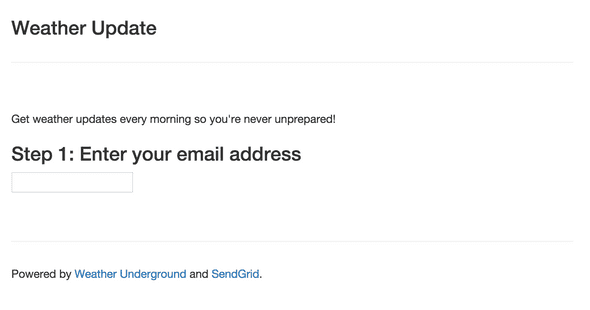
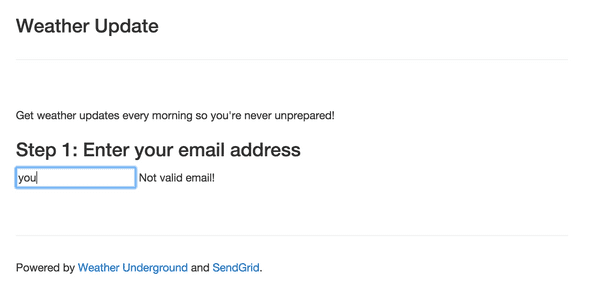
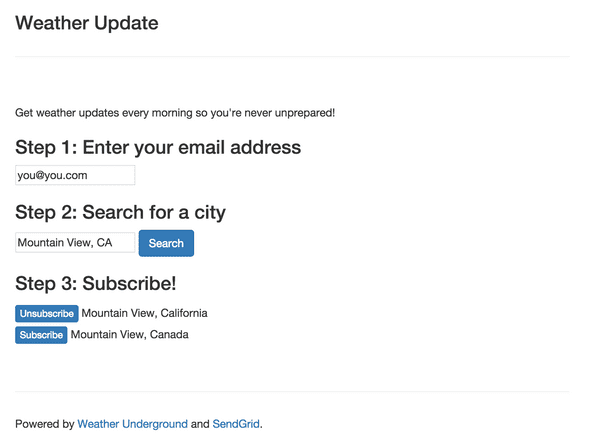
Start by entering an email address. The email address field is validated by AngularJS. If an invalid email address is entered, “Not valid email!” is displayed. Pretty neat built in functionality!

Photo

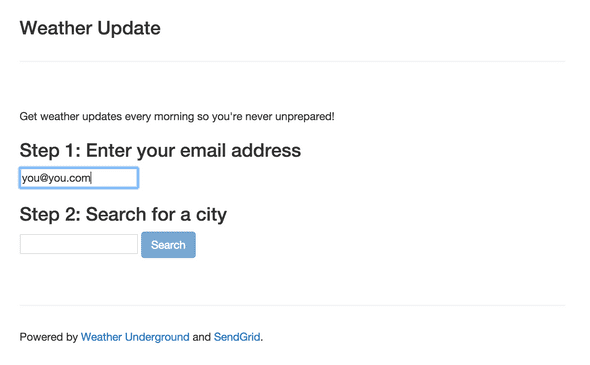
When a valid email address is entered, step 2 is automatically shown.

Photo

Step 2 lets the user search for a location. This search box disables the Search button if no location is entered. Again, AngularJS functionality built in.

Photo

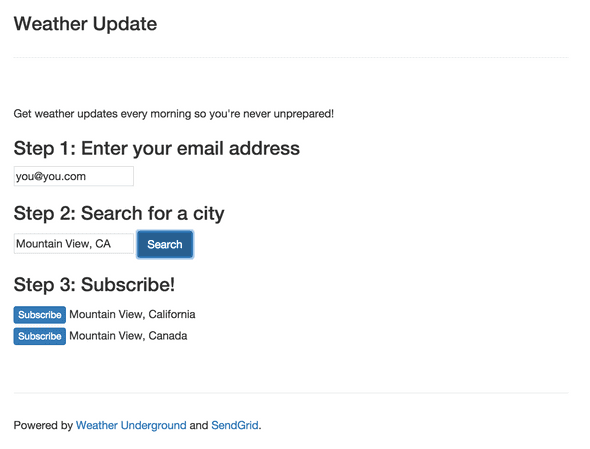
Step 3 fetches locations from Weather Underground and returns a list. When the user finds the right location, they can click on the Subscribe button next to the location. Their email address, city name, and the location identifier is added to MongoDB. The subscribe button changes to Unsubscribe. If clicked, the email address and location is removed from the MongoDB.

Photo

On the backend, we need to run the other Node.js app to process these subscriptions. Ideally it would process each user’s subscriptions when it is morning for them. For now the app will process all subscriptions and exit. You can extend the functionality to send them whenever you desire. Refer to Project 1 where I used a timer to check at a set interval.

That’s it for this project. There are a number of improvements that could be made:

  • Add user accounts that have users login to manage their subscriptions. Use a service like Parse to store their email address. Refer to Project 3 where I used Parse.
  • An email address can sign up for the same location more than once. Check that there isn't already a subscription for the email address and location.
  • The only way to unsubscribe from a notification is to click on the Unsubscribe button on the same page when you subscribe to the notification. Add another page to manage the subscriptions. To remove a subscription, make a call to /api/unsubscribe with the email address and location identifier. You'll probably need to add another endpoint to return the list of subscriptions.
  • If a user subscribes to multiple locations, they receive one email per location. Combine multiple locations into one email address.
  • Add a link in the email to unsubscribe from the notification. It should link to another page in the AngularJS app that should process the unsubscribe request.
  • There is a limit of 500 API calls to Weather Underground. Optimize multiple requests for the same location by caching the result for a location. If the location is cached, you don't have to make the same request again and use up another call.

Source Code

You can find the repo on GitHub.

Post-mortem

This project added a couple of new things. First, I moved a number of configuration options to config.json. And installing Node.js modules is simplified using the package.json file.

As for AngularJS, form validation was pretty neat. In order to move to Step 2, the email address field must validate. And in Step 2, the search button is disabled if the validation of the location text is empty.

15 Projects in 30 Days Challenge

This blog post is part of my 15 projects in 30 days challenge. I’m hacking together 15 projects with different APIs, services, and technologies that I’ve had little to no exposure to. If my code isn’t completely efficient or accurate, please understand it isn’t meant to be complete and bulletproof. When something is left out, I try to mention it. Reach out to me and kindly teach me if I go towards the dark side. ?

This challenge serves a couple of purposes. First, I’ve always enjoyed hacking new things together and using APIs. And I haven’t had the chance (more like a reason) to dive in head first with things like AngularJS, NodeJS, and MongoDB. This project demonstrated AngularJS, Node.js, MongoDB, Weather Underground, SendGrid, and Bootstrap.

Project 4: Party Texter with PubNub and Tropo

June 19, 2015 | 15 Projects in 30 days

Since the first time I came across PubNub at a hackathon, I’ve loved how simple it is to send messages across different platforms really quickly. They have libraries for many languages, and the awesome part is that they all work seamlessly together. Once you decide on the type of message content, the sending and receiving applications can be whatever you choose.

In this fourth project of my 15 projects in 30 days challenge, I’m going to use Tropo and PubNub to receive incoming texts and count them in a leaderboard party texting activity.

Here’s how it’s going to work. We’ll set up a phone number with Tropo to recieve text messages, translate them into a PubNub message, and receive them in our AngularJS app. The AngularJS app will keep tally of the number of text messages received per number, show a leaderboard of top texters, and also show text messages as they come in.

Tropo

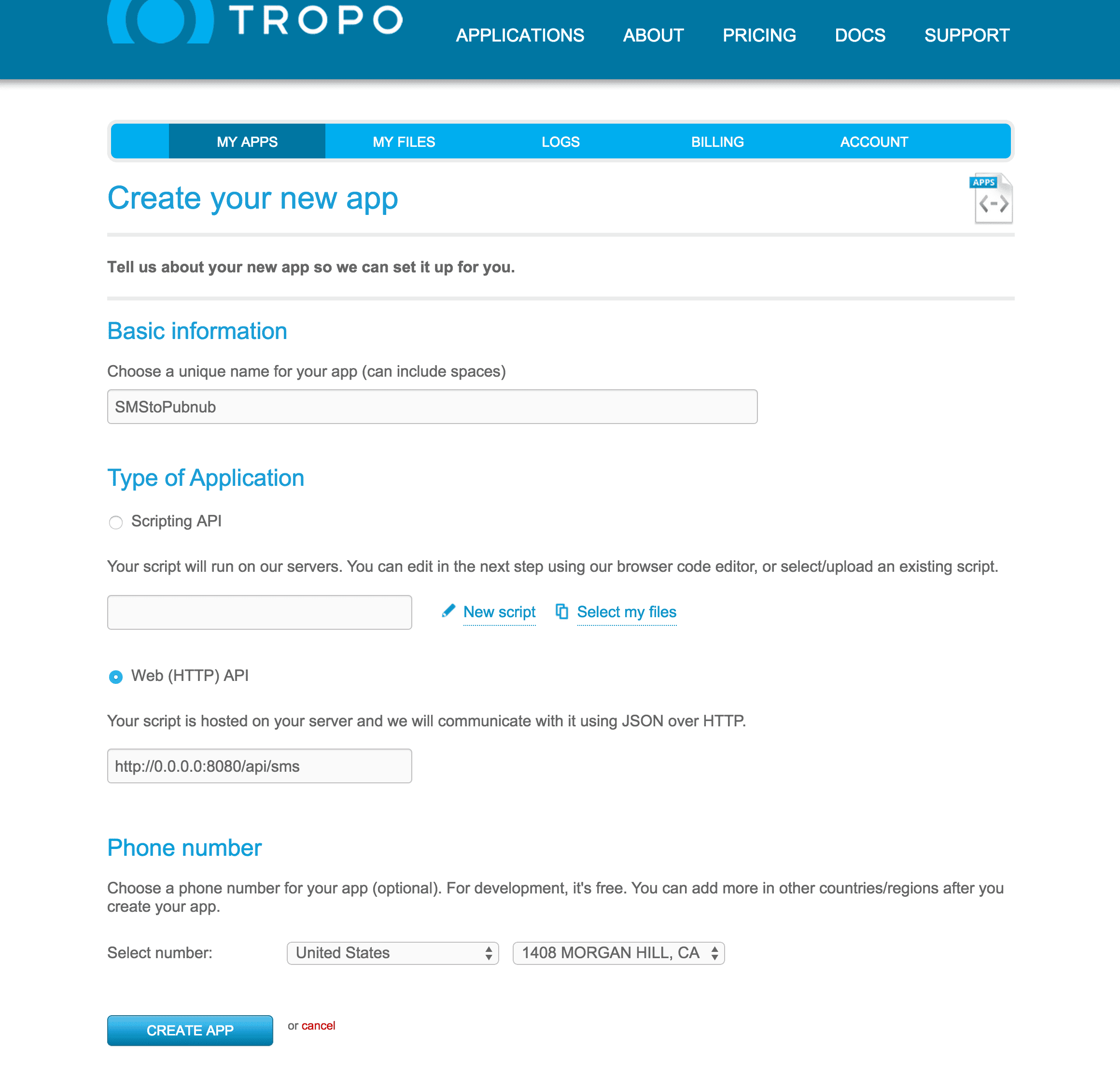
Tropo is a service that makes it really simple to receive text messages in our app. Sign up for an account at tropo.com. When you set up an application, you can specify an endpoint that is sent a JSON object when a text message is sent to the phone number.

I’m using the theorectical IP address 0.0.0.0 and port 8080 to point to where the Node.js app is running on my server. Change this to point to where you run the app.

Photo

PubNub

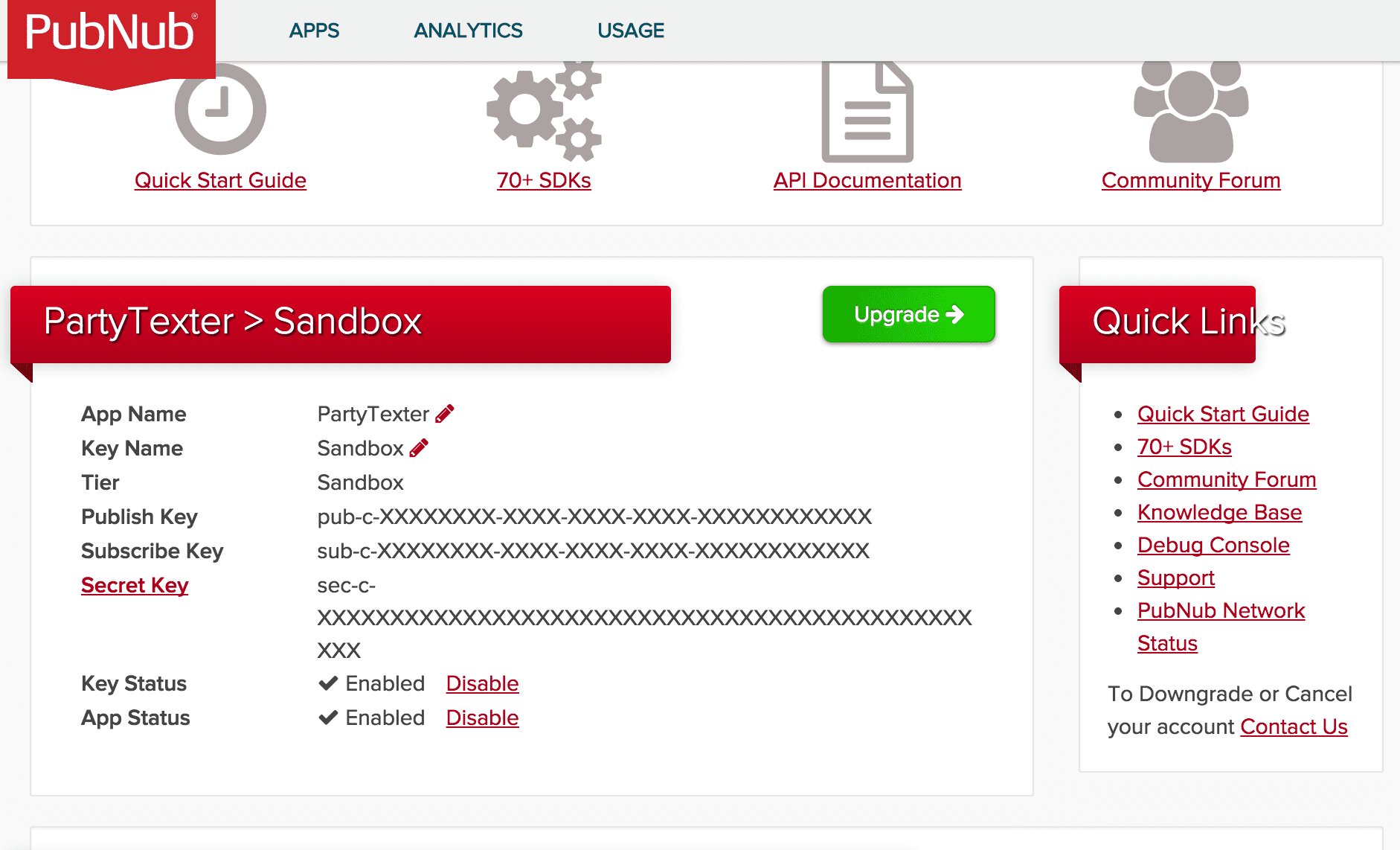
PubNub will be used to notify our AngularJS app of the text message received by the Node.js app. Sign up for an account at pubnub.com. You’ll need the publish key and subscribe key when we set up the Node.js app in the next step.

Photo

Node.js

If you haven’t set up Node.js, these commands will get everything installed.

To install Node.js, run the following commands:

sudo apt-get update
sudo apt-get install nodejs
sudo apt-get install npm

Some version info:

# nodejs -v
v0.10.25

# npm -v
1.3.10

This project requires a couple of modules to be installed. Run these two commands to install the express and body-parser node modules.

npm install express
npm install body-parser

Party Texter

Now that we have set up the two APIs and have Node.js installed, we need to deploy the Node.js app. There are three files for this project. server.js will listen for requests with text messages from Tropo and transmit a message to PubNub. Our AngularJS app will subscribe to the PubNub channel and receive messages representing each text message received. index.html and partytexter.js make up the Angular JS app.

// Filename: server.js

// What port to listen to.
var port = 8080;

// PubNub Publish Key
var pubnub_publish_key = 'PUBLISHKEY';

// PubNub Subscribe Key
var pubnub_subscribe_key = 'SUBSCRIBEKEY';

/*********** End Configuration ***********/

var express = require('express');
var app = express();
var bodyParser = require('body-parser');

var pubnub = require('pubnub').init({
    publish_key: pubnub_publish_key,
    subscribe_key: pubnub_subscribe_key
});

app.use(bodyParser.json());
app.listen(port);

console.log("App listening on port "+port);

// Callback handler for Tropo service.
app.post('/api/sms', function(req, res) {
    pubnub.publish({
        channel: 'sms',
        message: {
            from: req.body.session.from.id,
            to: req.body.session.to.id,
            text: req.body.session.initialText
        }
    });

    res.end();
});

app.use(express.static(__dirname + '/public'));
<!-- Filename: public/index.html -->
<html ng-app="PartyTexterApp">
<head>
	<title>Party Texter</title>
	<script src="http://cdn.pubnub.com/pubnub.min.js"></script>
	<script src="https://ajax.googleapis.com/ajax/libs/angularjs/1.3.16/angular.min.js"></script>
    <script src="partytexter.js"></script>
	<style>
	body {
		font-family: Arial;
	}

	.leaderboard {
		border: 1px solid black; 
		float: right; 
		width: 10%;
	}

	.lastmessage {
		width: 75%; 
		text-align: center; 
		border: 1px solid #C0C0C0; 
		background-color: #F0F0F0; 
		padding: 20px; 
		position: relative;
	}

	.lastmessage .number {
		position: absolute; 
		bottom: 5px; 
		right: 5px;
		font-style: italic;
	}

	.lastmessage .text {
		font-size: 36pt; 
	}
	</style>
</head>

<body ng-controller="PartyTexterCtrl">
	<div>
		Text your message to {{phoneNumber}}
	</div>

	<table class="leaderboard" ng-show="lastMessage">
		<tr>
			<th>Phone #</th>
			<th>Score</th>
		</tr>
		<tr ng-repeat="leader in leaderBoard | orderObjectBy:'count' | orderBy:'-count'">
			<td>{{leader.number | phone:6}}</td>
			<td style="text-align: right">{{leader.count}}</td>
		</tr>
	</table>

	<div class="lastmessage" ng-show="lastMessage">
		<span class="number">{{lastMessage.from | phone:6}}</span>
		<span class="text">{{lastMessage.text}}</span>
	</div>
</body>
</html>
// Filename: public/partytexter.js

angular.module('smsListenFilters', [])
.filter('phone', function() {
  return function(input, showLast) {
  	if(!angular.isString(input)) return input;
  	if(!showLast) showLast = input.length;

    return input.substring(0, input.length-showLast).replace(/\d/g, '*')+input.substring(input.length-showLast, input.length);
  };
})
.filter('orderObjectBy', function(){
 return function(input, attribute) {
    if (!angular.isObject(input)) return input;

    var array = [];
    for(var objectKey in input) {
        array.push(input[objectKey]);
    }

    array.sort(function(a, b){
        a = parseInt(a[attribute]);
        b = parseInt(b[attribute]);
        return a - b;
    });
    return array;
 }
});

angular.module('PartyTexterApp', ['smsListenFilters'])
.controller('PartyTexterCtrl', ['$scope', function($scope) {
	$scope.lastMessage = null;
	$scope.leaderBoard = {};
	$scope.phoneNumber = 'PHONENUMBER';

	var incoming = PUBNUB.init({
        subscribe_key: 'SUBSCRIBEKEY'
    });	

    incoming.subscribe({
	    channel: 'sms',
	    message: function(m) {
	    	$scope.$apply(function() {
    			$scope.lastMessage = m;

    			if(!(m.from in $scope.leaderBoard)) {
    				$scope.leaderBoard[m.from] = {number: m.from, count: 0};
    			}

    			$scope.leaderBoard[m.from].count++;
    		});
	    }
	});
}]);

Replace PUBLISHKEY and SUBSCRIBEKEY in server.js with the PubNub Publish Key and Subscribe Key, and SUBSCRIBEKEY in partytexter.js with the PubNub Subscribe Key. Replace PHONENUMBER with the Tropo phone number to text to. It can be in any format you choose as it is only displayed to the user.

Start up the Node.js app:

nodejs server.js

And visit the app at <>/index.html. At first, there isn’t much to see.

Photo

Text a message to your Tropo number. In a few seconds, it should show up.

Photo

As the night goes on with more text messages, a leaderboard will begin to emerge.

Photo

The leaderboard will automatically reorder with the top texter at the top of the list.

Source Code

You can find the repo on GitHub.

That’s it for this project. Here are some ideas to expand:

  • Instead of showing just the last text message, show a list of them. The newest text message appears at the top, and the oldest one disappears.
  • Keep track of when the leader changes, and activate an animation to make it clear the leader has changed.
  • Limit the leaderboard to the top 5 or 10.

Post-mortem

This project was fun because it took text messages, transformed them into PubNub messages, and then made it a game. PubNub is a pretty neat platform to deliver messages across multiple platforms as this project has shown.

This is the first project that uses a custom filter, where I’ve masked some of the digits of the phone number. Pretty simple, but a good start to understanding filters and the power they provide.

15 Projects in 30 Days Challenge

This blog post is part of my 15 projects in 30 days challenge. I’m hacking together 15 projects with different APIs, services, and technologies that I’ve had little to no exposure to. If my code isn’t completely efficient or accurate, please understand it isn’t meant to be complete and bulletproof. When something is left out, I try to mention it. Reach out to me and kindly teach me if I go towards the dark side. ?

This challenge serves a couple of purposes. First, I’ve always enjoyed hacking new things together and using APIs. And I haven’t had the chance (more like a reason) to dive in head first with things like AngularJS, PubNub, and Tropo.