JeanCarl's Adventures

Project 13: Draw It with Bitcasa

July 09, 2015 | 15 Projects in 30 days

The HTML5 canvas feature has been on my bucket list to explore. For some reason, being able to draw on a webpage with built-in browser capabilities is what excites me about the future of web development. Perhaps it is the possibilities of what the browser is capable of doing when given the opportunity. Perhaps it is the fact that it is yet another puzzle piece I can use to make engaging experiences.

For my thirteeth project in my 15 projects in 30 days challenge, I’m going to build a simple drawing app that saves images into Bitcasa, a cloud storage service.

Bitcasa

One of the products Bitcasa offers is a cloud file storage service. They offer free accounts with 25gb of storage, plenty of space for drawings. Sign up for a CloudFS developer account, create an app, and add a test user.
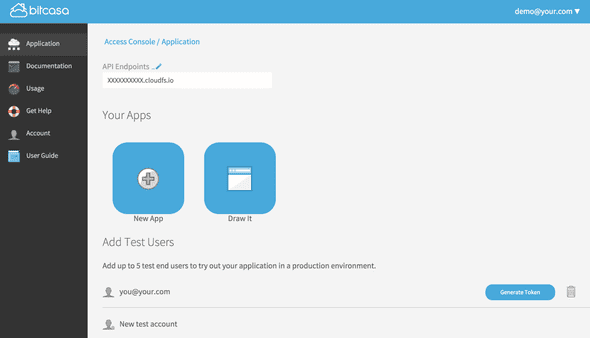
Photo

Next, generate an access token for the test user. This test user will store all the drawings that are saved in the app.
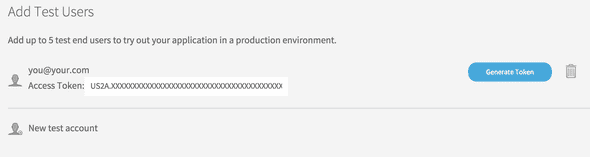
Photo

Copy the API Endpoint domain and the Access Token for later.

Setup

There are three files for this project. app.js is the Node.js app that handles communicating with Bitcasa to store images and to retrieve images. index.html and drawit.js make up the AngularJS app which shows the drawing tool and communicates with the Node.js app to save and display images.

In the app.js file, insert the Access Token from earlier into the BITCASAACCESSTOKEN variable and the API Endpoint into the BITCASAENDPOINT variable. You can change the value for FOLDERNAME, which is a name for the directory where the drawings will be stored.

// Filename: app.js

var BITCASA_ACCESS_TOKEN = '';
var BITCASA_ENDPOINT = '';
var FOLDER_NAME = 'drawit';
var PORT = 8080;

var express = require('express');
var bodyParser = require('body-parser');
var request = require('request');
var url = require('url');

var folderId = '';

var app = express();
app.use(bodyParser());
app.listen(PORT);

// Locate the folder to store the drawings in.
if(folderId == '') {
  request({
    url: 'https://'+BITCASA_ENDPOINT+'/v2/folders/?operation=create',
    headers: {
      'Authorization': 'Bearer '+BITCASA_ACCESS_TOKEN,
      'Content-Type': 'application/x-www-form-urlencoded; charset=utf8'
    },
    form: {
      name: FOLDER_NAME,
      exists: 'fail'
    },
    method: 'POST'},function(error, response, body) {
      if(error) {
        console.log(error);
        process.exit(1);
      }

      var js = JSON.parse(body);
      
      if(js.error) {
        if(js.error.code == 2042) {
          folderId = js.error.data.conflicting_id;  
        } else {
          console.log('Cannot find drawing folder: '+js.error.message);
          process.exit(1);
        }
      } else {
        folderId = js.result.items[0].id;
      }

      console.log('Using folder: '+folderId);
  });
}

app.post('/api/upload', function(req, res) {
  var base64Data = req.body.image.replace(/^data:image\/png;base64,/,'');
  var binaryData = new Buffer(base64Data, 'base64');

  var timeNow = new Date();
  request({
    url: 'https://'+BITCASA_ENDPOINT+'/v2/files/'+folderId,
    headers: {
      'Authorization': 'Bearer '+BITCASA_ACCESS_TOKEN,
      'Content-Type': 'multipart/form-data'
    },
    formData: {
      file: {
        value: binaryData,
        options: {
          filename: 'drawing_'+timeNow.valueOf()+'.png',
          contentType: 'image/png'
        }
      }
    },
    method: 'POST'
  }, function(error, response, body) {
    if(error) {
      res.send({error: 'Unable to save image'});
      return;
    }

    var js = JSON.parse(body);

    if(js.error) {
      res.send({error: js.error.message});
      return;
    }
    
    res.send({id: js.result.id});
  });
});

app.get('/image', function(req, res) {
  var query = url.parse(req.url, true).query;
  var body = '';

  var r = request({
    url: 'https://'+BITCASA_ENDPOINT+'/v2/files/'+folderId+'/'+query.id,
    headers: {
      'Authorization': 'Bearer '+BITCASA_ACCESS_TOKEN,
      'Content-Type': 'application/x-www-form-urlencoded; charset=utf8 '
    },
    method: 'GET'
  });
  r.end();
  
  r.on('response', function(response) {
    response.setEncoding('binary');
    response.on('end', function() {
      if(response.statusCode == 404) {
        res.status(404);
        res.send('Not found');
        return;
      }

      res.setHeader('Content-Type', response.headers['content-type']);
      res.send(new Buffer(body, 'binary'));
    });
    response.on('data', function (chunk) {
      if(response.statusCode == 200) body += chunk;
    });
  });
});

app.use(express.static(__dirname + '/public'));

console.log('Application listening on port '+PORT);
// Filename: public/drawit.js

angular.module('DrawItApp', [])
.controller('DrawItCtrl', ['$scope', '$http', function($scope, $http) {
  $scope.colors = [
    {name: 'Red', hex: 'FF0000'},
    {name: 'Blue', hex: '0000FF'},
    {name: 'Green', hex: '00FF00'},
    {name: 'Yellow', hex: 'FFFF00'},
    {name: 'Purple', hex: '800080'},
    {name: 'White', hex: 'FFFFFF'},
    {name: 'Black', hex: '000000'},
  ];

  $scope.history = [];

  var board = document.getElementById('board');
  var canvasWidth = 800;
  var canvasHeight = 400;
  var clickX = new Array();
  var clickY = new Array();
  var clickDrag = new Array();
  var clickColor = new Array();
  var curColor = $scope.colors[0].hex;
  var paint;

  canvas = document.createElement('canvas');
  canvas.setAttribute('width', canvasWidth);
  canvas.setAttribute('height', canvasHeight);
  canvas.setAttribute('id', 'canvas');
  canvas.setAttribute('style', 'border:1px solid black');
  board.appendChild(canvas);
  context = canvas.getContext("2d");

  $('#canvas').mousedown(function(e) {
    var mouseX = e.pageX - this.offsetLeft;
    var mouseY = e.pageY - this.offsetTop;
      
    paint = true;
    addClick(e.pageX - this.offsetLeft, e.pageY - this.offsetTop);
    redraw();
  });

  $('#canvas').mousemove(function(e) {
    if(paint){
      addClick(e.pageX - this.offsetLeft, e.pageY - this.offsetTop, true);
      redraw();
    }
  });

  $('#canvas').mouseup(function(e) {
    paint = false;
  });  

  $('#canvas').mouseleave(function(e) {
    paint = false;
  });

  function addClick(x, y, dragging) {
    clickX.push(x);
    clickY.push(y);
    clickDrag.push(dragging);
    clickColor.push(curColor)
  }

  function redraw() {
    context.clearRect(0, 0, context.canvas.width, context.canvas.height); // Clears the canvas
    context.lineJoin = 'round';
    context.lineWidth = 5;
        
    for(var i=0; i < clickX.length; i++) {    
      context.beginPath();
      if(clickDrag[i] &amp;&amp; i) {
        context.moveTo(clickX[i-1], clickY[i-1]);
       } else {
         context.moveTo(clickX[i]-1, clickY[i]);
       }

       context.lineTo(clickX[i], clickY[i]);
       context.closePath();
       context.strokeStyle = &#039;#&#039;+clickColor[i];
       context.stroke();
    }
  }

  $scope.save = function() {
    var dataURL = canvas.toDataURL();
    $http.post(&#039;/api/upload&#039;, {image: dataURL}).then(function(response) {
      if(response.data.error) {
        alert(&#039;Error: &#039;+response.data.error);
        return;
      }

      console.log(response);
      $scope.history.push(response.data);
    });
  }

  $scope.setColor = function(hex) {
    curColor = hex;
  }

  $scope.clearCanvas = function() {
    clickX = new Array();
    clickY = new Array();
    clickDrag = new Array();
    clickColor = new Array();

    context.clearRect(0, 0, context.canvas.width, context.canvas.height); // Clears the canvas
  }
}]);
<!-- Filename: public/index.html -->
<html ng-app="DrawItApp">
  <head>
    <title>Draw It</title>
    <script src="https://ajax.googleapis.com/ajax/libs/jquery/2.1.4/jquery.min.js"></script>
    <script src="https://ajax.googleapis.com/ajax/libs/angularjs/1.3.16/angular.min.js"></script>
    <script src="drawit.js"></script>
  </head>
  <body ng-controller="DrawItCtrl" style="font-family:Arial">
    <h2>Draw It</h2>
    <div id="board"></div>
    <input type="button" ng-click="save()" value="Save" />
    <input type="button" ng-click="clearCanvas()" value="Clear" />

    Colors: <input type="button" ng-repeat="color in colors" value="{{color.name}}" ng-click="setColor(color.hex)" />

    <div ng-show="history.length > 0">
      <h3>Saved drawings</h3>
      <a ng-repeat="image in history" href="/image?id={{image.id}}" target="_blank"><img ng-src="/image?id={{image.id}}" width="100" style="border: 1px solid black" /></a>
    </div>
  </body>
</html>
// package.json
{
  "name": "draw-it",
  "description": "Draw It application for Node.js",
  "version": "0.0.1",
  "private": true,
  "dependencies": {
    "express": "*",
    "url": "*",
    "body-parser": "*",
    "request": "*"
  }
}

To install the Node.js dependencies, run the command:

npm install

And to start the Node.js app, run the command

nodejs app.js

Draw It

Get out your crayons and get ready to color! Okay, um, open the index.html file in a modern browser like Google Chrome.
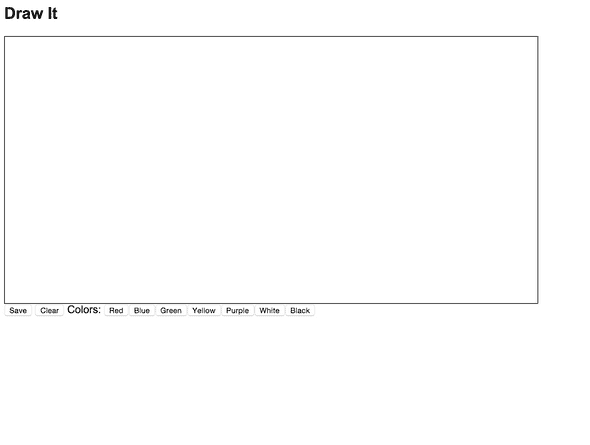
Photo

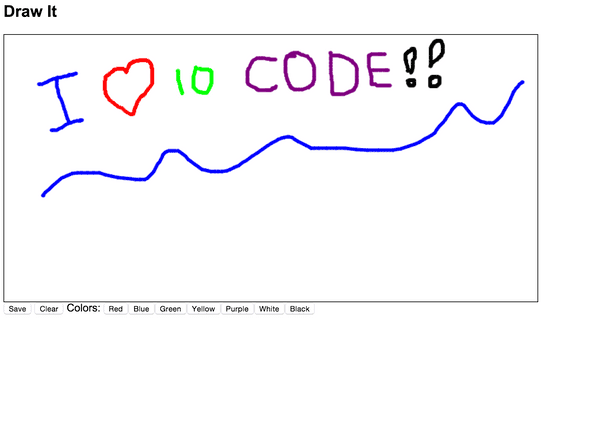
Pick a color and start drawing! You can switch colors by clicking on another color. Here’s my first drawing.
Photo

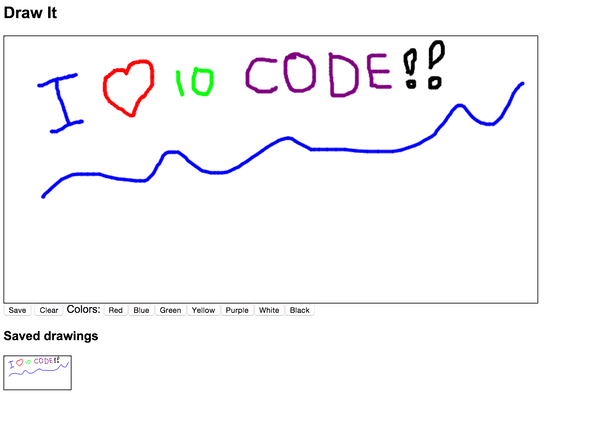
When you’re ready, click on the Save button. This will take the image data, upload it to the Node.js app, and to the Bitcasa API where it will be stored in the folder you specified in FOLDER_NAME.
Photo

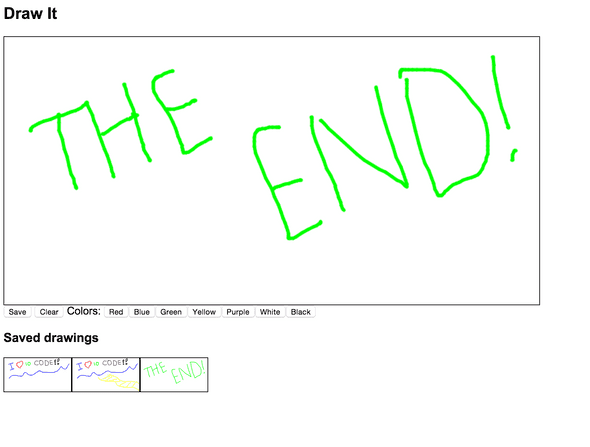
You can either add more to this drawing, or you can click on Clear to wipe the canvas clean. Everytime the Save button is clicked, the image is uploaded and creates another saved image. They are available at the bottom of the page. Clicking on one of the thumbnails will load the image in a new tab.
Photo

That’s it for this project. There are plenty of things that could be added to this project.

  • You can add more painting features. William Malone has more awesome examples on how to add brush sizes and other fun features to the HTML5 canvas.
  • The images are saved into Bitacasa with a timestamp. Add functionality to save the images with specific names and the option to choose which folder the images are saved into.
  • Saving images into Bitcasa is only half the fun. How about loading images from Bitcasa to use in the drawing app?
  • Add the ability to login with a Bitcasa account and have the drawings saved in that particular account, instead of just one global account.

Source Code

You can find the repo on GitHub.

Post Mortem

HTML5 gets a bad rap for not being very powerful compared to native apps in iOS and Android. Using the canvas feature shows that progress is being made to make the browser stronger.

This project also dived into how easy it is to pull the image data from the canvas and how to transmit the base 64 encoded binary data through Node.js and to Bitcasa. It felt harder than it really was. This project also got me thinking of drawing games that could be based on this example. Never a dull moment in a developer’s creative mind.

15 Projects in 30 Days Challenge

This blog post is part of my 15 projects in 30 days challenge. I’m hacking together 15 projects with different APIs, services, and technologies that I’ve had little to no exposure to. If my code isn’t completely efficient or accurate, please understand it isn’t meant to be complete and bulletproof. When something is left out, I try to mention it. Reach out to me and kindly teach me if I go towards the dark side. ?

This challenge serves a couple of purposes. First, I’ve always enjoyed hacking new things together and using APIs. And I haven’t had the chance (more like a reason) to dive in head first with things like AngularJS, Node.js, MongoDB, and Eventbrite. This project demonstrated AngularJS, Node.js, MongoDB, and Eventbrite.
Project 12: Hackathon Finder with Eventbrite

July 07, 2015 | 15 Projects in 30 days

I’m often asked where I hear about upcoming hackathons. There are quite a few places I hear about hackathons, including at hackathons themself. But there is one website that often times becomes the funnel to locate them, Eventbrite.

Eventbrite is used by many events to manage RSVPs. In order to register to attend a hackathon, you RSVP at the hackathon’s Eventbrite event page. A search for hackathon on Eventbrite brings up several this month just in the Bay Area.

For my twelfth project in my 15 projects in 30 days, I’m going to use Eventbrite’s API to search for hackathons nearby and send an email with the list of upcoming events.

Eventbrite

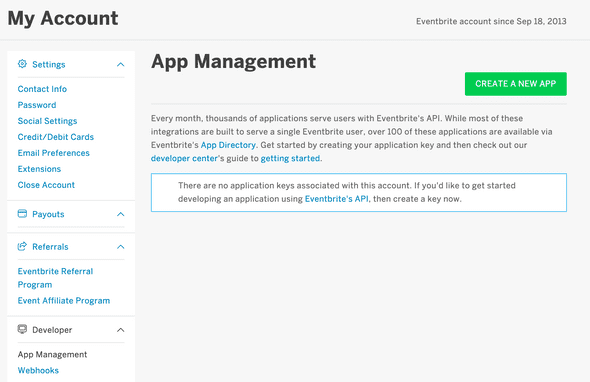
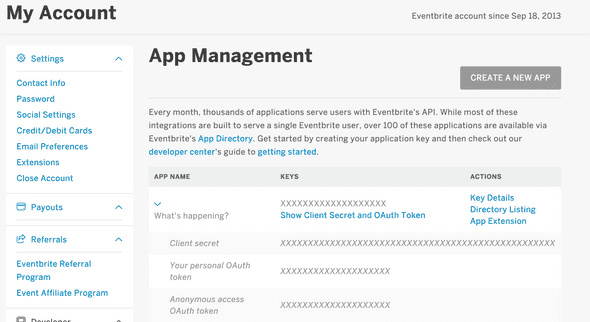
To use the Eventbrite API, register an app to get a Client ID and Client Secret.

Photo

Photo

Copy the Client ID and Client Secret into the app.js file.

SendGrid

I use SendGrid to send emails with the hackathon events. You can find instructions on how to set up SendGrid in Project 5.

Setup

There are three files for this project. app.js is the Node.js app that makes API calls, serves the web interface, and runs a callback at a set interval to process any email subscriptions. hackathonfinder.js and index.html make up the AngularJS app for the web interface.

// Filename: app.js

var EVENTBRITE_CLIENT_ID = '';
var EVENTBRITE_CLIENT_SECRET = '';
var SENDGRID_USERNAME = '';
var SENDGRID_FROM = '';
var SENDGRID_PASSWORD = '';
var ADDRESS = '';
var PORT = 8080;
var CHECK_INTERVAL = 60000; // How often (in milliconds) to check for subscriptions to process.
var EMAIL_INTERVAL = 24*60*60000; // How many milliseconds between emails?

var express = require('express');
var bodyParser = require('body-parser');
var url = require('url');
var session = require('express-session');
var cookieParser = require('cookie-parser');
var request = require('request');
var sendgrid = require('sendgrid')(SENDGRID_USERNAME, SENDGRID_PASSWORD);

var mongoose = require('mongoose');
mongoose.connect('mongodb://127.0.0.1:27017/test');

var app = express();

var Subscription = mongoose.model('Subscriptions', {
  email: String,
  token: String,
  location: String,
  next: Number
});

app.use(bodyParser.json());
app.use(cookieParser());
app.use(session({
  secret: '1234567890QWERTY'
}))

function searchEvents(params, callback) {
  request({
      url: 'https://www.eventbriteapi.com/v3/events/search/',
      qs: params,
      method: 'GET',
    },
    function(err, response, body) {
      if(err || response.statusCode != 200) {
        callback('Unable to authenticate with Eventbrite.');
        return;
      } else {
        var js = JSON.parse(body);
        var events = [];

        for(var i in js.events)
        {
          events.push({
            title: js.events[i].name.text, 
            start: js.events[i].start.local, 
            end: js.events[i].end.local,
            url: js.events[i].url
          });
        }

        callback(null, events);
      }
  });
}

function sendEmail(email, subject, content)
{
  try {
    sendgrid.send({
      to: email,
      from: SENDGRID_FROM,
      subject: subject,
      text: content
    }, function(err, json) {
      if(err) 
        console.log(err);
    });
  } catch(e) {
    console.log(e);
  }
}

app.get('/oauth', function(req, res) {
  res.redirect('https://www.eventbrite.com/oauth/authorize?response_type=code&amp;client_id='+EVENTBRITE_CLIENT_ID);
});

app.get('/oauth_callback', function(req, res) {
  var query = url.parse(req.url, true).query;

  req.session.access_token = query.code;

  var form = {
    client_id: EVENTBRITE_CLIENT_ID,
    code: query.code,
    client_secret: EVENTBRITE_CLIENT_SECRET,
    grant_type: 'authorization_code'
  }

  request({
      url: 'https://www.eventbrite.com/oauth/token',
      headers: {
        'Content-type': 'application/x-www-form-urlencoded'
      },
      form: form,
      method: 'POST',
    },
    function(err, response, body) {
      if(err || response.statusCode != 200) {
        res.send('Unable to authenticate with Eventbrite.');
      } else {
        var js = JSON.parse(body);

        req.session.access_token = js.access_token;
        res.redirect('/');
      }
  });
});

app.get('/api/me', function(req, res) {
  if(!req.session.access_token) {
    res.send({error: 'Not logged in'});
    return;
  }

  request({
      url: 'https://www.eventbriteapi.com/v3/users/me/?token='+req.session.access_token,
      method: 'GET',
    },
    function(err, response, body) {
      if(err || response.statusCode != 200) {
        res.send('Unable to get user info with Eventbrite.');
      } else {
        var js = JSON.parse(body);

        var userInfo = {};
        for(var i in js.emails) {
          if(js.emails[i].primary) {
            userInfo.email = js.emails[i].email;
          }
        }

        userInfo.name = js.name;
        res.send(userInfo);
      }
  });
});

app.get('/logout', function(req, res) {
  req.session.destroy();
  res.redirect('/');
});

app.get('/api/events', function(req, res) {
  if(!req.session.access_token) {
    res.send({error: 'Not logged in'});
    return;
  }

  var query = url.parse(req.url, true).query;
  var location = query.location;

  var qs = {
    token: req.session.access_token,
    q: 'hackathon',
    'location.address': location,
    'location.within': '75mi',
    sort_by: 'date',
    price: 'free'
    //'date_created.keyword': 'this_week'
  };

  searchEvents(qs, function(err, events) {
    if(err) {
      res.send({error: 'Unable to authenticate with Eventbrite.'});
      return;
    } else {
      res.send(events);
    }
  });
  
})

app.post('/api/subscribe', function(req, res) {
  if(!req.session.access_token) {
    res.send({error: 'Not logged in'});
    return;
  }

  var timeNow = new Date();
  
  Subscription.create({
    email: req.body.email, 
    location: req.body.location, 
    next: timeNow.getTime(),
    token: req.session.access_token
  }, function(error, doc) {
    if(error) {
      res.send({error: 'Unable to subscribe'});
      return;
    }

    res.send({location: doc.location});
  });
});

app.get('/unsubscribe', function(req, res) {
  var query = url.parse(req.url, true).query;

  Subscription.remove({_id: query.subscriptionid}, function(error, numAffected) {
    if(error || numAffected.result.ok != 1) {
      res.send('Could not unsubscribe');
    } else {
      res.send('Unsubscribed');
    }
  });
});

setInterval(function() {
  var qs = {
    q: 'hackathon',
    sort_by: 'date',
    price: 'free'
    // 'date_created.keyword': 'this_week'    
  };

  var timeNow = new Date();

  Subscription.find({next: {$lt: timeNow.getTime()}}, function(error, subscriptions) {
    for(var i in subscriptions) {
      qs['location.address'] = subscriptions[i].location;
      qs['location.within'] = '75mi';
      qs.token = subscriptions[i].token;

      var sub = subscriptions[i];
      searchEvents(qs, function(err, events) {
        if(err) {
          console.log(err);
          return;
        }

        Subscription.update({_id: sub._id}, {next: timeNow.getTime()+EMAIL_INTERVAL}, function(err, numAffected) {
          if(err) {
            console.log(err);
            return;
          }          
        });

        if(events.length == 0) {
          return;
        }

        var content = '';
        for(var i in events) {
          content += events[i].title+"\n"+events[i].start.substring(0, 10)+" - "+events[i].end.substring(0, 10)+"\n"+events[i].url+"\n\n";
        }

        content += 'Unsubscribe at: '+ADDRESS+':'+PORT+'/unsubscribe?subscriptionid='+sub._id;

        sendEmail(sub.email, 'New hackathons', content);
      }); 
    }
  });
}, CHECK_INTERVAL);

app.listen(PORT);

app.use(express.static(__dirname + '/public'));

console.log('Application listening on port '+PORT);
// Filename: public/hackathonfinder.js

angular.module('HackathonFinderApp', [])
.controller('HackathonFinderCtrl', ['$scope', '$http', function($scope, $http) {

  $http.get('/api/me').then(function(response) {
    $scope.doneLoading = true;
    $scope.location = '';

    if(response.data.error) {
      $scope.isLoggedIn = false;
      return;
    }

    $scope.email = response.data.email;
    $scope.name = response.data.name;
    $scope.isLoggedIn = true;
  });

  $scope.findEvents = function() {
    $http.get('/api/events?location='+$scope.location).then(function(response) {
      if(response.data.error) {
        alert('Error: '+response.data.error);
        return;
      }

      $scope.events = response.data;
    });
  }

  $scope.subscribe = function() {
    $http.post('/api/subscribe', {location: $scope.location, email: $scope.email}).then(function(response) {
      if(response.data.error) {
        alert('Error: '+response.data.error);
        return;
      }

      alert('You are now subscribed to hackathons near '+$scope.location);
    });
  }
}]);
<!-- Filename: public/index.html --> 
<html ng-app="HackathonFinderApp">
<head>
  <title>Hackathon Finder</title>
  <script src="https://ajax.googleapis.com/ajax/libs/angularjs/1.3.16/angular.min.js"></script>
  <script src="hackathonfinder.js"></script>
</head>
<body ng-controller="HackathonFinderCtrl" style="font-family:Arial">
  ## Hackathon Finder

  <div ng-hide="doneLoading">
    Loading...
  </div>

  <div ng-show="isLoggedIn === false">
    <a href="/oauth">Login with Eventbrite</a>
  </div>

  <div ng-show="isLoggedIn">
    Find hackathons near: <input type="text" ng-model="location" /><input type="button" ng-click="findEvents()" ng-disabled="location.length == 0" value="Search" /> <input type="button" ng-click="subscribe()" ng-disabled="location.length == 0" value="Subscribe" />

    <div ng-repeat="event in events">
      <h2><a href="{{event.url}}" target="_blank">{{event.title}}</a></h2>

      <p>{{event.description}}</p>

      <p>{{event.start | date:"MM/dd"}} - {{event.end | date:"MM/dd"}}</p>
    </div>
  </div>
</body>
</html>
// package.json
{
  "name": "hackathon-finder",
  "description": "Hackathon Finder application for Node.js",
  "version": "0.0.1",
  "private": true,
  "dependencies": {
    "express": "*",
    "body-parser": "*",
    "url": "*",
    "express-session": "*",
    "cookie-parser": "*",
    "request": "*",
    "mongoose": "*",
    "sendgrid": "*"
  }
}

This project uses Node.js and MongoDB, which I explain how to setup in another project.

To install the Node.js module dependencies, run the command:

npm install

And to start the app, run the command:

nodejs app.js

Hackathon Finder

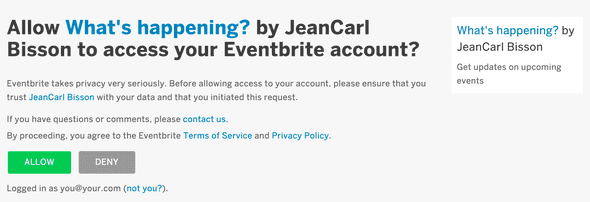
Hackathon Finder uses the OAuth protocol to get information about the user. The app sends the user off to Eventbrite to authorize the app to access their Eventbrite account.

Photo

When the user returns to the app, Hackathon Finder stores the access token in the request session. This access token is used for subsequent API calls to Eventbrite. The AngularJS app will makes a call to /api/me to get the user’s email address, which is stored for use in a little bit.

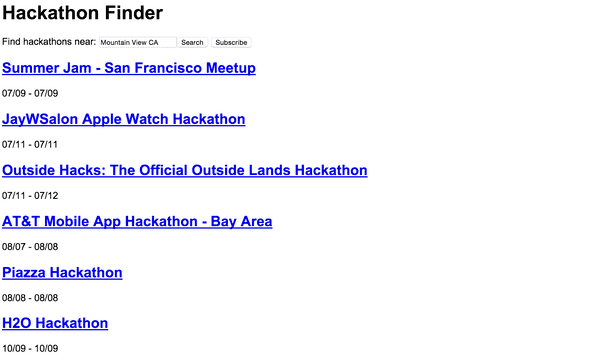
We can now search for upcoming events. Enter a location, such as Mountain View, CA and click on Search. Hackathon Finder will fetch upcoming events on Eventbrite that have the keyword hackathon and which are near this location.

Photo

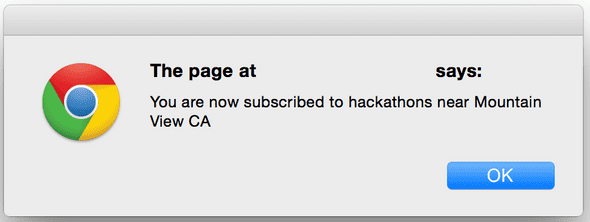
This is great, but I might forget to come here and search for upcoming events. Wouldn’t it be nice to get an email with the list of results? Click on the Subscribe button. You’ll get a confirmation when the subscription is successful.

Photo

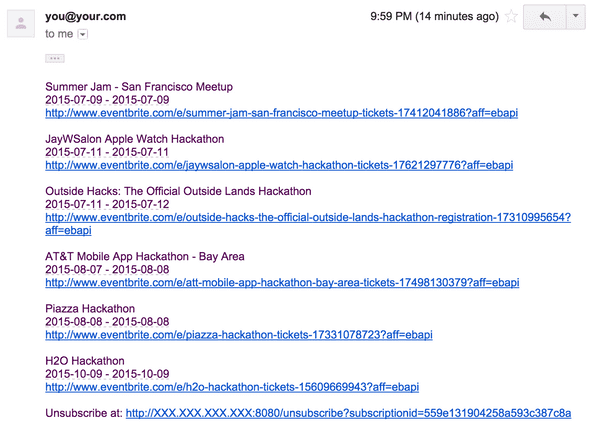
The next time Hackathon Finder checks for subscriptions, it will find this subscription and perform a search for hackathon events nearby the location. It will send an email using SendGrid.

Photo

For this project, I added a link to unsubscribe from the notification inside the email at the bottom.

I want to step back and explain where the email address of the subscription came from. When the page first loaded, the AngularJS app made a request to /api/me endpoint which got the Eventbrite user info. This user info includes one or more email addresses. The primary email address is used as the recipient address for the subscription.

That’s it for this project. Here are some things you can do to extend this project:

  • I've commented out the line 'date_created.keyword': 'this_week'. This would only look for events created this week. Add the capability to be notified only about the newest events.
  • The web interface needs an event description and the user's name. Are you up for the challenge?
  • Instead of emailing the new events, how about sending text messages using Twilio, Tropo, or Nexmo.
  • You can subscribe to multiple locations, one at a time. Streamline this option by combining multiple locations into one notification.
  • If there are multiple email addresses from Eventbrite User API, ask the user which email address should be used to subscribe to the emails.
  • Technically the email address for these subscriptions is stored in the JavaScript. Store it in the session and verify the chosen address is in the list of email address from Eventbrite. This way you can verify that the user "owns" this email address and it adds a little more security.

Source Code

You can find the repo on GitHub.

Post Mortem

The Eventbrite API is pretty interesting and easy to use. However, the location.address and location.within fields aren’t quite so friendly. Ideally the name of this field would be locationaddress and locationwithin for it to be accessible in object notation.

15 Projects in 30 Days Challenge

This blog post is part of my 15 projects in 30 days challenge. I’m hacking together 15 projects with different APIs, services, and technologies that I’ve had little to no exposure to. If my code isn’t completely efficient or accurate, please understand it isn’t meant to be complete and bulletproof. When something is left out, I try to mention it. Reach out to me and kindly teach me if I go towards the dark side. ?

This challenge serves a couple of purposes. First, I’ve always enjoyed hacking new things together and using APIs. And I haven’t had the chance (more like a reason) to dive in head first with things like AngularJS, Node.js, MongoDB, and Eventbrite. This project demonstrated AngularJS, Node.js, MongoDB, and Eventbrite.
Project 11: Story Time Viewer with Box

July 04, 2015 | 15 Projects in 30 days

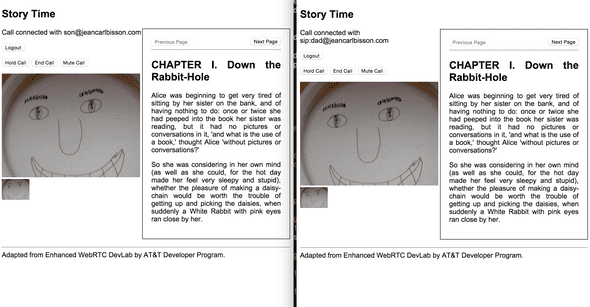
In Project 7 I created a storybook sample app where a father and son could remotely read a bedtime story over AT&T’s Enhanced WebRTC. On the right side was sample content that was statically added. That content had pagination controls to flip through pages of a storybook.

Photo

However, this approach was a little clunky. In order to support more rich and dynamic content, a system would have to be built to take content and convert it into a format to be displayed for the web.

In my eleventh project of my 15 projects in 30 days challenge, I’m going to use Box’s View API to show how dynamic content can be supported with relative ease.

Box

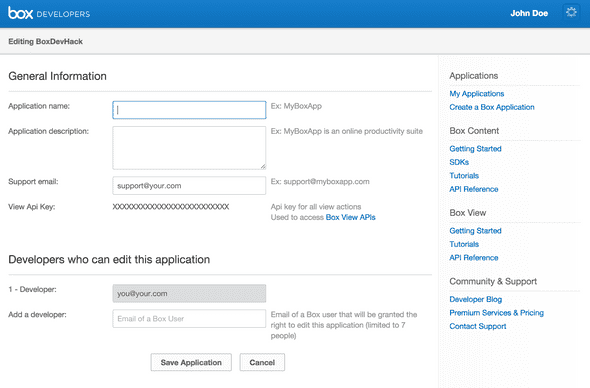
In order to use the Box View API, you need an API key. Sign up for a developer account and create a new application.

Photo

Setup

For this project, there are six files. app.js is the Node.js app which fetches document ids of content added into the system and fetches session ids from the Box API to display content. index.html and storytimeviewer.js in the public directory is the AngularJS app. Partial views include: storylist.html displays available stories; addstory.html adds stories; and view_story.html displays the story using the viewer by Box.

// Filename app.js

var BOX_API_KEY = '';
var PORT = 8080;
var MONGODB_ADDRESS = 'mongodb://127.0.0.1:27017/test';

var express = require('express');
var bodyParser = require('body-parser');
var request = require('request');
var cors = require('cors');
var mongoose = require('mongoose');

var app = express();
app.listen(PORT);
app.use(bodyParser.json());
app.use(cors());

mongoose.connect(MONGODB_ADDRESS);

var StoryModel = mongoose.model('Stories', {
  title: String,
  documentId: String
});

app.post('/api/addcontent', function(req, res) {
  var options = {
    url: 'https://view-api.box.com/1/documents',
    method: 'POST',
    headers: {
      'Authorization': 'Token '+BOX_API_KEY
    },
    json: {
      url: req.body.url
    }
  };

  request(options, function(error, response, body) {
    if(response.statusCode != 202) {
      res.send({error: 'Unable to add content'});
      console.log(response);
      return;
    }

    StoryModel.create({title: req.body.title, documentId: body.id}, function(error, doc) {
      if(error) {
        res.send({error: 'Unable to add content'});
        return;
      }

      res.send({documentId: body.id});
    });
  });
});

app.get('/api/getstories', function(req, res) {
  StoryModel.find({}, function(error, stories) {
    var results = [];

    for(var i in stories) {
      results.push({
        title: stories[i].title, 
        documentId: stories[i].documentId
      });
    }

    res.send(results);
  });
});

app.post('/api/getsession', function(req, res) {
  var options = {
    url: 'https://view-api.box.com/1/sessions',
    method: 'POST',
    headers: {
      'Authorization': 'Token '+BOX_API_KEY
    },
    json: {
      document_id: req.body.documentId
    }
  };

  request(options, function(error, response, body) {
    if(response.statusCode != 201) {
      res.send({error: 'Unable to get session'});
      return;
    }

    res.send({sessionId: body.id});
  });
});

app.use(express.static(__dirname + '/public'));

console.log('App listening on port '+PORT);
<!-- Filename: public/index.html -->

<html ng-app="StoryTimeApp">
  <head>
    <link rel="stylesheet" href="http://cdnjs.cloudflare.com/ajax/libs/viewer.js/0.10.7/crocodoc.viewer.min.css" />
    <script type="text/javascript" src="http://ajax.googleapis.com/ajax/libs/jquery/2.1.4/jquery.min.js"></script>
    <script type="text/javascript" src="http://cdnjs.cloudflare.com/ajax/libs/viewer.js/0.10.7/crocodoc.viewer.min.js"></script>
    <script src="https://ajax.googleapis.com/ajax/libs/angularjs/1.3.16/angular.min.js"></script>
    <script src="https://ajax.googleapis.com/ajax/libs/angularjs/1.2.1/angular-route.min.js"></script>
    <script src="storytimeviewer.js"></script>
  </head>
  <body style="font-family:Arial">
    <h1><a href="#/" style="text-decoration:none; color:black">Story Time Viewer</a></h1>
    
    <div ng-view></div>
  </body>
</html>
// Filename: public/storytimeviewer.js

var StoryTimeApp = angular.module('StoryTimeApp', ['ngRoute']);

StoryTimeApp.config(['$routeProvider', function($routeProvider) {
  $routeProvider.
    when('/', {
      templateUrl: 'story_list.html',
      controller: 'StoryListCtrl'
    }).
    when('/add', {
      templateUrl: 'add_story.html',
      controller: 'AddStoryCtrl'
    }).
    when('/read/:documentId', {
      templateUrl: 'view_story.html',
      controller: 'ViewStoryCtrl'
    }).    
    otherwise({
      redirectTo: '/'
    });
}]);

StoryTimeApp.controller('StoryListCtrl', ['$scope', '$http', function($scope, $http) {
  $http.get('/api/getstories').then(function(response) {
    $scope.stories = response.data;
  });
}]);

StoryTimeApp.controller('AddStoryCtrl', ['$scope', '$http', '$location', function($scope, $http, $location) {
  $scope.loadContent = function() {
    $http.post('/api/addcontent', {url: $scope.contentUrl, title: $scope.title}).then(function(response) {
      if(response.data.error) {
        alert(response.data.error);
        return;
      }

      $scope.documentId = response.data.documentId;  

      $location.path('/');
    });
  }
}]);

StoryTimeApp.controller('ViewStoryCtrl', ['$scope', '$http', '$routeParams', function($scope, $http, $routeParams) {
  $scope.documentId = $routeParams.documentId;

  var viewer;

  $scope.previousPage = function() {
    $scope.currentPage--;
    viewer.scrollTo($scope.currentPage);
  };

  $scope.nextPage = function() {
    $scope.currentPage++;
    viewer.scrollTo($scope.currentPage);
  };

  $http.post('/api/getsession', {documentId: $scope.documentId}).then(function(response) {
    if(response.data.error) {
      alert('Unable to get session');
      return;
    }    

    $scope.sessionId = response.data.sessionId;

    viewer = Crocodoc.createViewer('#viewer', {
      url: 'https://view-api.box.com/1/sessions/'+response.data.sessionId+'/assets/',
      layout: Crocodoc.LAYOUT_PRESENTATION
    });

    viewer.on('ready', function(event) {
      console.log(event);
      $scope.$apply(function() {
        $scope.currentPage = 1;
        $scope.totalPageCount = event.data.numPages;
      });
    });

    viewer.load();
  });
}]);
<!-- Filename: public/story_list.html -->

<h2>Available Stories</h2>

<div ng-hide="stories.length">No stories have been added!</div>

<ul>
  <li ng-repeat="story in stories"><a href="#/read/{{story.documentId}}">{{story.title}}</a></li>
</ul>

<a href="#/add">Add a story</a>
<!-- Filename: public/view_story.html -->

<div ng-hide="totalPageCount">
  Loading story...
</div>

<div id="viewer" style="width:800px; height:600px"></div>

<div ng-show="totalPageCount">
  <input type="button" ng-click="previousPage()" ng-disabled="currentPage == 1" value="Previous Page" /> Page {{currentPage}} of {{totalPageCount}}
  <input type="button" ng-click="nextPage()" ng-disabled="currentPage == totalPageCount" value="Next Page" />
</div>
<p>Enter a URL to a PDF file:<br />
  <input type="text" ng-model="contentUrl" />
</p>
<p>Name the story:<br />
  <input type="text" ng-model="title" />
</p>

<input type="button" ng-click="loadContent()" value="Add Story" />
// package.json
{
  "name": "story-time",
  "description": "Story Time application for Node.js",
  "version": "0.0.1",
  "private": true,
  "dependencies": {
    "express": "*",
    "body-parser": "*",
    "request": "*",
    "cors": "*",
    "mongoose": "*"
  }
}

In app.js, add your Box API key to BOXAPIKEY.

If you haven’t installed Node.js or MongoDB, please follow the instructions in my other project.

To install Node.js dependencies, run the following command:

npm install

And run the app:

nodejs app.js

Story Time Viewer

Story Time Viewer isn’t really useful without some content. First we need to find a good story to read, preferably in PDF format. Click on Add Story and paste the URL into the first input box. Give the story a title and then click on Add Story.

Photo

Story Time contact the Box API, provide the content URL, get a document id for this content, add it to the story list in MongoDB, and then redirect the browser back to the story list. You should see a new story in the list.

Photo

Click on the story in the list. The AngularJS app will request a session id from the Node.js app, which will contact the Box API. The session id is a unique token that provides access to this document for a set amount of time (by default, 60 minutes).

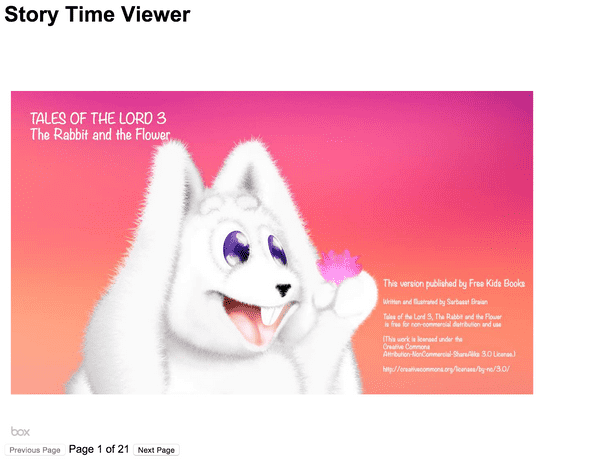
When the session id is returned to the AngularJS app, it will load up the Box viewer and pass it the session id. The Box viewer displays the content.

Photo

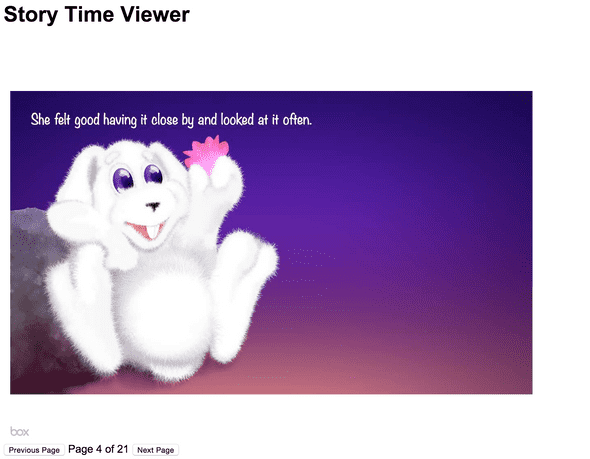
The previous and next buttons call the Box viewer’s methods to change the page. These event handlers can be modified to use WebSockets like Project 7 did to change the page in all participant’s browsers. This is left as an exercise for the reader.

Photo

That’s it for this project. Here are some things that can be done:

  • This project adds more functionality to Project 7, where I built a story time demo to connect a father and son remotely for bedtime story. Replace the static content with this dynamic content alternative.
  • Add authentication so that stories added are associated with just that user (see Project 3 where I used Parse).

Post Mortem

I’ve followed Box’s View API since it was first announced last year and have always admired the grace at which it displays file formats that are not so browser friendly. While I didn’t show it, Story Time Viewer works really smoothly with Word documents.

I would have liked if the Box viewer provided access to an event callback for clicks. It would be cool to add sound effects when parts of the content are clicked on.

15 Projects in 30 Days Challenge

This blog post is part of my 15 projects in 30 days challenge. I’m hacking together 15 projects with different APIs, services, and technologies that I’ve had little to no exposure to. If my code isn’t completely efficient or accurate, please understand it isn’t meant to be complete and bulletproof. When something is left out, I try to mention it. Reach out to me and kindly teach me if I go towards the dark side. ?

This challenge serves a couple of purposes. First, I’ve always enjoyed hacking new things together and using APIs. And I haven’t had the chance (more like a reason) to dive in head first with things like AngularJS, Node.js, MongoDB, and Mailgun. This project demonstrated AngularJS, Node.js, MongoDB, and Mailgun.

Project 10: Photo Stream with Mailgun

July 03, 2015 | 15 Projects in 30 days

Over the years that I have been developing websites, I’ve had several occasions where I needed to receive emails programmatically and perform an action on the contents. If you’ve ever tried to read a raw email message, you know how complicated it can get. And with attachments and content boundaries, it never seemed to work out well.

Fortunately, Mailgun comes to the rescue. You can point your domain’s MX DNS records to their servers and do some pretty interesting things with emails. You can choose to match on different criteria of the email message and forward to another email address. You can also have Mailgun parse the email message and then post the message data to a URL.

In this tenth project of my 15 projects in 30 days challenge, I’m going to create an AngularJS and Node.js app that will handle incoming emails with photo attachments, and show a photo stream for each sender. This will demonstrate how easy it is to receive and process emails, including those dreaded attachments. I will also work with files in Node.js and use a second controller/view in AngularJS.

Mailgun

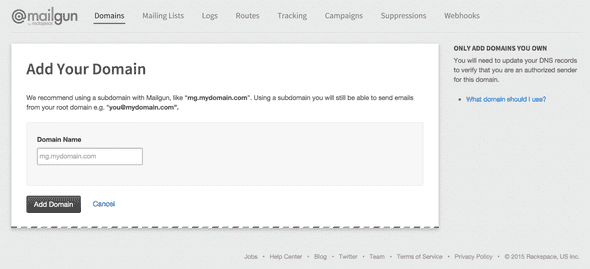
You’ll need to sign up for a Mailgun account and add a domain name or subdomain name. Part of the process adding a domain name includes changing some DNS settings so that mail is delivered to Mailgun.

Photo

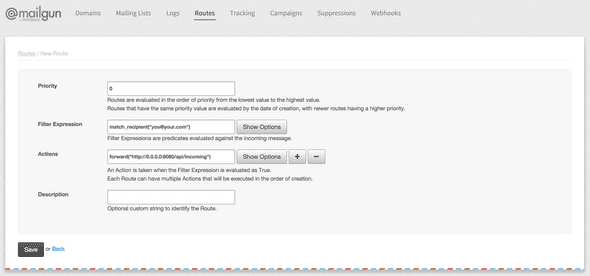
After you have your domain or subdomain pointing to Mailgun and shows an Active status, click on the Routes tab, and then Create New Route. We will specify a new route for the pics alias (pics@yourdomain.com). Change the IP address in the Actions field to point to where the Node.js app is hosted.

Photo

Setup

There are five files that are part of this project. The Node.js app, app.js, will handle the Mailgun webhook and also serve the AngularJS app and any pictures. The AngularJS app comprises of index.html and photostream.js, with two partial views photostream.html and userlist.html. userlist.html will show the most recent picture from each sender, whereas photostream.html will display all the pictures from a specific sender, in newest to oldest order.

// Filename: app.js

var PORT = 8080;
var MONGODB_ADDRESS = 'mongodb://127.0.0.1:27017/test';
var UPLOADS_DIR = 'uploads';

var express = require('express');
var bodyParser = require('body-parser');
var formidable = require('formidable');
var fs = require('fs');
var url = require('url');
var mongoose = require('mongoose');

var app = express();
app.listen(PORT);

mongoose.connect(MONGODB_ADDRESS);

var PhotoModel = mongoose.model('Photos', {
  email: String,
  title: String,
  caption: String,
  image: String,
  timeCreated: Number
});

app.post('/api/incoming', function(req, res) {
  var form = new formidable.IncomingForm();

  form.parse(req, function(err, fields, files) {
    var timeNow = new Date();

    for(var attachment in files) {
      fs.readFile(files[attachment].path, function (err, data) {
        var filename = fields.sender.replace(/[^A-Za-z0-9]/g, '')+fields.token+attachment;

        fs.writeFile(__dirname+'/public/'+UPLOADS_DIR+'/'+filename, data, function (err) {
          PhotoModel.create({
            email: fields.sender,
            title: fields.subject,
            caption: fields['stripped-text'],
            image: filename,
            timeCreated: timeNow.getTime()
          }, function(err, doc) {
            console.log(doc);
          });

        });
      });
    }

    res.send('success');
  });
});

app.get('/api/uploads', function(req, res) {
  var query = url.parse(req.url, true).query;
  PhotoModel.find({email:query.email}).sort({timeCreated: -1}).exec(function(err, photos) {
    if(err) {
      res.send([]);
      return;
    }  

    var results = [];

    for(var i in photos) {
      results.push({
        title: photos[i].title,
        caption: photos[i].caption.replace(/\n/g, '<br />'),
        url: '/+'UPLOADS_DIR'+/'+photos[i].image,
        timeCreated: photos[i].timeCreated
      });
    }

    res.send(results);
  });
});

app.get('/api/users', function(req, res) {
  PhotoModel.aggregate([
      {'$sort': {'email': 1, 'timeCreated': -1}},
      {'$group': {
          '_id': '$email', 
          'email': {'$first':'$email'}, 
          'url': {'$first':'$image'},
          'title': {'$first':'$title'},
          'caption': {'$first':'$caption'}
      }}
    ], function(err, docs) {
      if(err) {
        res.send([]);
        return;
      }  

      var results = [];
      for(var i in docs) {
        results.push({
          email: docs[i].email,
          url: '/'+UPLOADS_DIR+'/'+docs[i].url,
          title: docs[i].title,
          caption: docs[i].caption.replace(/\n/g, '<br />'),
        });
      }
      res.send(results);
    });
});

app.use(express.static(__dirname + '/public'));

console.log('Application listening on port '+PORT);
<!-- Filename: public/index.html -->
<html ng-app="PhotoStreamApp">
  <head>
    <title>Photo Stream</title>
    <script src="https://ajax.googleapis.com/ajax/libs/angularjs/1.3.16/angular.min.js"></script>
    <script src="https://ajax.googleapis.com/ajax/libs/angularjs/1.2.1/angular-route.min.js"></script>
    <script src="photostream.js"></script>
  </head>
  <body style="font-family:Arial">
    ## Photo Stream
    <div ng-view></div>
  </body>
</html>
<!-- Filename: public/photo_stream.html -->
Showing {{photos.length}} photo{{photos.length != 1 ? "s" : ""}} from {{email}}
<div ng-repeat="photo in photos" style="position:relative; margin-top:10px">
  <img ng-src="{{photo.url}}" style="max-width:100%" />
  <div style="position:absolute; bottom:0px; opacity:0.5; background-color:black; color:white; width:100%">
    <div style="padding:0 20">
      <div style="float:right">{{photo.timeCreated | date:"MM/dd"}}</div>
      <h2>{{photo.title}}</h2>
      <p>{{photo.caption}}</p>
    </div>
  </div>
</div>
<!-- Filename: public/user_list.html -->
<div ng-repeat="account in accounts" style="position:relative; margin-bottom:10px">
  <a href="#/stream/{{account.email}}">
    <img ng-src="{{account.url}}" style="max-width:100%" />
    <div style="position:absolute; bottom:0px; opacity:0.5; background-color:black; color:white; width:100%">
      <div style="padding:0 20">
        <div style="float:right">{{account.email}}</div>
        <h2>{{account.title}}</h2>
        <p>{{account.caption}}</p>
      </div>
    </div>
  </a>
</div>
// Filename: public/photostream.js

var PhotoStreamApp = angular.module('PhotoStreamApp', ['ngRoute']);

PhotoStreamApp.config(['$routeProvider', function($routeProvider) {
  $routeProvider.
    when('/', {
      templateUrl: 'user_list.html',
      controller: 'UserListCtrl'
    }).
    when('/stream/:emailAddress', {
      templateUrl: 'photo_stream.html',
      controller: 'PhotoStreamCtrl'
    }).
    otherwise({
      redirectTo: '/'
    });
}]);

PhotoStreamApp.controller('PhotoStreamCtrl', ['$scope', '$http', '$routeParams', function($scope, $http, $routeParams) {
  $scope.email = $routeParams.emailAddress;

  $http.get('/api/uploads?email='+$scope.email).then(function(response) {
    if(response.data.error) {
      return;
    }
    
    $scope.photos = response.data;
  });  
}]);

PhotoStreamApp.controller('UserListCtrl', ['$scope', '$http', function($scope, $http) {
  $http.get('/api/users').then(function(response) {
    if(response.data.error) {
      return;
    }
    
    $scope.accounts = response.data;
  });  
}]);
// package.json
{
  "name": "photo-stream",
  "description": "Photo Stream application for Node.js",
  "version": "0.0.1",
  "private": true,
  "dependencies": {
    "express": "*",
    "mongoose": "*",
    "url": "*",
    "body-parser": "*",
    "formidable": "*"
  }
}

We need a place to store the pictures emailed. Create an uploads folder in the public directory. It is located in the public directory so that pictures in this directory can be served directly.

If you haven’t already installed MongoDB and Node.js, you can find the instructions in my other project.

To install the dependencies, you can run the following command:

npm install

And to start the Node.js app

nodejs app.js

Photo Stream

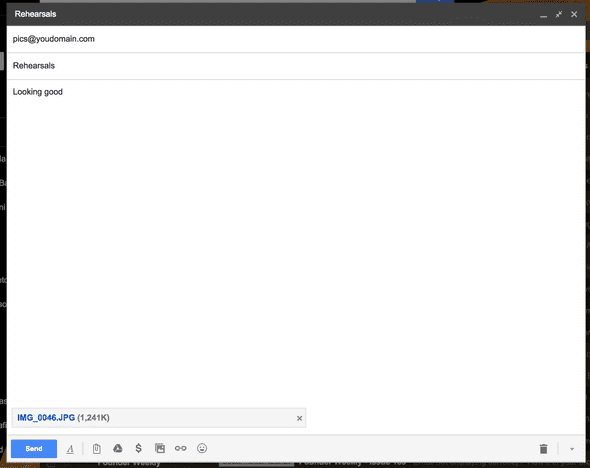
To add pictures into Photo Stream, email the pictures as attachments. Use the subject line as the title of the picture, and the body of the message as the caption for the picture. If you attach more than one picture to the email, each picture will get the same title and caption.

Photo

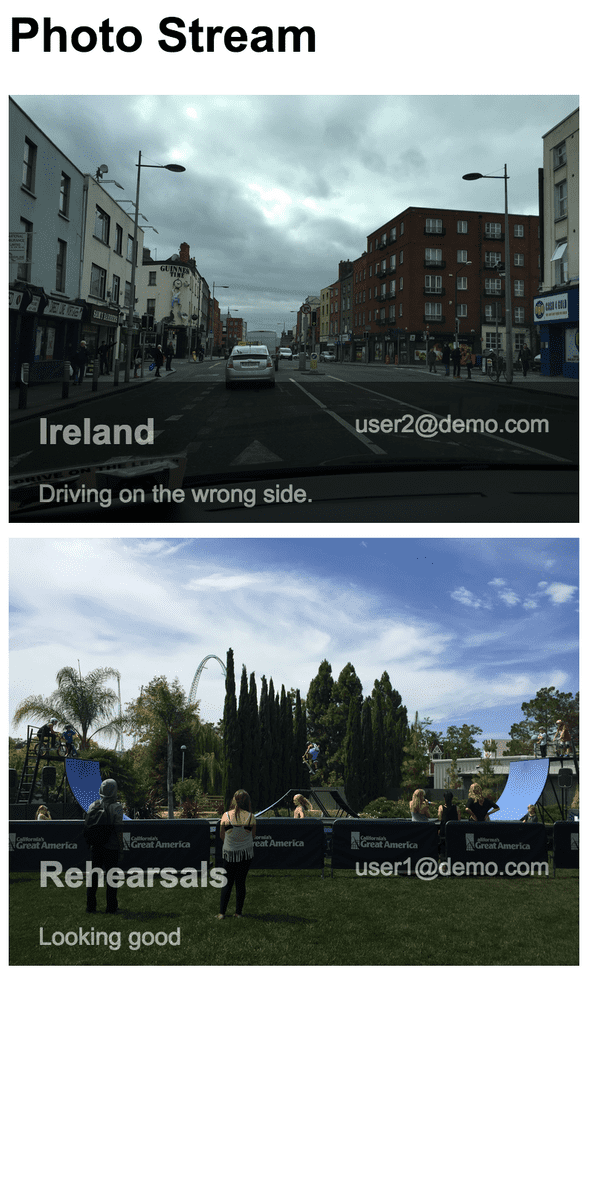
Open a browser window to where the AngularJS is hosted. The most recent picture for each sender is shown, with the corresponding title and caption. If you repeat the process with another email address, you should see two pictures, the most recent picture from each email address.

Photo

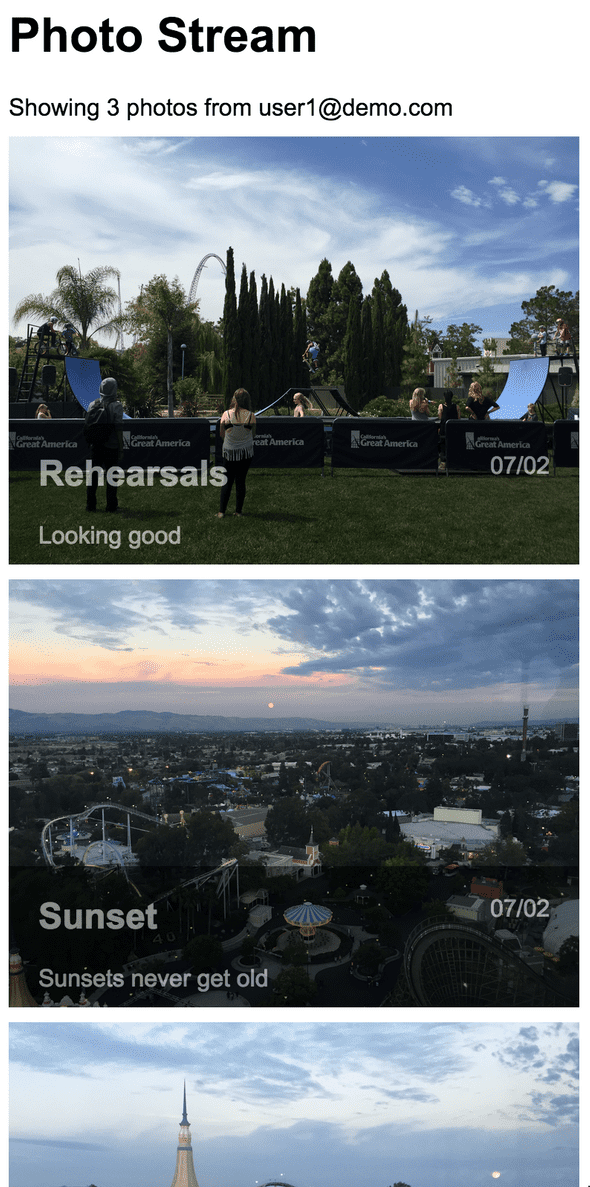
Viewing the latest picture from each sender is great, but how about viewing all the pictures a particular sender has sent. Click on the picture belonging to the sender, and a list of pictures sent by the particular sender will be shown, with the most recent picture on top.

Photo

Did you notice what happened to the AngularJS app when you clicked on a picture? It loaded a second page! Using the AngularJS routing module, Photo Stream seamlessly switched over to a second controller and view. The URL should be something like /index.html#/stream/user1@demo.com. The email address that is being looked up is coming from the URL.

That’s it for this project. Here are some additional things that could be done:

  • Email addresses may not be the best thing to show in our app. Either mask them or create usernames. If you create a username, it may be helpful to send an email to the user with their newly created username and a link to their profile. You could use SendGrid (project 5) to send the email.
  • Photo Stream doesn't actually restrict the email attachments to being only images. Check the content type of the attachments, and reject non-images.
  • Add another view with just one picture so it is easy to share a single picture.
  • It may be useful to send an email response back after adding pictures to a user's Photo Stream. That way they can check them out directly.
  • The user list and an individual's photo stream could become very long. Use pagination to limit the number of pictures loaded at a time.

Source Code

You can find the repo on GitHub.

Post Mortem

It was pretty cool how easy it is to handle emails and especially attachments through Mailgun. It wouldn’t take too much effort to enable a feature where you could just CC the Photo Stream email address when you email pictures to family members or friends.

This project also touched on routing in AngularJS, added a second controller, and added some grouping complexity in the MongoDB queries to find the latest pictures from users.

15 Projects in 30 Days Challenge

This blog post is part of my 15 projects in 30 days challenge. I’m hacking together 15 projects with different APIs, services, and technologies that I’ve had little to no exposure to. If my code isn’t completely efficient or accurate, please understand it isn’t meant to be complete and bulletproof. When something is left out, I try to mention it. Reach out to me and kindly teach me if I go towards the dark side. ?

This challenge serves a couple of purposes. First, I’ve always enjoyed hacking new things together and using APIs. And I haven’t had the chance (more like a reason) to dive in head first with things like AngularJS, Node.js, MongoDB, and Mailgun. This project demonstrated AngularJS, Node.js, MongoDB, and Mailgun.

Project 9: Time Me with Nexmo 

July 01, 2015 | 15 Projects in 30 days

Update July 7th : This project was submitted to Nexmo’s Verify API hackathon and was awarded first place this morning.

What makes hacking these projects together so much fun is finding new ways to do things that already have an established process. There was another online hackathon sponsored by Nexmo, a voice and SMS service provider, which finished up today. Nexmo was looking for hacks that used their Number Verify API.

If you’ve ever used two-factor authentication with services like Gmail, you might have seen how this process works. In Gmail, after providing your username and password, you can opt to receive an one-time use code via SMS. You must enter this unique code as the second step in authenticating it’s really you. Usually only you will have both your password and the phone at the same time.

These one-time use codes work similarly when using Nexmo’s Number Verify API, but also offer a wider range of options in how you use them. As a developer, you specify the phone number you want to verify (usually provided by the user). Nexmo will call the phone number and speak a four digit number to the user. The user provides you this number, and you make another API call to the Number Verify API and check that the code is correct. In this system, only Nexmo knows the right code, which makes it pretty secure for the three parties involved.

For my ninth project in my 15 projects in 30 days challenge, I’m going to use Number Verify API as an authentication method for the web portion of the app. The app comes in two forms. First, the SMS side where you can send text messages to Time Me to start and end timers for tasks. Second, a web interface to view all the timers created by a phone number.

Nexmo

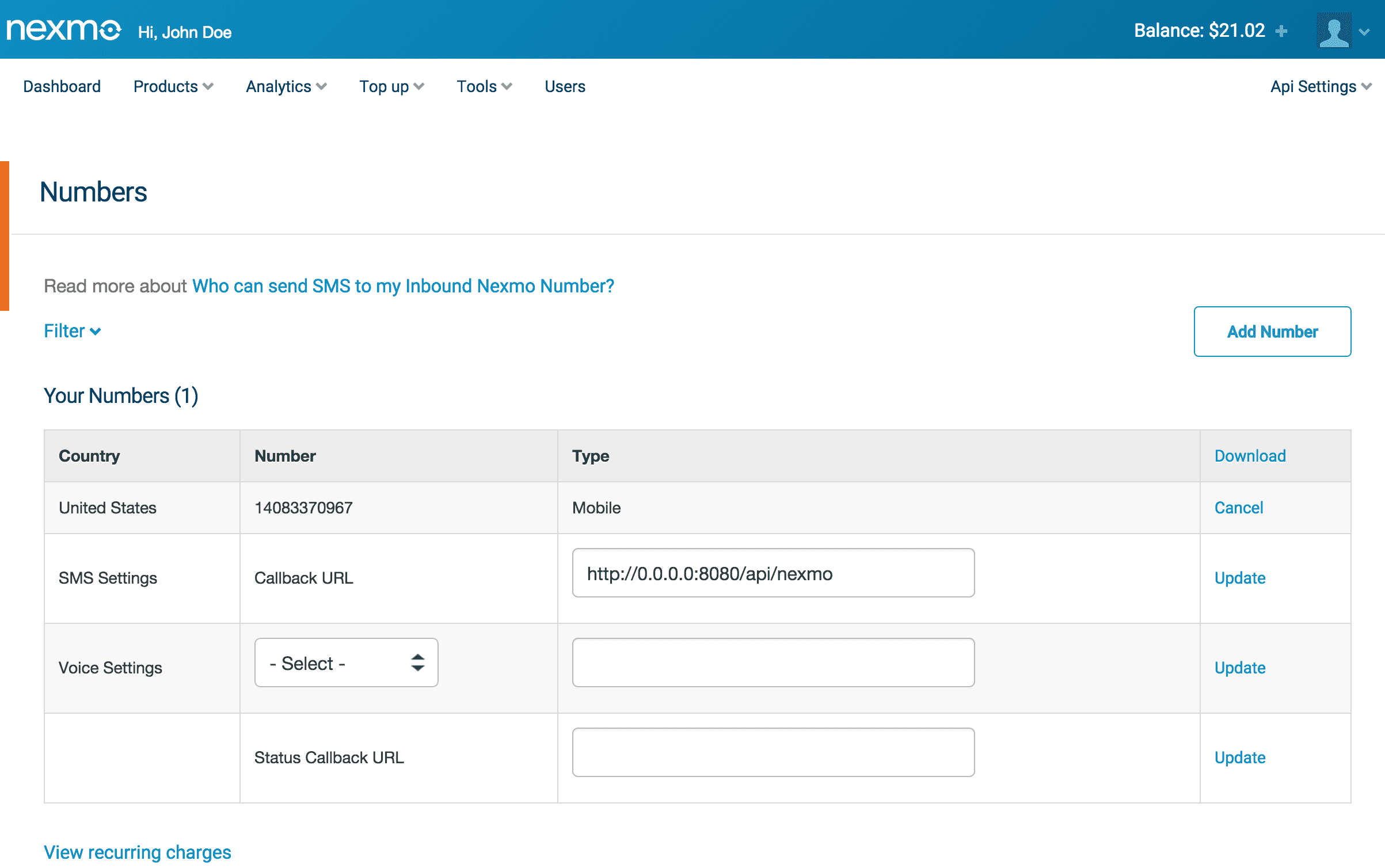
You’ll need an API key and secret from Nexmo, and a phone number which will receive text messages from users and respond back. You can sign up here.

Photo

Setup

There are three files for this project. The web version of this app will use AngularJS with the files index.html and timeme.js. The backend will be a Node.js app, app.js, powering both the web app and serving as the callback that Nexmo sends text messages to.

You’ll need to install Node.js and MongoDB. My other projects have instructions on how to do this.

// Filename: app.js

var NEXMO_API_KEY = '';
var NEXMO_API_SECRET = '';
var BRAND_NAME = 'Time Me';
var START_COMMAND = 'begin';
var FINISH_COMMAND = 'finish';
var MONGODB_ADDRESS = 'mongodb://127.0.0.1:27017/test';
var SESSION_SECRET = '';
var PORT = 8080;

var express = require('express');
var bodyParser = require('body-parser');
var request = require('request');
var url = require('url');
var cookieParser = require('cookie-parser');
var session = require('express-session');
var MongoStore = require('connect-mongo')(session);
var mongoose = require('mongoose');
mongoose.connect(MONGODB_ADDRESS);

var app = express();
app.use(cookieParser());
app.use(session({
  secret: SESSION_SECRET,
  store: new MongoStore({ mongooseConnection: mongoose.connection })
}));
app.listen(PORT);
app.use(bodyParser.json());

var Task = mongoose.model("TimeTest6", {
  number: String,
  task: String,
  starttime: Number,
  endtime: Number
});

app.get('/api/verify', function(req, res) {
  var query = url.parse(req.url, true).query;
  query.number = query.number;

  request.get('https://api.nexmo.com/verify/json?number='+query.number+'&amp;brand='+encodeURIComponent(BRAND_NAME)+'&amp;api_key='+NEXMO_API_KEY+'&amp;api_secret='+NEXMO_API_SECRET, function(err, response) {
    if(err) {
      res.send({error: 'Stale request id'});
      return;
    }

    var js = JSON.parse(response.body);
    if(js.error_text) {
      res.send({error: js.error_text});
      return;
    }

    req.session.unverified_number = query.number;
    req.session.request_id = js.request_id;

    res.send({requestid: js.request_id});
  });
});

app.post('/api/check', function(req, res) {
  var query = url.parse(req.url, true).query;
  var requestId = query.requestid;
  var code = query.code;

  if(req.session.request_id != requestId) {
    res.send({error: 'Stale request id'});
    return;
  }

  request.get('https://api.nexmo.com/verify/check/json?request_id='+requestId+'&amp;code='+code+'&amp;api_key='+NEXMO_API_KEY+'&amp;api_secret='+NEXMO_API_SECRET, function(err, response) {
    if(err) {
      res.send({error: 'Invalid code'});
      return;
    }

    var js = JSON.parse(response.body);
    if(js.error_text) {
      res.send({error: js.error_text}
        );
      return;
    }
    
    if(js.status == '0') {
      req.session.number = req.session.unverified_number;
      res.send({number: req.session.number});
    } else {
      res.send({error: 'Invalid code'});
    }
  });
});

app.get('/api/me', function(req, res) {
  if(req.session.number) {    
    res.send({number: req.session.number});
  } else {
    res.send({error: 'Not validated'});  
  }
});

app.get('/api/nexmo', function(req, res) {
  var query = url.parse(req.url, true).query;
  var timeNow = new Date();

  if(query.text.substring(0, START_COMMAND.length).toLowerCase() == START_COMMAND) {
    Task.create({
      number: query.msisdn,
      task: query.text.substring(START_COMMAND.length+1),
      starttime: timeNow.getTime(),
      endtime: 0
    }, function(err, doc) {
      if(err || !doc) {
        console.log(err);
        return;
      }
        
      sendMessage(query.to, query.msisdn, 'Starting '+doc.task, function(err, response) {
        if(err)
          console.log(err);
      });
    });

    res.send('success');

    return;
  }

  if(query.text.substring(0, FINISH_COMMAND.length).toLowerCase() == FINISH_COMMAND) {
    Task.findOne({
      number: query.msisdn,
      task: query.text.substring(FINISH_COMMAND.length+1),
      endtime: 0
    }, function(err, doc) {
      if(err || !doc) {
        sendMessage(query.to, query.msisdn, 'I could not find a task to stop by that name.', function(err, response) {
          if(err)
            console.log(err);
        });
        return;
      }

      Task.update({_id: doc._id}, {endtime: timeNow.getTime()}, function(err, numAffected) {

      });

      sendMessage(query.to, query.msisdn, 'Finished '+doc.task, function(err, response) {
        if(err)
          console.log(err);        
      });
    });    

    res.send('success');
    return;
  }  

  Task.find({
    number: query.msisdn,
    task: query.text,
  }).sort({_id: -1}).limit(1).exec(function(err, doc) {
    if(err || doc.length == 0) {
      sendMessage(query.to, query.msisdn, 'I could not find a task by that name.', function(err, response) {
        if(err)
          console.log(err);        
      });

      return;
    }

    var startTime = new Date();
    startTime.setTime(doc[0].starttime);
    var message = 'Started at '+startTime.format('m/dd HH:MM');

    if(doc[0].endtime > 0) {
      var endTime = new Date();
      endTime.setTime(doc[0].endtime);
      message += ' to '+endTime.format('m/dd HH:MM');
    }

    var timeNow = new Date();
    var elapsedTimeSeconds = Math.floor(((endTime > 0 ? endTime : timeNow.getTime())-doc[0].starttime)/1000);
  
    var pad = function(num, size) {
      var s = num+'';
      while (s.length < size) s = '0' + s;
      return s;
    }    

    message += ' Elapsed: '+pad(Math.floor(elapsedTimeSeconds/86400),2)+':'+
                pad(Math.floor(elapsedTimeSeconds/3600),2)+':'+
                pad(Math.floor(elapsedTimeSeconds/60),2)+':'+
                pad((elapsedTimeSeconds%60),2);
  
    sendMessage(query.to, query.msisdn, message, function(err, response) {
      if(err)
        console.log(err);        
    });
  });    

  res.send('success');
});

app.get('/api/tasks', function(req, res) {
  Task.find({number: req.session.number}, function(err, tasks) {
    if(err) {
      console.log(err);
      return;
    }

    var results = [];
    var timeNow = new Date();

    for(var i in tasks) {
      results.push({
        task: tasks[i].task, 
        starttime: tasks[i].starttime, 
        endtime: tasks[i].endtime,
        elapsed: (tasks[i].endtime == 0 ? timeNow.getTime() : tasks[i].endtime)-tasks[i].starttime
      });
    }

    res.send(results);
  });
});

app.get('/api/logout', function(req, res) {
  req.session.destroy();

  res.status(200);
  res.send();
})

app.use(express.static(__dirname + '/public'));

console.log('Application listening on port '+PORT);

function sendMessage(from, to, message, callback) {
  request.get('https://rest.nexmo.com/sms/json?api_key='+NEXMO_API_KEY+'&amp;api_secret='+NEXMO_API_SECRET+'&amp;from='+from+'&amp;to='+to+'&amp;text='+message, function(err, response) {
    callback(err, response);
  });  
}

/*
 * Date Format 1.2.3
 * (c) 2007-2009 Steven Levithan 
 * MIT license
 *
 * Includes enhancements by Scott Trenda 
 * and Kris Kowal 
 *
 * Accepts a date, a mask, or a date and a mask.
 * Returns a formatted version of the given date.
 * The date defaults to the current date/time.
 * The mask defaults to dateFormat.masks.default.
 */

var dateFormat = function () {
    var token = /d{1,4}|m{1,4}|yy(?:yy)?|([HhMsTt])\1?|[LloSZ]|"[^"]*"|'[^']*'/g,
        timezone = /\b(?:[PMCEA][SDP]T|(?:Pacific|Mountain|Central|Eastern|Atlantic) (?:Standard|Daylight|Prevailing) Time|(?:GMT|UTC)(?:[-+]\d{4})?)\b/g,
        timezoneClip = /[^-+\dA-Z]/g,
        pad = function (val, len) {
            val = String(val);
            len = len || 2;
            while (val.length  99 ? Math.round(L / 10) : L),
                t:    H < 12 ? "a"  : "p",
                tt:   H < 12 ? "am" : "pm",
                T:    H < 12 ? "A"  : "P",
                TT:   H  0 ? "-" : "+") + pad(Math.floor(Math.abs(o) / 60) * 100 + Math.abs(o) % 60, 4),
                S:    ["th", "st", "nd", "rd"][d % 10 > 3 ? 0 : (d % 100 - d % 10 != 10) * d % 10]
            };

        return mask.replace(token, function ($0) {
            return $0 in flags ? flags[$0] : $0.slice(1, $0.length - 1);
        });
    };
}();

// Some common format strings
dateFormat.masks = {
    "default":      "ddd mmm dd yyyy HH:MM:ss",
    shortDate:      "m/d/yy",
    mediumDate:     "mmm d, yyyy",
    longDate:       "mmmm d, yyyy",
    fullDate:       "dddd, mmmm d, yyyy",
    shortTime:      "h:MM TT",
    mediumTime:     "h:MM:ss TT",
    longTime:       "h:MM:ss TT Z",
    isoDate:        "yyyy-mm-dd",
    isoTime:        "HH:MM:ss",
    isoDateTime:    "yyyy-mm-dd'T'HH:MM:ss",
    isoUtcDateTime: "UTC:yyyy-mm-dd'T'HH:MM:ss'Z'"
};

// Internationalization strings
dateFormat.i18n = {
    dayNames: [
        "Sun", "Mon", "Tue", "Wed", "Thu", "Fri", "Sat",
        "Sunday", "Monday", "Tuesday", "Wednesday", "Thursday", "Friday", "Saturday"
    ],
    monthNames: [
        "Jan", "Feb", "Mar", "Apr", "May", "Jun", "Jul", "Aug", "Sep", "Oct", "Nov", "Dec",
        "January", "February", "March", "April", "May", "June", "July", "August", "September", "October", "November", "December"
    ]
};

// For convenience...
Date.prototype.format = function (mask, utc) {
    return dateFormat(this, mask, utc);
};
// Filename: public/timeme.js

angular.module('TimeMeApp', [])
.controller('timeMeCtrl', ['$scope', '$http', function($scope, $http) {
  $scope.phonenumber = '';
  $scope.requestid = null;
  $scope.isLoggedIn = false;
  $scope.tasks = [];

  $scope.getTasks = function() {
    $http.get('/api/tasks').then(function(response) {
      if(response.data.error) {
        $scope.isLoggedIn = false;
        return;
      }
      
      $scope.tasks = response.data;
    });  
  }

  $scope.verify = function() {
    $http.get('/api/verify?number='+$scope.phonenumber).then(function(response) {
      if(response.data.error) {
        alert('Unable to verify number: '+response.data.error);
        return;
      }

      $scope.requestid = response.data.requestid;
    });
  }

  $scope.check = function() {
    $http.post('/api/check?requestid='+$scope.requestid+'&amp;code='+$scope.code).then(function(response) {
      if(response.data.error) {
        alert('Unable to verify number: '+response.data.error);
        return;
      }

      $scope.isLoggedIn = true;
      $scope.getTasks();
    });
  }

  $scope.logout = function() {
    $http.get('/api/logout').then(function() {
      $scope.isLoggedIn = false;
      $scope.tasks = [];
      $scope.phonenumber = '';
      $scope.code = '';
    });
  }

  $scope.elapsedTime = function(elapsedTime) {
    var pad = function(num, size) {
      var s = num+"";
      while (s.length < size) s = "0" + s;
      return s;
    }

    var elapseTimeSeconds = elapsedTime/1000;

    return pad(Math.floor(elapseTimeSeconds/86400),2)+':'+
           pad(Math.floor((elapseTimeSeconds%86400)/3600),2)+':'+
           pad(Math.floor((elapseTimeSeconds%3600)/60),2)+':'+
           pad(Math.floor(elapseTimeSeconds%60),2);
  }

  $http.get('/api/me').then(function(response) {
    if(response.data.error) {
        $scope.isLoggedIn = false;
        return;
    }

    $scope.phonenumber = response.data.number;
    $scope.isLoggedIn = true;
    $scope.getTasks();
  });
}]);
<!-- Filename: public/index.html -->
<html ng-app="TimeMeApp">
  <head>
    <title>Time Me!</title>
    <script src="https://ajax.googleapis.com/ajax/libs/angularjs/1.3.16/angular.min.js"></script>
    <script src="timeme.js"></script>
  </head>
  <body ng-controller="timeMeCtrl" style="font-family:Arial">
    ## Time Me
    <div ng-hide="isLoggedIn">
      Login using your mobile phone number:<br />
      <input type="text" name="number" ng-model="phonenumber" /> <input type="button" ng-click="verify()" value="Next" />
      <input type="hidden" name="requestid" value="{{requestid}}" />

      <div ng-show="requestid">
        Calling you. Please enter verification code:<br />
        <input type="text" ng-model="code" /> <input type="button" ng-click="check()" value="Login" />
      </div>
    </div>

    <div ng-show="isLoggedIn">
      <div style="float:right">Welcome {{phonenumber}}! <a href="#" ng-click="logout()">Logout</a></div>

      <h2>My Tasks</h2>
      <table width="50%">
        <tr>
          <td>Task</td>
          <td>Started</td>
          <td>Ended</td>
          <td>Timer</td>
        </tr>
        <tr ng-repeat="task in tasks">
          <td>{{task.task}}</td>
          <td>{{task.starttime | date:'M/dd HH:mm'}}</td>
          <td><span ng-show="task.endtime > 0">{{task.endtime | date:'M/dd HH:mm'}}</span></td>
          <td>{{elapsedTime(task.elapsed)}}</td>
        </tr>
      </table>

      <h2>How to use</h2>
      <p>Text begin &amp;lt;task&amp;gt; to start timing a task.<br />
      Text finish &amp;lt;task&amp;gt; to stop timing a task.<br />
      Text &amp;lt;task&amp;gt; to get start, end, and elapsed time.</p>
    </div>
  </body>
</html>
package.json
{
  "name": "time-me",
  "description": "Time Me application for Node.js",
  "version": "0.0.1",
  "private": true,
  "dependencies": {
    "express": "*",
    "mongoose": "*",
    "url": "*",
    "body-parser": "*",
    "cookie-parser": "*",
    "express-session": "*",
    "connect-mongo": "*",
    "request": "*"
  }
}

To install the dependencies:

npm install

And run the Node.js app:

nodejs app

Time Me

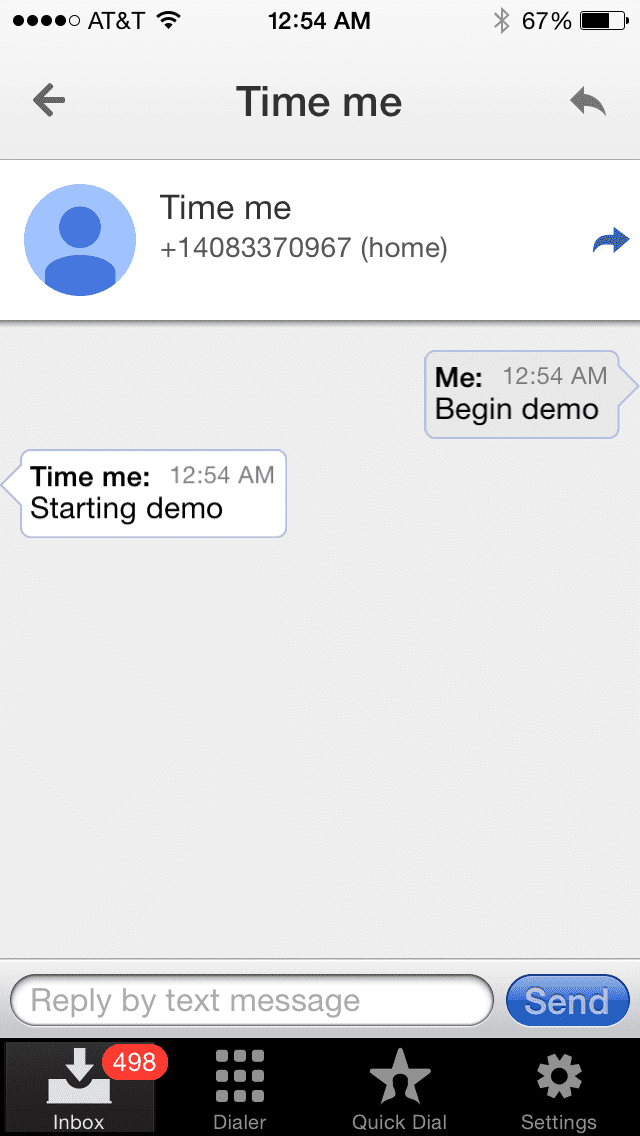
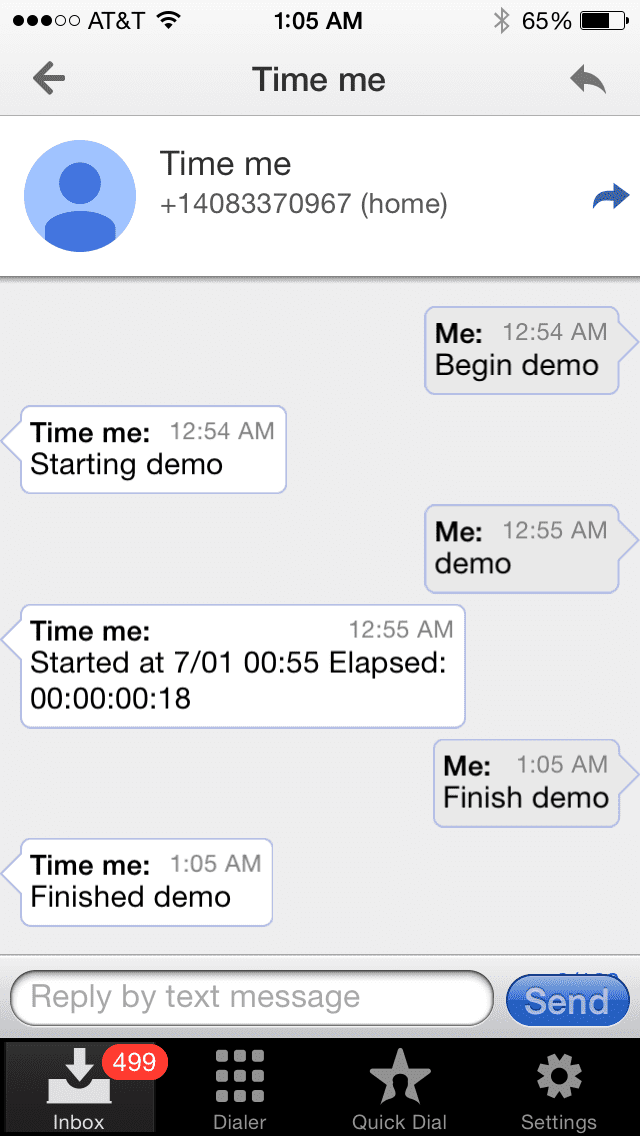
You can start using the app in one of two ways: either by accessing the web address of the Node.js app in the browser, or by sending a text message to the Nexmo phone number you were assigned. I’m going to start by sending a text message so there’s a timer that’s active in the system.

To add a task to start timing, text begin to your Nexmo phone number. The task name can be anything you want, and can be multiple words. It is an identifier for the particular timer.

Photo

Time me will respond back with a confirmation that the task timer has been created and started.

When a text message is received by Nexmo, Nexmo will send a JSON body containing the phone number and text message to the Node.js endpoint, /api/nexmo. Time Me determines the text message starts with the keyword begin and creates a timer named demo (the rest of the message) with a start time of now. Since sending a text message from a phone number isn’t easy to spoof, we can be reasonably assured that the sender is really who they are.

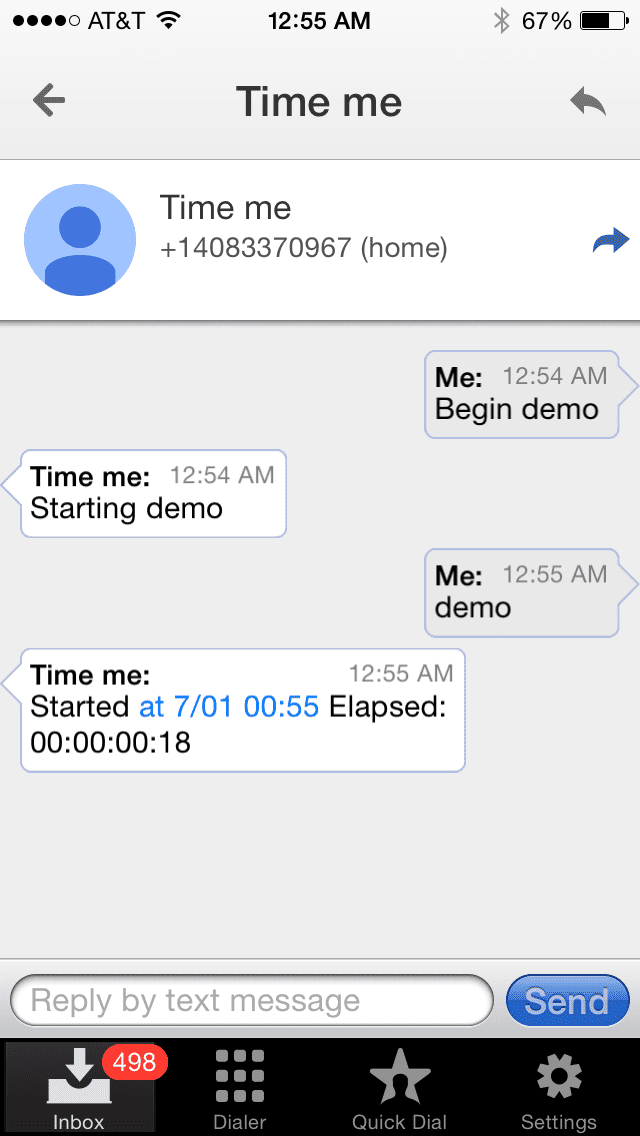
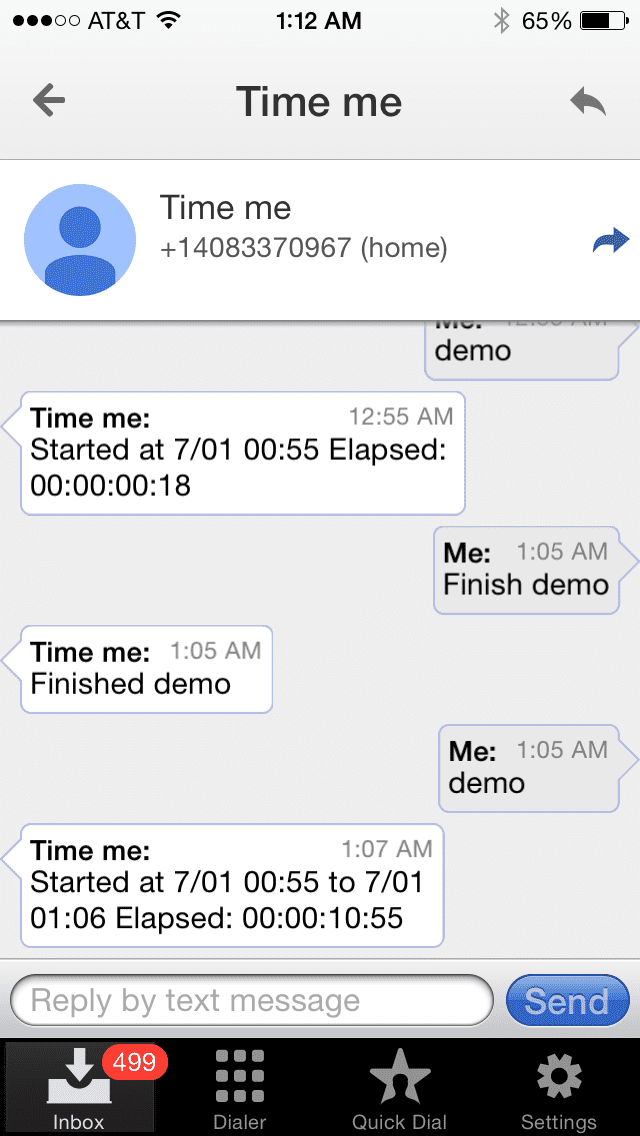
If we text just the name of the task to Time Me, we can see how long the timer has been running for.

Photo

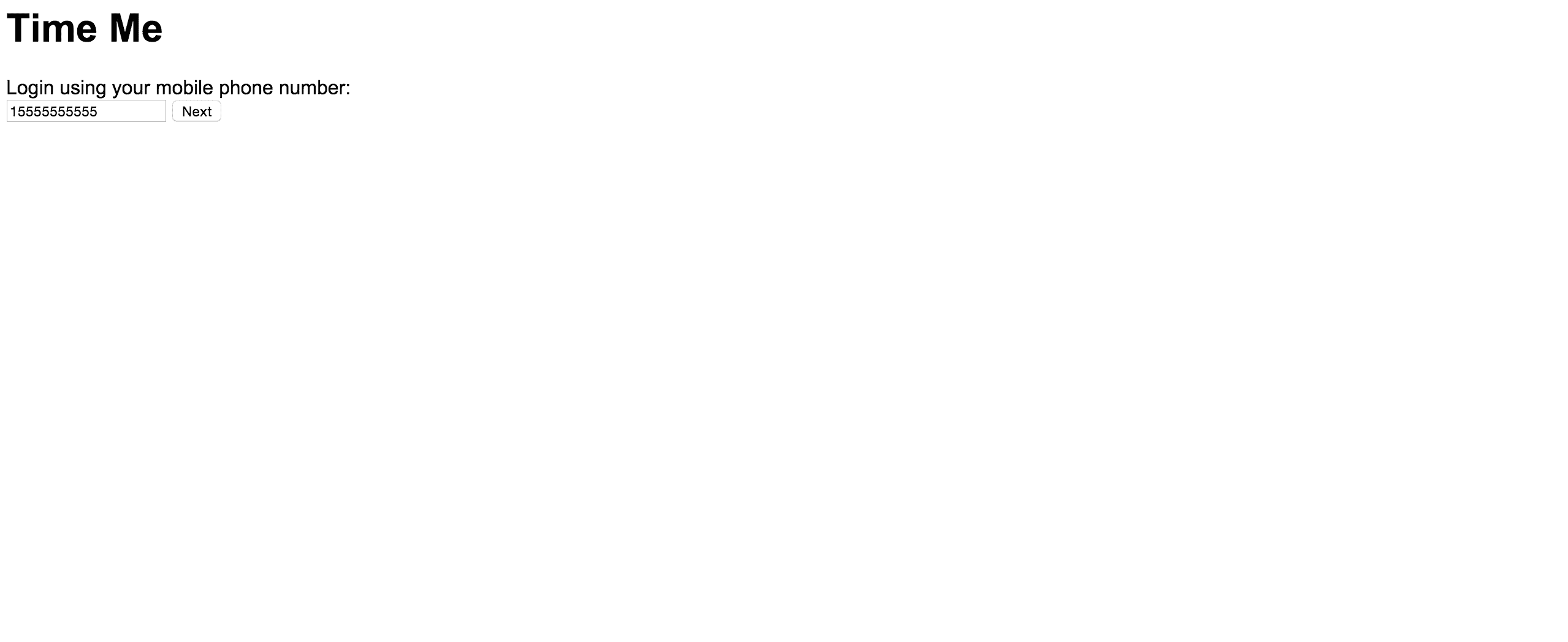
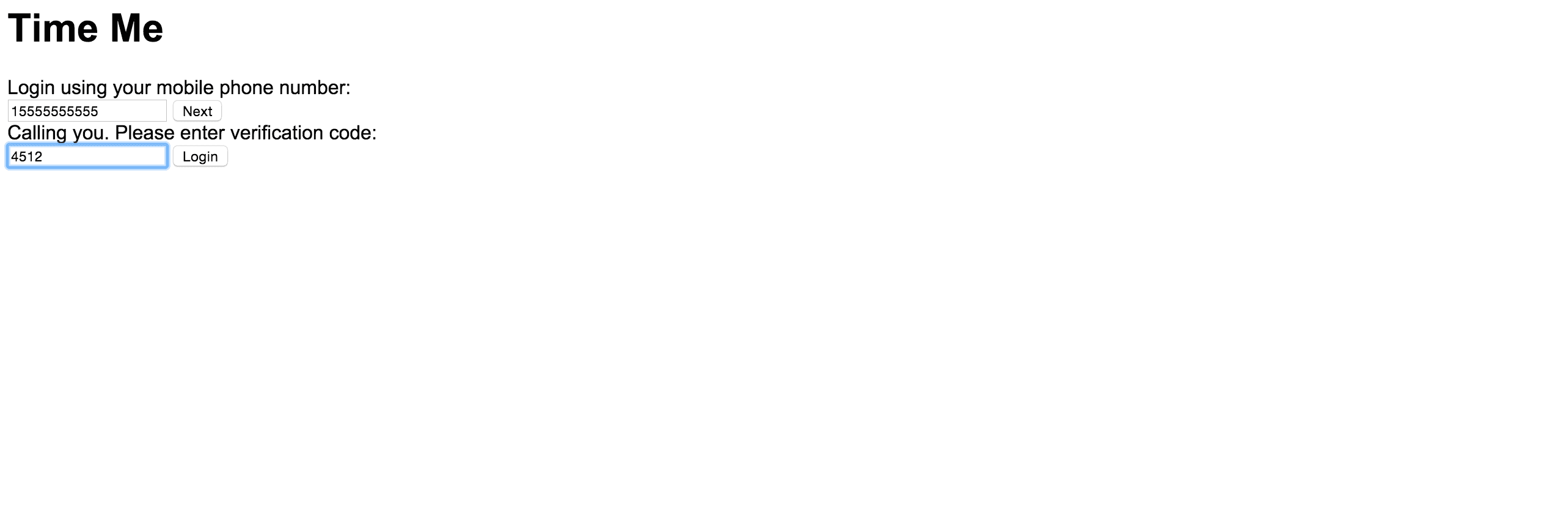
On the web version of the app, logging in with a phone number can be easily spoofed. I could easily say I’m the owner of 555-555-5534. So let’s use Nexmo’s Number Verify API to send the user a one-time use code to the phone number they provide. If they provide the correct four digit code, we can be reasonably assured they own this phone number.

Photo

When you click on Next, the AngularJS app submits the phone number to the Node.js app, which in turns contacts the Number Verify API and provides the phone number. Nexmo will return a request id that we need to save (in the session) for when we check the code later on. Nexmo will generate a four-digit code and make a call to the phone number, announce the four-digit code, and then end the call.

The user returns to the web app and enters the four-digit number. The AngularJS app submits the code, where the Node.js app combines it with the request id that was saved from the first API call to Nexmo and contacts Nexmo to check if it’s the right code. If correct, Nexmo will send us a successful response.

Photo

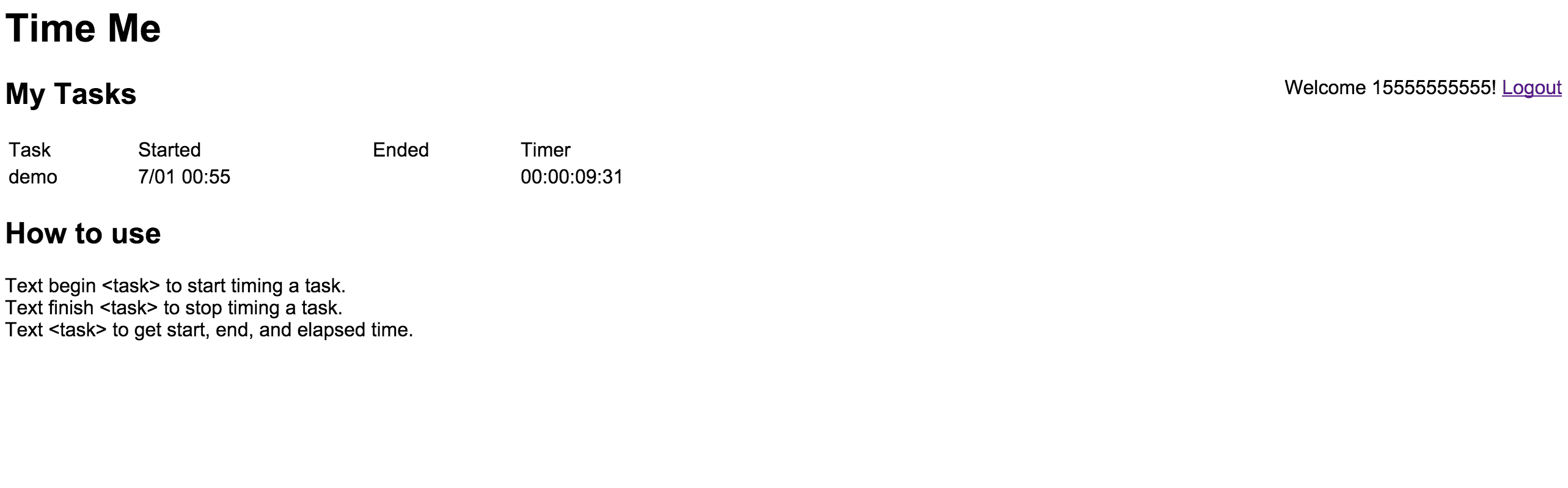
If successfully verified, Time Me will login the user. No need for passwords to login with. Time Me will look for any timers created by the phone number. When we texted Time Me earlier, it created an entry in the MongoDB. Querying for the phone number returns one result, which is sent back to the AngularJS app, which is then displayed as a task timer.

Photo

Great. Let’s send another text message, this time stopping the timer. To stop a timer, text finish where task name is an identifier for a task that was previously created. I have a task named demo, so I test finished demo to Time Me.

Photo

If we want the elapsed time of the task, we can again text the name of the task. This time, there’s an end time added to the message.

Photo

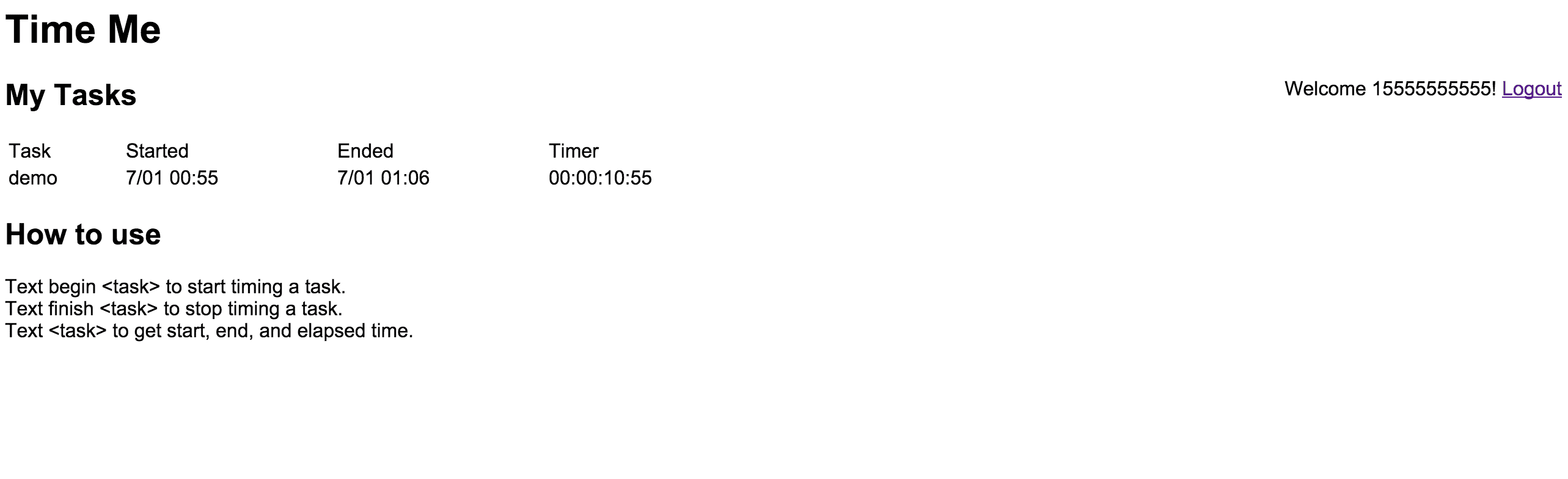
The web app offers the same information. Refresh the web app and we see the timer now has an end time and the elapsed time. The web interface is easier to use when you want to see the complete list of all timers created and their status.

Photo

You can create multiple timers that run concurrently. However, if you start another timer with the same task name, things might get complicated. By default, the oldest timer will be stopped first.

Another edge case would be where you start and end a timer with the same task name twice. If you text the task name to Time Me, you will only receive the last timer’s info.

That’s it for this project. There are a couple of things that could be done:

  • If only using the text message side of this app, you can lose access to a timer if you create another timer with the same task. If there are multiple timers with the same name, send a text message asking the user which timer's info they would like.
  • The web version doesn’t allow for a new timer to be created, or for active timers to be stopped. Add some buttons to make this happen.
  • The timer values for active timers in the web interface are static. Make them live.

Source Code

You can find the repo on GitHub.

Post-mortem

Apps that use text messaging have always been fascinating to me. Text messages are somewhat stateless. It was fun to create a flow where multiple text messages were required to proceed through a connected process.

This project also used the Nexmo Verify API. For the most part, I’ve seen these codes only used to verify that I own the phone number being texted or called, or to provide me a code as a second-factor authentication. To use it purely as the authentication method is something new for me. I took this approach because I usually keep control of my phone. So the code is pretty much like a one-time use password, replacing the need to actually have a password in this project.

15 Projects in 30 Days Challenge

This blog post is part of my 15 projects in 30 days challenge. I’m hacking together 15 projects with different APIs, services, and technologies that I’ve had little to no exposure to. If my code isn’t completely efficient or accurate, please understand it isn’t meant to be complete and bulletproof. When something is left out, I try to mention it. Reach out to me and kindly teach me if I go towards the dark side. ?

This challenge serves a couple of purposes. First, I’ve always enjoyed hacking new things together and using APIs. And I haven’t had the chance (more like a reason) to dive in head first with things like AngularJS, NodeJS, and Nexmo. This project demonstrated AngularJS, Node.js, and Nexmo.